
Backup and Restore is a smarter, more scalable way to manage your OvrC configurations for Araknis wired devices. Save your preferred settings, convert them into templates for future projects, and apply them to identical models in just a few clicks. Deliver faster, more consistent setups at scale, protect your configurations, and give your team peace of mind.
This feature supports Araknis Networks 220, 320, 420, and 620 switches (excluding the 920 series) as well as 220 and 520 routers.
This guide will help you:
Note: Update your switch firmware to 1.1.13.00 or later to access these features in OvrC.
Backups are created from a device’s Configuration page, which includes a new line item called “Backup and Restore”.
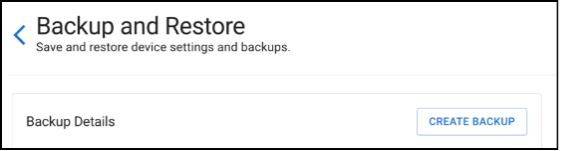
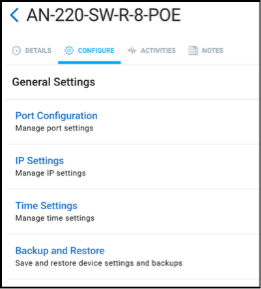
They’re created with a single button press and assigned an auto-generated name, which you can later change using the three-dot menu to the far right of the grid that displays the relevant backups.
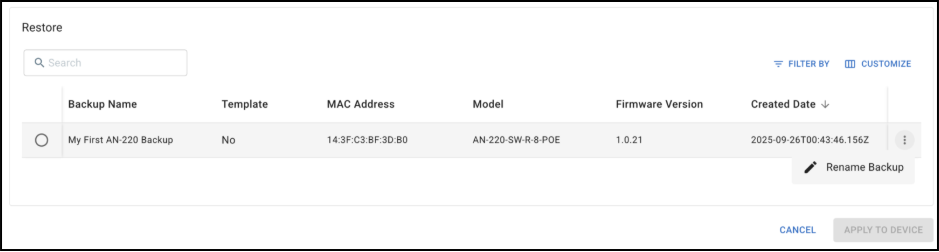
Note: All backups compatible with the relevant Araknis routers and switches will appear here, with the MAC address of the originating device listed (along with the name) to help distinguish them.
This is also where you’ll see any templates on your account that are compatible with this device, and where you can select a backup and designate it as a template.
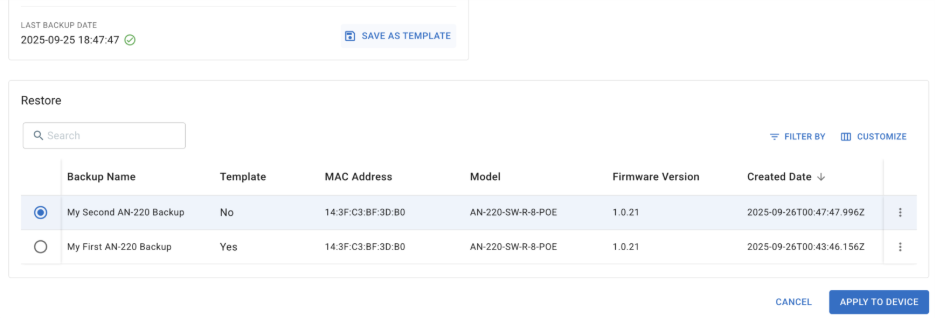
Once a backup or template is selected, you can choose “Apply to Device”. This will trigger a device reboot while the configuration file is applied.
You can restore (i.e., apply) a backup or template to an individual switch or router from that device’s Configuration → Backup and Restore page. This is a quick way to revert unwanted changes or apply a configuration from another similar Araknis wired device to a new one you’ve added to the location. If there are compatible backups at this location or compatible templates in your dealer account, you’ll see them and can apply them from the Configuration → Backup and Restore page.
For larger projects, take advantage of our Bulk Actions functionality. Navigate to Categories → Networking.
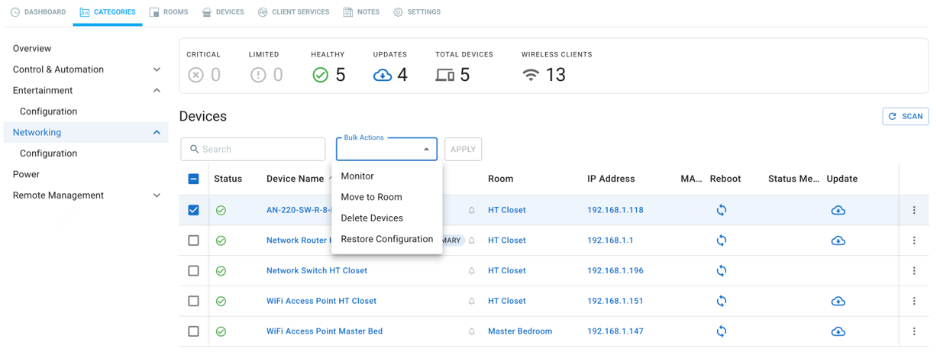
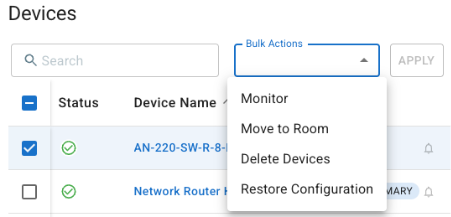
Once you select one or more devices in this list, a Bulk Actions dropdown will appear, allowing you to choose “Restore Configuration.”
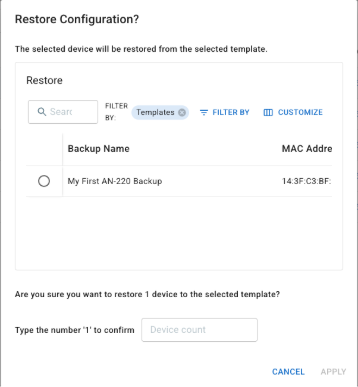
Selecting “Restore from Template” and clicking “Apply” opens a dialog where you can choose which backup or template to apply to the selected devices. Use the Filter By options and the nearby buttons labeled “Templates X” or “Backups X” to toggle between viewing backups, templates, or both.
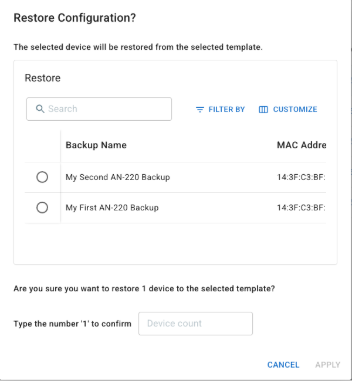
Selecting a file allows you to confirm and apply it. This sends the file to the switch or router and triggers a reboot to apply the new configuration.
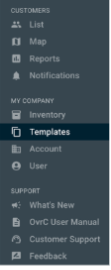
Finally, there’s a new Templates icon on the left side of the OvrC screen, located in the MY COMPANY section. This is where you can view all the templates saved in your dealer account, sortable by model, searchable, and more.
Currently, you are limited to five templates per device model, so we recommend using them for your most common “base configurations,” which you can then customize for each new site.
If you want to reuse a backup from one location at another, simply go to Location A, convert the backup into a template, apply it at Location B, and then unmark it as a template when you’re done.
There are privacy rules governing access to templates and backups when customer accounts are shared between dealers:
Watch the Smart Skill Video Below