
Big things are underway here at OvrC. Thanks to your great feedback, we have made this release all about improving the usability, experience, and look and feel of OvrC. We have frequently heard that as you add more locations on OvrC, you need better ways to manage them. We hope this release will do just that.
When you have a lot of clients on OvrC, a list view gets unwieldy to manage. We want to introduce you to our newest feature: the Global Dashboard view. This view provides you a way to see all of your clients in one screen.
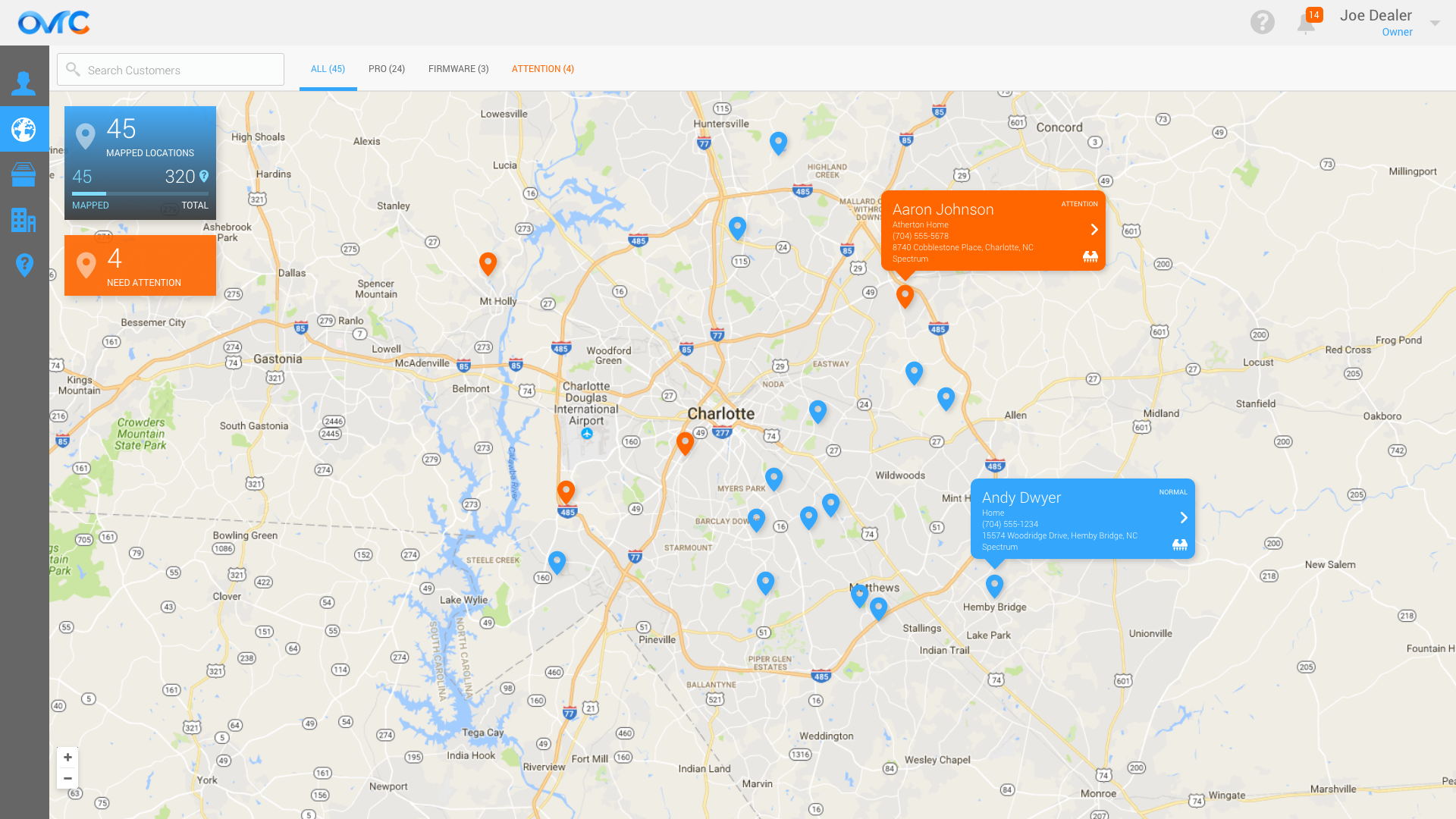
Once you enter the address and ISP of your client locations, you can easily see your clients on a map, complete with status information about each location. Click on any location to jump straight into the system for fast troubleshooting. You can also filter the locations by those that need attention, those that have firmware updates available, or those that are PRO locations. The map view also allows you to see trends in geographical regions to allow you to pinpoint possible ISP or power outages.
The global dashboard is now available to all users on the desktop version of OvrC. We will introduce a version for the mobile apps in the future. To get started, click on the “Unverified Addresses” button on the left menu bar and enter addresses for your clients.
While receiving notifications is a critical component of providing world-class support to your clients, too many notifications can be overwhelming. In this release, we’re giving you more options to better manage notifications and to allow you to react more quickly to potential issues in an intelligent way.
To reduce the volume of notifications, this feature will group multiple events that occur within a 5-minute window at a location and send you one notification. This is especially helpful for critical events such as an ISP or power outage, where multiple devices may fall offline. Batched notifications also allow you to see the potential criticality of an event by providing an easy way to view all issues in one alert.
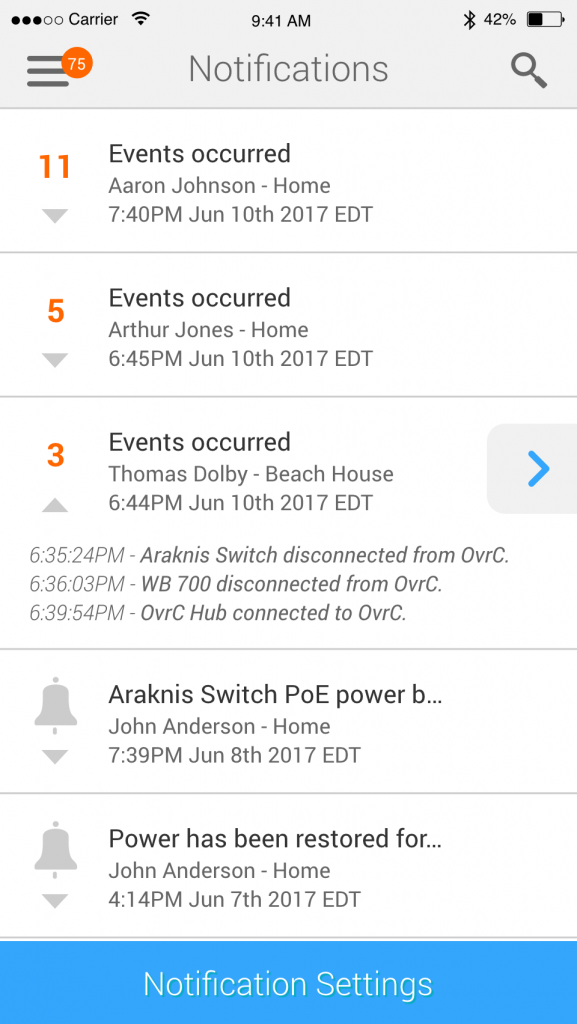
While viewing your notification, jump straight into the impacted location with just a click of a button so that you can efficiently troubleshoot a system issue. Expand any notification to access the button (see tab above beside the notification).
We have also heard your feedback about configuring notifications. There are times when you want to disable notifications for a client or at a certain location. Perhaps a tech is onsite for maintenance or you’ve organized your service techs to support different groups of clients. To give you more ways to manage notifications, you can now toggle notifications on or off at a client or location level.
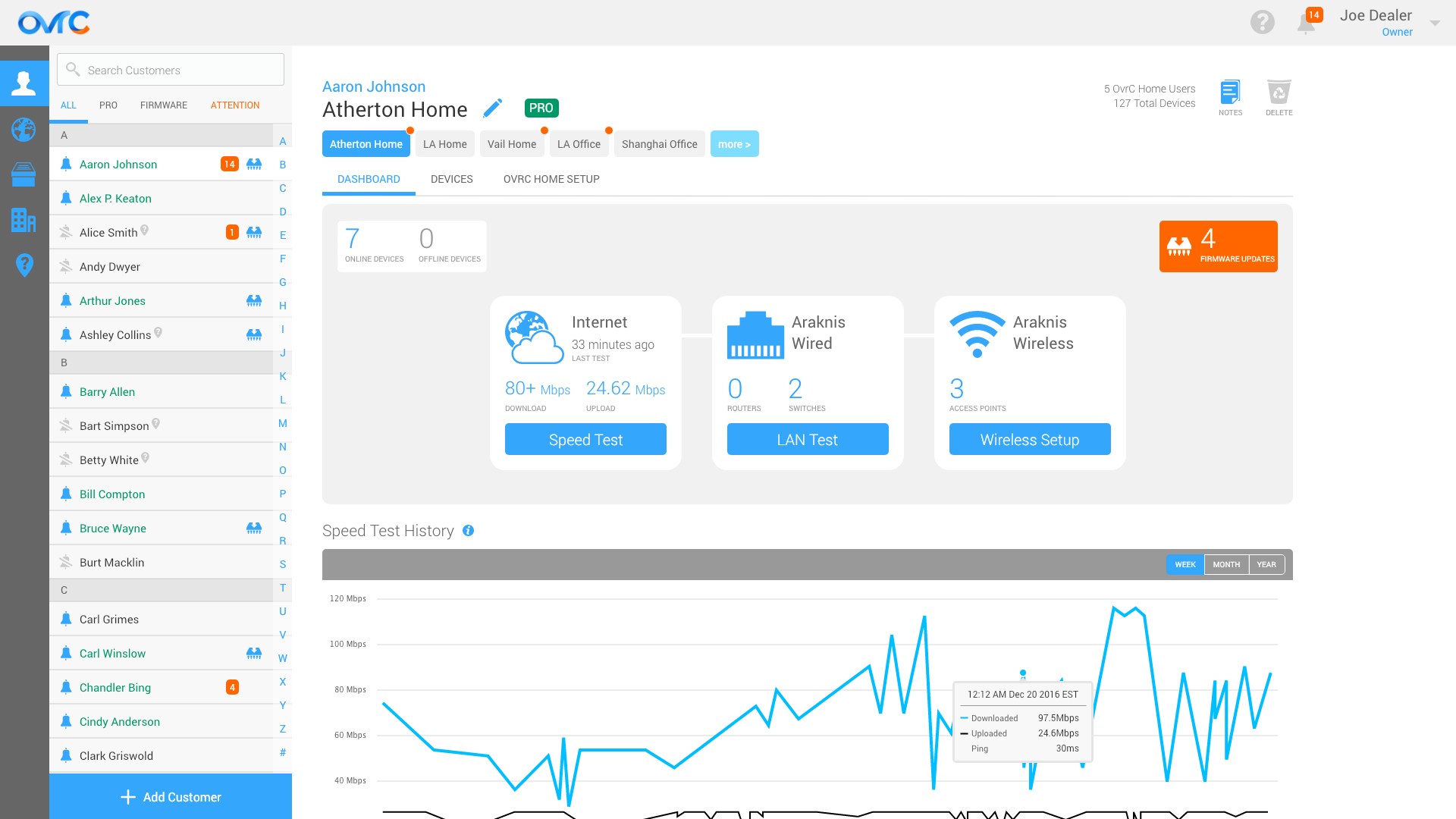
To use, click on the bell button next to the client name to toggle notifications.
Special note: this feature is an individual user preference and does not impact the notification setting for other users on the same OvrC account. You may wish to turn off notifications, but your service techs will still receive important alerts.

In addition to all the new features, we made some significant improvements to the navigation and design of OvrC desktop for improved usability. You’ll see changes to the Customer List, main navigation pane, as well as an expanded canvas to better utilize more real estate on larger screens.
As always, we can’t do this without you. Please let us know how you feel about these changes, and we look forward to your feedback and dialogue!