
Prioritize the Right Customers with Personalized Customer Health Views
Managing a large customer base can make it challenging to quickly identify which issues need attention. When every customer appears in one long list, critical problems can get buried—especially for service teams supporting different territories, customer groups, or responsibilities.
That’s why View by Customer Health helps technicians quickly prioritize the customers they support and focus on the issues that need attention most.
A Smarter Way to Organize Lists
When View by Customer Health is selected, customers are automatically grouped based on whether monitoring is enabled and then prioritized by health status:
This puts actively monitored customers with urgent issues at the top of the list, while customers that aren’t being monitored move lower in priority.
The result is a cleaner, more actionable view that helps technicians spend less time searching for issues and more time resolving them.

Personalized for Every User
A key benefit of Customer Health views is that they’re user specific.
Each OvrC user can choose which customers they actively support, and every technician gets a customer list tailored to their responsibilities and priorities.
While user-specific monitoring has always been available, Customer Health prioritization makes that personalization even more useful by bringing the most relevant customers and issues to the forefront.
Built for Real-World Service Teams
Consider a service team where one technician is responsible for one group of customers while another manages a completely different set. Each technician can enable monitoring for the customers they support, ensuring their list highlights the accounts that matter most to them.
The same approach works for teams supporting multiple locations. For example, a technician based in Tampa may not need customers in Fort Myers prioritized in their list. By enabling monitoring for the customers they manage, they can keep their view focused on their own service responsibilities.
The result? Less distraction, faster issue identification, and a more efficient way to manage customers across the business.
Set Up OvrC to Work for You
Try the Feature in OvrC https://app.ovrc.com/#/login
Getting started is simple:
1. Enable or disable monitoring
Click the Bell notification icon on a customer, location, or device list to see whether monitoring is enabled or disabled.

2. Select a Customer Health view
From the customer, location, or device list, select Customer Health, Location Health, or Device Health from the View By menu icon.
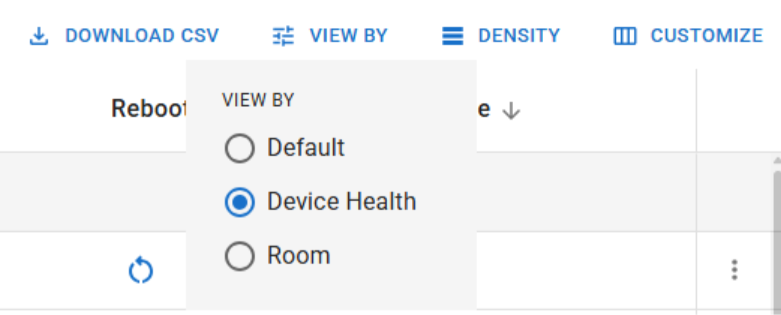
3. Prioritize by health
Your list will immediately be organized in this order: Critical, Limited, Healthy, and Unmonitored.
4. Explore other View By options
The View By menu includes additional sorting and prioritization options to help you customize your workflow. Depending on the list you’re viewing, you can sort by options such as Customer Health, Pro Locations, Firmware Update, and more.
Try different views to find the configuration that works best for your team.

Benefits You'll Notice Right Away
Focus on Actionable Work
Customer Health prioritization helps put the most important issues where technicians can see them first. By combining health status with user-specific monitoring preferences, OvrC helps service teams work more efficiently, respond faster to critical conditions, and stay focused on the customers they support.
With Customer Health views, your most important customers and issues are always at the top of the list.