
Prioritize the Right Customers with Personalized Customer Health Views
Managing a large customer base can make it challenging to quickly identify which issues need attention. When every customer appears in one long list, critical problems can get buried—especially for service teams supporting different territories, customer groups, or responsibilities.
That’s why View by Customer Health helps technicians quickly prioritize the customers they support and focus on the issues that need attention most.
A Smarter Way to Organize Lists
When View by Customer Health is selected, customers are automatically grouped based on whether monitoring is enabled and then prioritized by health status:
This puts actively monitored customers with urgent issues at the top of the list, while customers that aren’t being monitored move lower in priority.
The result is a cleaner, more actionable view that helps technicians spend less time searching for issues and more time resolving them.

Personalized for Every User
A key benefit of Customer Health views is that they’re user specific.
Each OvrC user can choose which customers they actively support, and every technician gets a customer list tailored to their responsibilities and priorities.
While user-specific monitoring has always been available, Customer Health prioritization makes that personalization even more useful by bringing the most relevant customers and issues to the forefront.
Built for Real-World Service Teams
Consider a service team where one technician is responsible for one group of customers while another manages a completely different set. Each technician can enable monitoring for the customers they support, ensuring their list highlights the accounts that matter most to them.
The same approach works for teams supporting multiple locations. For example, a technician based in Tampa may not need customers in Fort Myers prioritized in their list. By enabling monitoring for the customers they manage, they can keep their view focused on their own service responsibilities.
The result? Less distraction, faster issue identification, and a more efficient way to manage customers across the business.
Set Up OvrC to Work for You
Try the Feature in OvrC https://app.ovrc.com/#/login
Getting started is simple:
1. Enable or disable monitoring
Click the Bell notification icon on a customer, location, or device list to see whether monitoring is enabled or disabled.

2. Select a Customer Health view
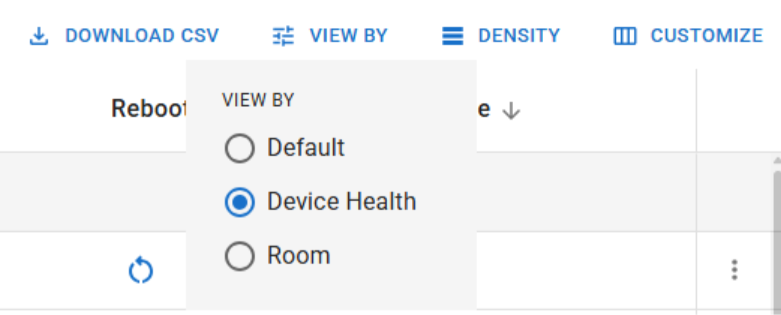
From the customer, location, or device list, select Customer Health, Location Health, or Device Health from the View By menu icon.
3. Prioritize by health
Your list will immediately be organized in this order: Critical, Limited, Healthy, and Unmonitored.
4. Explore other View By options
The View By menu includes additional sorting and prioritization options to help you customize your workflow. Depending on the list you’re viewing, you can sort by options such as Customer Health, Pro Locations, Firmware Update, and more.
Try different views to find the configuration that works best for your team.

Benefits You'll Notice Right Away
Focus on Actionable Work
Customer Health prioritization helps put the most important issues where technicians can see them first. By combining health status with user-specific monitoring preferences, OvrC helps service teams work more efficiently, respond faster to critical conditions, and stay focused on the customers they support.
With Customer Health views, your most important customers and issues are always at the top of the list.
OvrC is our easy-to-use cloud-based management platform allowing you anywhere, anytime access to your customers' systems. OvrC includes tools for diagnosing and resolving problems, and network-wide insights. Use OvrC to minimize downtime for your customers and solve more issues without a service call.
Release Roundup
Our recent OvrC updates have focused on improving visibility, reducing manual effort, and supporting your growth and scalability. Check out some of the latest releases below.
News & Resources
OvrC Accolade
OvrC was recognized as a leader and trusted technology in remote management by CE Pro where 75% of respondents used OvrC. That’s more than 5x the next-closest tool!
OvrC Webinar: Remotely Manage Every Network Device with One Platform
Watch or share with your team the recording of this engaging webinar that highlights how to remotely manage more devices using a single platform—without recurring fees.
Did You Know?
Our Tech Community has an expansive catalog of OvrC educational materials, including articles, videos, and documentation. We recommend new integrators explore this page for additional training resources, while seasoned OvrC users can explore the latest updates.
Sign into OvrC to experience the new features.
Single Device Transfer
OvrC Enhancement: Auto-Claim and Device Reclaim Controls
OvrC just got even more flexible and secure with enhanced Auto-Claim Controls and a new Device Reclaim workflow. These features give integrators greater control over which devices are assigned to locations, streamline device management, and eliminate the need for support tickets or site takeovers when reclaiming hardware.
Overview
With the latest update, integrators can:
This means devices can be assigned or reassigned quickly and accurately, reducing errors and saving time.
Auto-Claim Controls
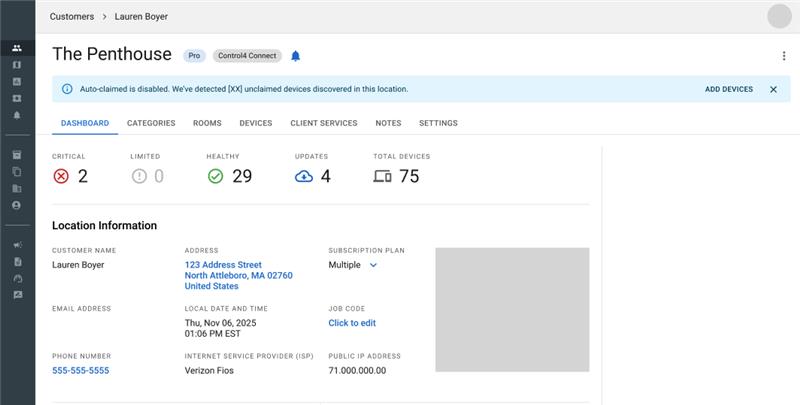
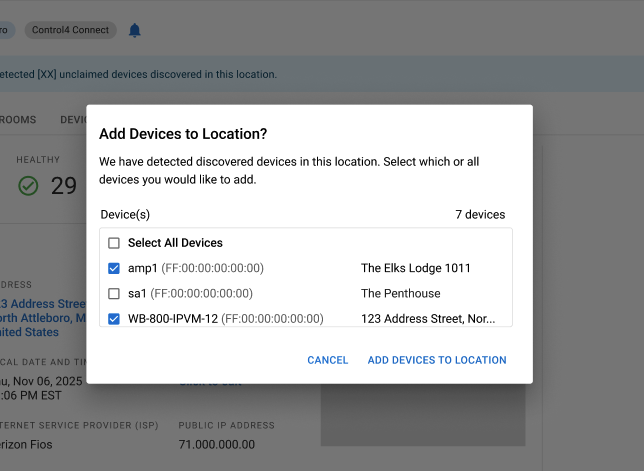
Auto-Claim automatically recognizes devices on the network and securely adds them to a location when an OvrC Pro agent is installed using validated identifiers. Now, Auto-Claim can be enabled or disabled per location. When Auto-Claim is off, OvrC Pro will still detect devices on the network, but won't claim them automatically. Instead, a banner appears in the location showing unclaimed devices with an option for integrators to manually review and claim one or more devices.
Why It Matters
Where to Find Auto-Claim
Auto-Claim settings are accessible in two places:
1. Add/Edit Location
2. Remote Management
Note: Auto-Claim is ON by default.
Device Reclaim
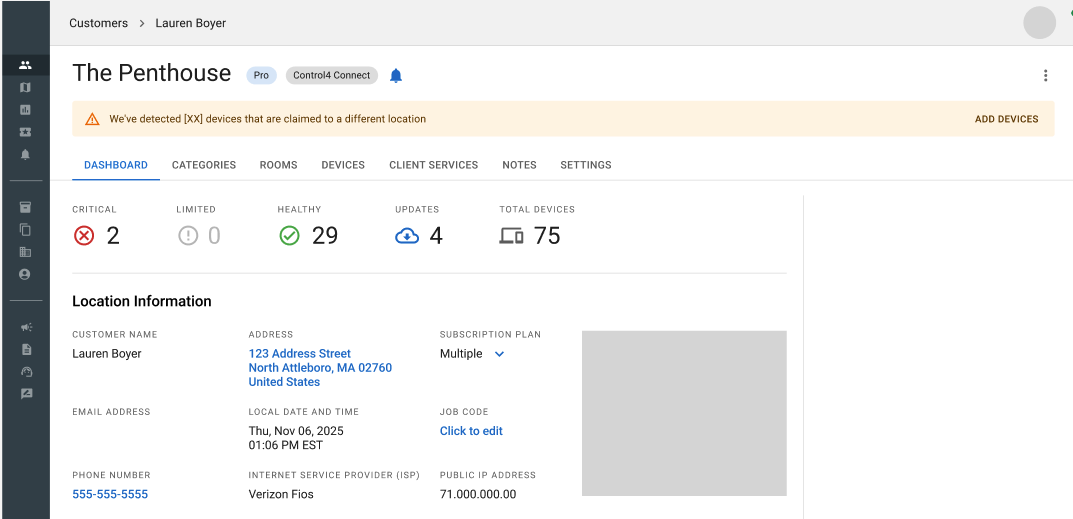
Device Reclaim makes it simple to reassign any individual device to the correct customer or location in seconds, no impact to the rest of the network and no support ticket required. When OvrC detects a device on your network that’s already claimed elsewhere, a banner appears, allowing integrators to reclaim it to the current location. You can reclaim one, many, or all applicable devices in a single step.
Note: Device Reclaim does not copy the device name, notes, or activity logs from the previous location.
Why It Matters
Want to Learn More? Visi the OvrC Manual for step-by-step guides on using Auto-Claim and Device Reclaim features.
With Device Connection Relationships, OvrC now empowers integrators with a comprehensive and intuitive way to visualize and manage device connections throughout their power and network setup. This enhancement brings significant improvements to troubleshooting, device management, and sets the stage for even smarter automation in the future.
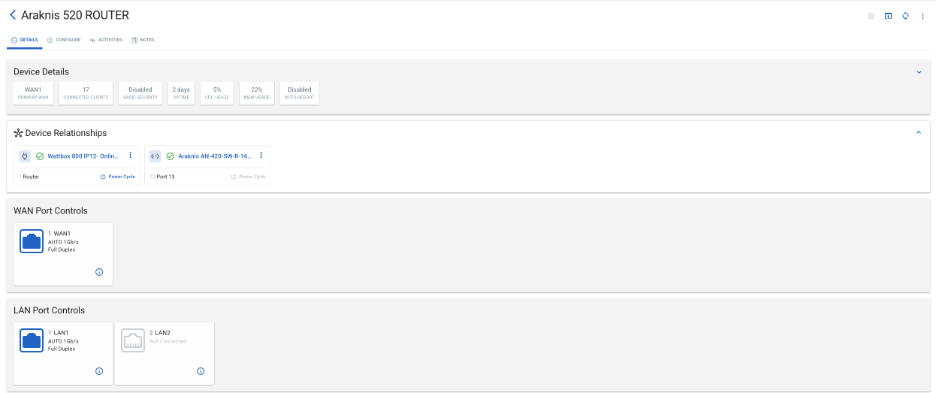
What Are Device Connection Relationships?
Device Connection Relationships allows integrators to map both power and network connections for supported Araknis, WattBox, and Pakedge devices. By defining which outlet or switch port a device is connected to, integrators can:
This results in accurate connection mapping, streamlined workflows, and lays the foundation for additional capabilities moving forward.
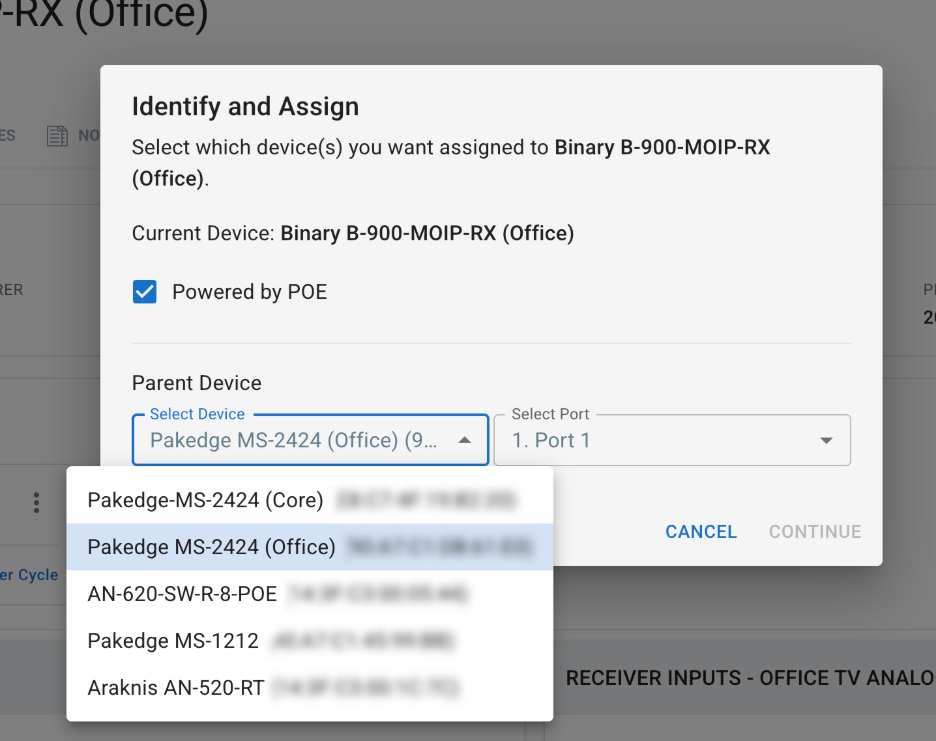
How It Works
OvrC tracks and displays two types of connections for each device:
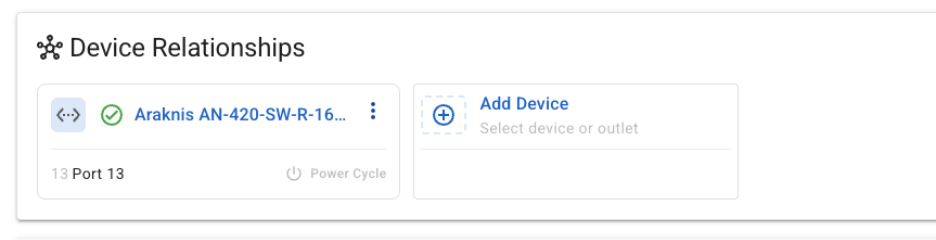
On new Araknis X20 switches, these relationships are automatically mapped using traffic analysis and MAC address tracking; no manual setup required. For legacy switches (like Araknis X10 and Pakedge MS) or others), integrators can manually define these relationships for full visibility.
Once mapped, these relationships appear directly on the device’s page, making troubleshooting and control actions fast and intuitive.
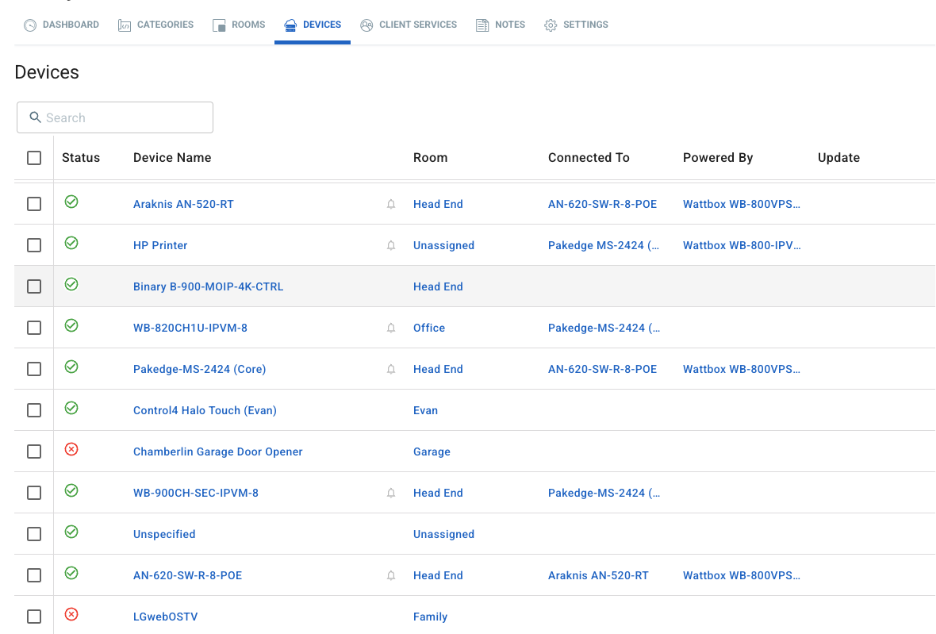
Why This Matters
Ready to get started? Learn how to configure Device Connection Relationships and discover how automatic mapping works in the OvrC Manual.
Managing third-party devices with OvrC Pro is now more straightforward and secure, thanks to our latest update. With these enhancements, OvrC Pro supports SNMP v3 and streamlines the configurations of SNMP v1 and V2 communities. Here’s what you need to know about these updates and how they benefit your business:
What is SNMP?
SNMP (Simple Network Management Protocol) is a standard protocol used to monitor and manage devices on a network; think routers, switches, wireless access points, printers, and more. By configuring SNMP, OvrC Pro can gather richer data from your devices, making troubleshooting more accurate and providing a clearer picture of your entire network.
For those less familiar with networking, it helps to know that OvrC has always supported SNMP v1 and v2. However, setting them up was tricky, and the data sent over the network wasn’t encrypted. That’s where SNMP v3 comes in: it introduces encryption and lets you use unique usernames and passwords for each device, making your network more secure.
Key Enhancements
SNMP v3 Support
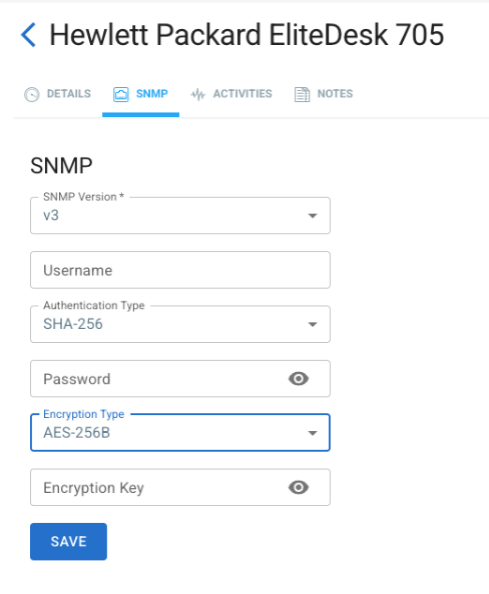
Configurable Credentials for SNMP v1 and v2
Additional Agent Improvements
Supported Brands
OvrC Pro offers powerful integration with SNMP-enabled devices from your favorite brands available at ADI:
Why These Enhancements Matter
Ready to Get Started?
The new OvrC Wi-Fi QR Code Agent for Control4 lets users share guest Wi-Fi instantly. Scan the code on a Control4 Touchscreen or in the Control4 App to connect; no manual password entry required.
The QR code updates automatically when network credentials change, keeping access simple, secure, and fully automated.
Available now for OvrC-managed Araknis and Access Networks Unleashed Access Points, this feature adds convenience, privacy, and a modern touch to any Control4 project.
Key Features
To take advantage of this enhancement, ensure your projects are updated to the latest Control4 X4 version. This is just the start of more ways we’re growing the Control4 + networking ecosystem to bring added value and a more unified experience to every install.
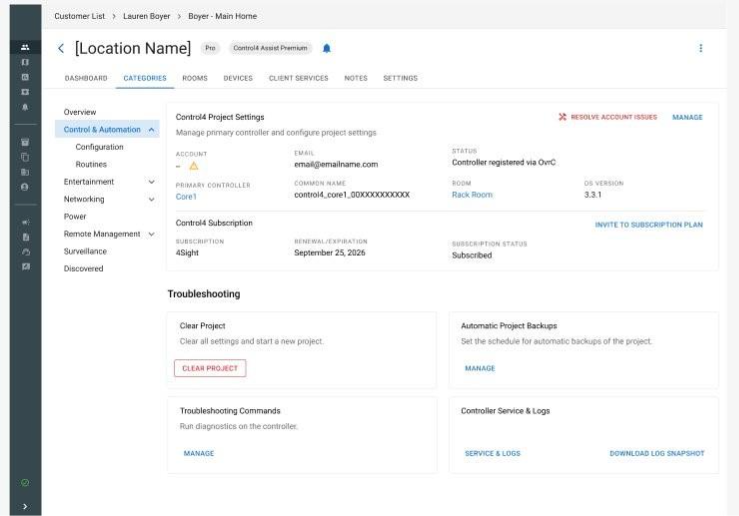
The new Self-Serve Mapping Tools in OvrC offer greater clarity and control over how Control4 accounts and projects map to OvrC locations. The tools, available in both the Account Management Dashboard and the Control & Automation category, allow you to identify and correct mapping issues on your own, using built-in guidance.
Problem
Mapping mismatches create obstacles with Dealer of Record changes, remote access and troubleshooting and OS upgrades, often requiring Support intervention to resolve.
Solution
The new Self-Serve Mapping Tools gives dealers visibility and self-serve tools to identify and fix mapping issues directly in OvrC, eliminating delays and reliance on Support for fixes.
Benefits
• Accurate mapping is essential to ensure systems are fully prepared for the upcoming X4 upgrades with optional Connect subscription in 2026.
• As Control4 and OvrC data experiences converge and rely on accurate mapping, this tool helps dealers future-proof their projects and avoid disruption when upgrading systems.
• Ultimately, this improvement can reduce friction in the service process, saving time and improving customer satisfaction.
Where to Find the Self-Serve Mapping Tools
Find the Self-Serve Mapping Tools on the Control4 Account Management tab within the Account page in OvrC. This tab replaces the former Showroom & Demo Systems tab.
The Control4 Account Management tab now includes additional functionality, allowing dealers to view the mapping status of all Control4 customer accounts. If a mapping issue is detected, select Resolve to access the guided tools to fix the mapping directly in OvrC.
Note: The OvrC Account Owner can continue to view and manage Showroom & Demo Systems from within the Control4 Account Management tab.
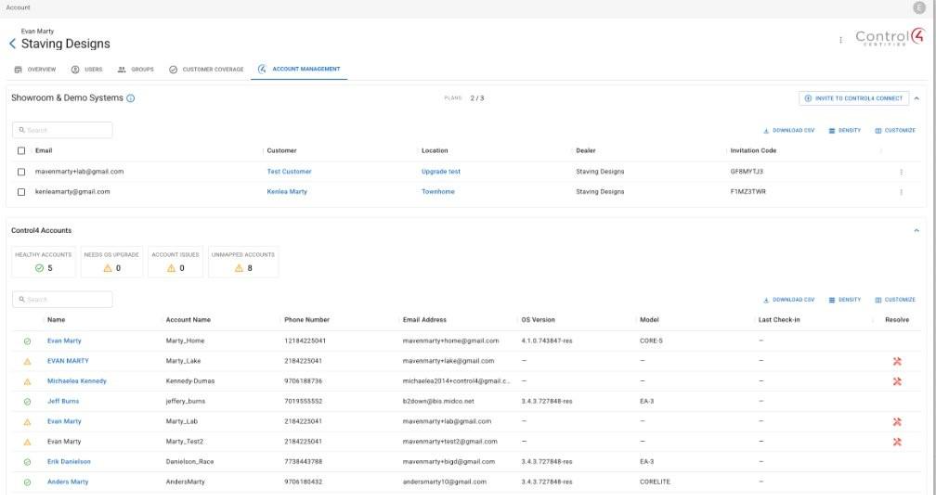
Dealers can also resolve mapping issues at the individual location level from the Control & Automation tab within a specific OvrC location.
For more information, search “Troubleshooting Control4 Connect registration issues” in Tech Community.
Visit Your OvrC Account Dashboard
Log in to OvrC today to use the Control4 Self-Serve Mapping Tools.
Backup and Restore is a smarter, more scalable way to manage your OvrC configurations for Araknis wired devices. Save your preferred settings, convert them into templates for future projects, and apply them to identical models in just a few clicks. Deliver faster, more consistent setups at scale, protect your configurations, and give your team peace of mind.
This feature supports Araknis Networks 220, 320, 420, and 620 switches (excluding the 920 series) as well as 220 and 520 routers.
This guide will help you:
Note: Update your switch firmware to 1.1.13.00 or later to access these features in OvrC.
Backups are created from a device’s Configuration page, which includes a new line item called “Backup and Restore”.
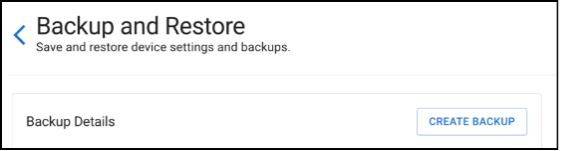
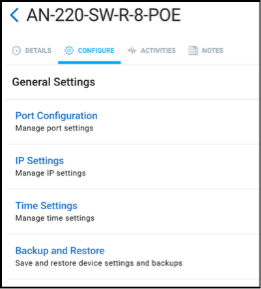
They’re created with a single button press and assigned an auto-generated name, which you can later change using the three-dot menu to the far right of the grid that displays the relevant backups.
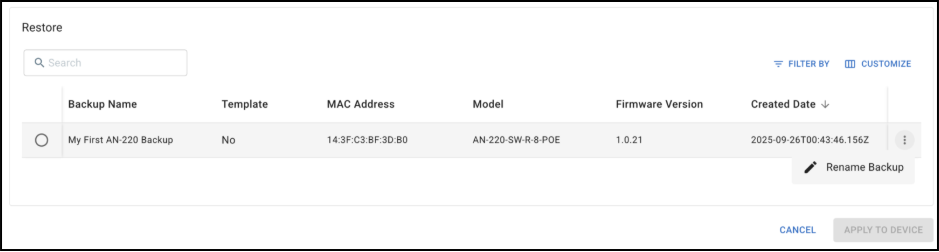
Note: All backups compatible with the relevant Araknis routers and switches will appear here, with the MAC address of the originating device listed (along with the name) to help distinguish them.
This is also where you’ll see any templates on your account that are compatible with this device, and where you can select a backup and designate it as a template.
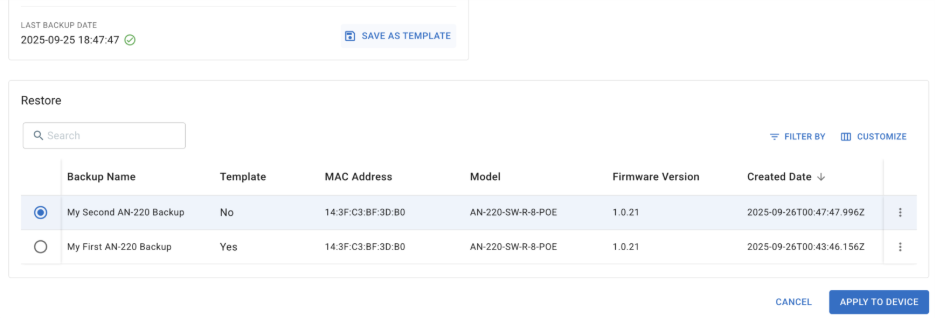
Once a backup or template is selected, you can choose “Apply to Device”. This will trigger a device reboot while the configuration file is applied.
You can restore (i.e., apply) a backup or template to an individual switch or router from that device’s Configuration → Backup and Restore page. This is a quick way to revert unwanted changes or apply a configuration from another similar Araknis wired device to a new one you’ve added to the location. If there are compatible backups at this location or compatible templates in your dealer account, you’ll see them and can apply them from the Configuration → Backup and Restore page.
For larger projects, take advantage of our Bulk Actions functionality. Navigate to Categories → Networking.
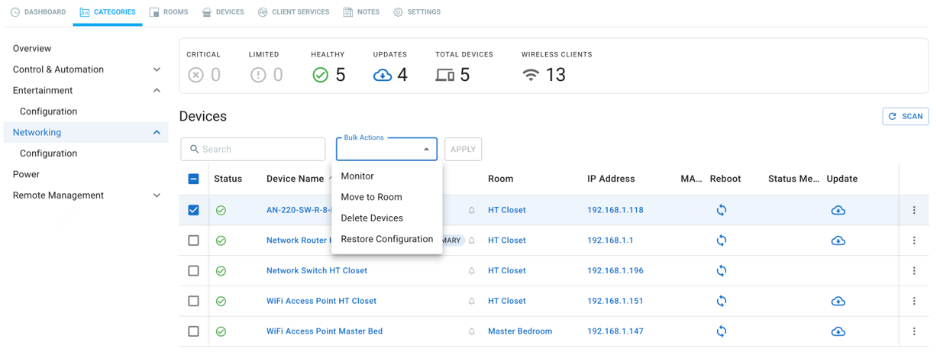
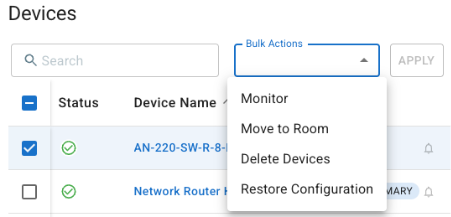
Once you select one or more devices in this list, a Bulk Actions dropdown will appear, allowing you to choose “Restore Configuration.”
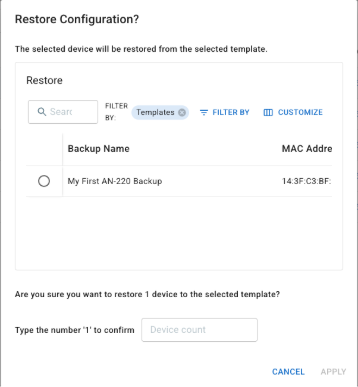
Selecting “Restore from Template” and clicking “Apply” opens a dialog where you can choose which backup or template to apply to the selected devices. Use the Filter By options and the nearby buttons labeled “Templates X” or “Backups X” to toggle between viewing backups, templates, or both.
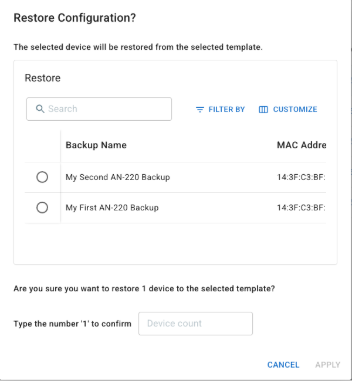
Selecting a file allows you to confirm and apply it. This sends the file to the switch or router and triggers a reboot to apply the new configuration.
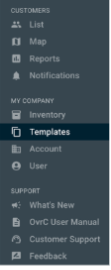
Finally, there’s a new Templates icon on the left side of the OvrC screen, located in the MY COMPANY section. This is where you can view all the templates saved in your dealer account, sortable by model, searchable, and more.
Currently, you are limited to five templates per device model, so we recommend using them for your most common “base configurations,” which you can then customize for each new site.
If you want to reuse a backup from one location at another, simply go to Location A, convert the backup into a template, apply it at Location B, and then unmark it as a template when you’re done.
There are privacy rules governing access to templates and backups when customer accounts are shared between dealers:
Watch the Smart Skill Video Below
Dealers told us that OvrC Pro and OvrC Home are extremely beneficial in reducing service calls and truck rolls. We want EVERY dealer to benefit from this, so we are making some major changes to remove all obstacles for dealers to adopt and use it on every job. In addition, we introduced the capability for dealers to brand OvrC Home app with their own logos and added more product integrations to OvrC Pro.
That’s right, OvrC Home has been de-coupled from OvrC Pro, and is now free with all SnapAV connected products. That means that any OvrC-enabled product will include OvrC Home out-of-the-box for dealers to offer customers.
If you have an existing OvrC location, you can now set up and deploy OvrC Home remotely, so customers can fix common problems on their own.
OvrC Pro previously featured a 2-year license, but now includes a lifetime license. All units previously sold have automatically been converted, and all units moving forward will feature the lifetime license – with no price increase!
If you’re a SnapAV Partner Rewards dealer at the Silver level or above, you now get the OvrC Pro software for free. This means you can install OvrC Pro in any job for just the cost of the hardware!
You asked and we delivered. You can now upload your company logo and brand OvrC Home as your own. When you give OvrC Home to your clients, it will proudly display your logo in all the places within the app.

This standard camera protocol allows you to view information such as stream URLs, camera snapshot, user lists, and firmware versions on compliant hardware. This is very useful for set up of the camera, positioning, tech support for firmware upgrades, and even determining stream URLs for integration with Crestron, RTI, URC and other control systems.
Sonos: Highly detailed troubleshooting information is automatically populated when found on the network. This includes device description data like the model, version, room name, and more advanced info like port stats, topology, controller states, radio logs, etc. Along with all the data presented you can reboot the Sonos from the Hub’s Local UI whether remote or local.
Nuvo: Integration of this music streamer includes viewing the version, zone name, and all the now playing data. You can reboot the unit if a problem is detected and connect remotely.
Binary: Allows access via Hub Local UI even though there is no direct OvrC integration. Using the Hub you can now turn the system on/off and even factory default it. View the firmware version and see which input is switched to a particular output. Again, very helpful for verifying control system integration.
Episode: Enhanced integration with SnapAV amps, even the current input/out routing status and names. Helpful for troubleshooting and verifying the amp has switched properly when accessed from a control system. Also returns basic info such as firmware version, power mode, and temperature.
Enhanced ZigBee data on Control4 now includes information such as battery life. Added ZWave device support to Control4 so you can troubleshoot and view those details like native ZigBee.
View full status and configuration of the WattBoxes on the network, automatically. View their cloud status, voltages, power, and even outlet states.
Want to learn more about these changes and features? Join Eric Harper, James Zabel, and Chris Allen for a short 30 minute webinar at 4:30PM EST, Wednesday 4/26/17 OR 10:30AM EST on Thursday 4/27/17.
We kept ourselves warm this winter by cooking up some fantastic new features for the OvrC platform.
Have multiple devices that need updating? OvrC will now queue up your firmware updates and launch each update serially. This will prevent devices from finishing updates and rebooting before dependent devices have finished. You can kick updates off, and let OvrC take care of the rest!
Big things are underway here at OvrC. Thanks to your great feedback, we have made this release all about improving the usability, experience, and look and feel of OvrC. We have frequently heard that as you add more locations on OvrC, you need better ways to manage them. We hope this release will do just that.
When you have a lot of clients on OvrC, a list view gets unwieldy to manage. We want to introduce you to our newest feature: the Global Dashboard view. This view provides you a way to see all of your clients in one screen.
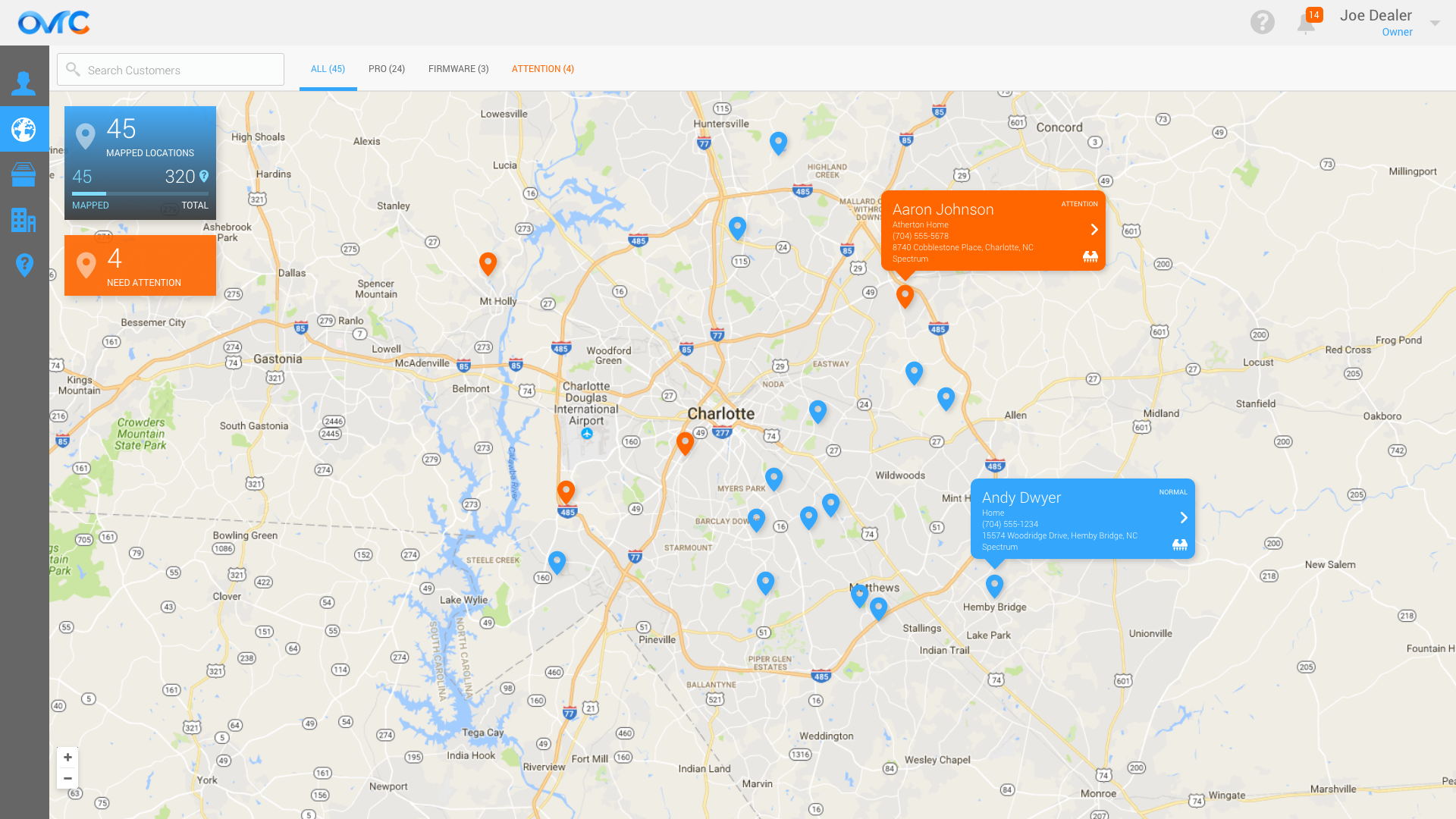
Once you enter the address and ISP of your client locations, you can easily see your clients on a map, complete with status information about each location. Click on any location to jump straight into the system for fast troubleshooting. You can also filter the locations by those that need attention, those that have firmware updates available, or those that are PRO locations. The map view also allows you to see trends in geographical regions to allow you to pinpoint possible ISP or power outages.
The global dashboard is now available to all users on the desktop version of OvrC. We will introduce a version for the mobile apps in the future. To get started, click on the “Unverified Addresses” button on the left menu bar and enter addresses for your clients.
While receiving notifications is a critical component of providing world-class support to your clients, too many notifications can be overwhelming. In this release, we’re giving you more options to better manage notifications and to allow you to react more quickly to potential issues in an intelligent way.
To reduce the volume of notifications, this feature will group multiple events that occur within a 5-minute window at a location and send you one notification. This is especially helpful for critical events such as an ISP or power outage, where multiple devices may fall offline. Batched notifications also allow you to see the potential criticality of an event by providing an easy way to view all issues in one alert.
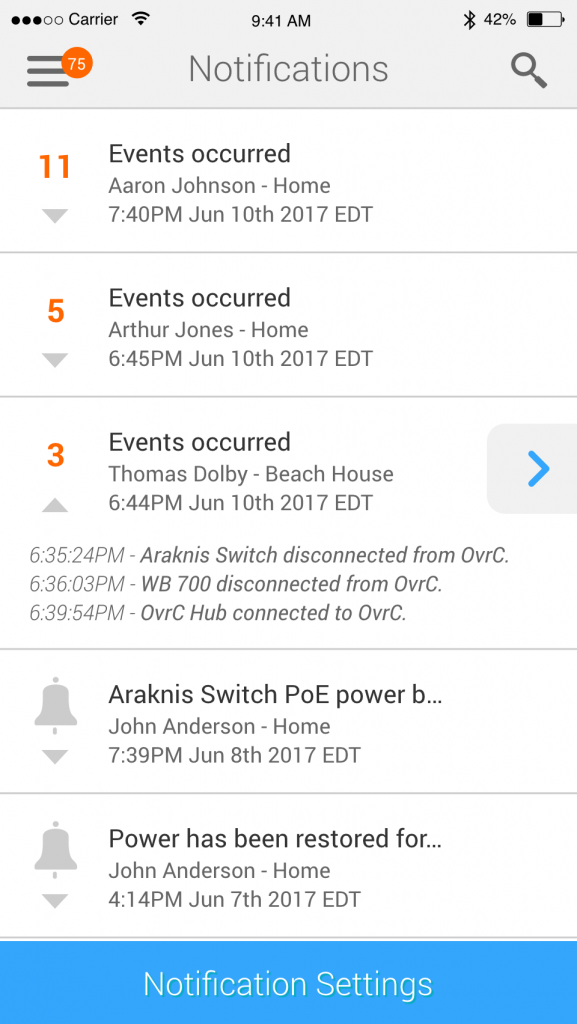
While viewing your notification, jump straight into the impacted location with just a click of a button so that you can efficiently troubleshoot a system issue. Expand any notification to access the button (see tab above beside the notification).
We have also heard your feedback about configuring notifications. There are times when you want to disable notifications for a client or at a certain location. Perhaps a tech is onsite for maintenance or you’ve organized your service techs to support different groups of clients. To give you more ways to manage notifications, you can now toggle notifications on or off at a client or location level.
To use, click on the bell button next to the client name to toggle notifications.
Special note: this feature is an individual user preference and does not impact the notification setting for other users on the same OvrC account. You may wish to turn off notifications, but your service techs will still receive important alerts.

In addition to all the new features, we made some significant improvements to the navigation and design of OvrC desktop for improved usability. You’ll see changes to the Customer List, main navigation pane, as well as an expanded canvas to better utilize more real estate on larger screens.
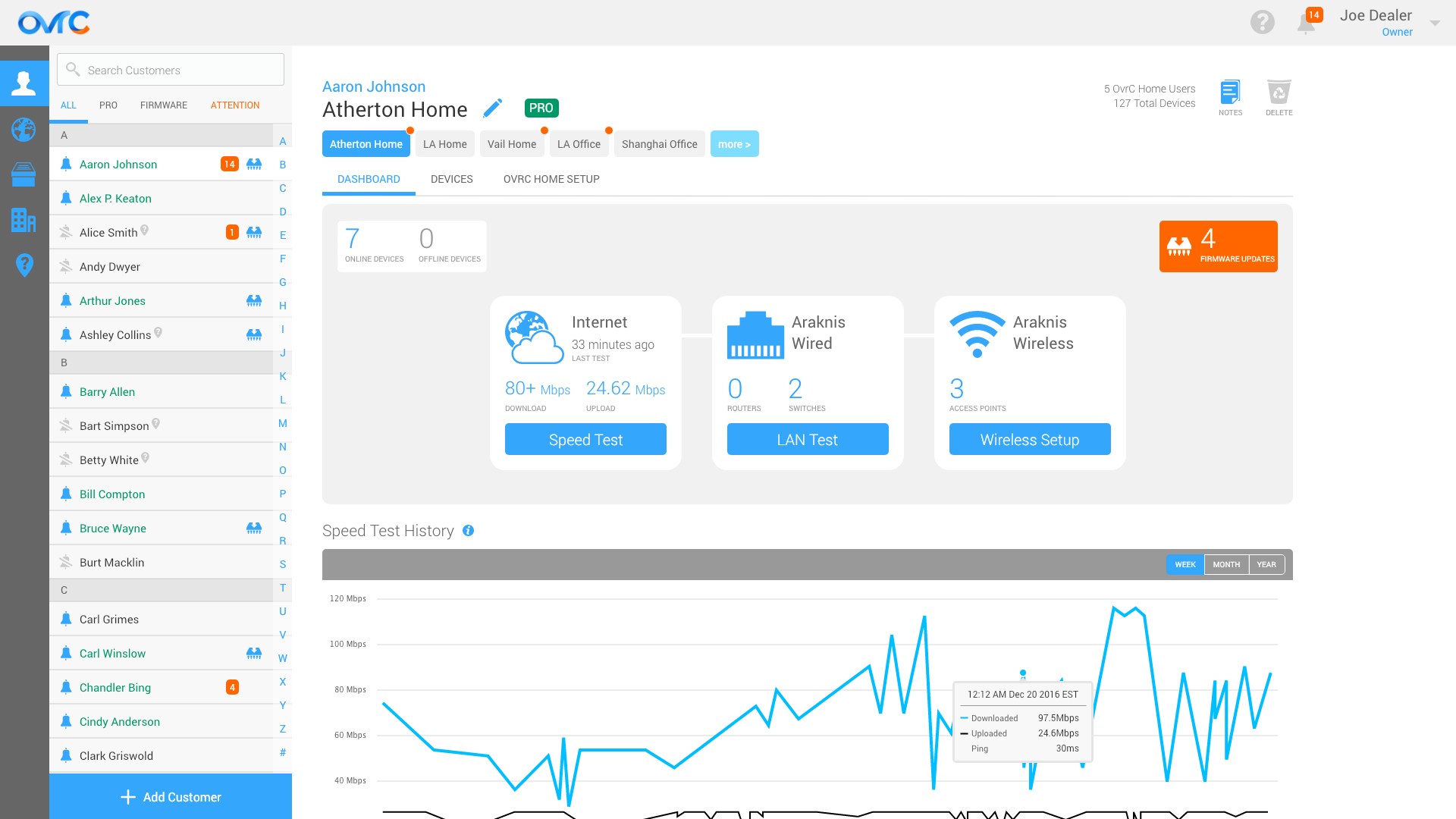
As always, we can’t do this without you. Please let us know how you feel about these changes, and we look forward to your feedback and dialogue!
Celebrating a year since the launch of OvrC Pro, this major update on 9/12/17 provides dealers with enhanced product integrations and advanced ways to access devices. In addition, we are launching a BETA program for Parental Controls capabilities via OvrC Home. Learn how to sign up.
Over the past year, we have continually added new product integrations and features to OvrC Pro, but most of that was only accessible in the local UI of the Hub. With this update, almost all capabilities will be natively accessible to dealers in OvrC desktop and mobile.
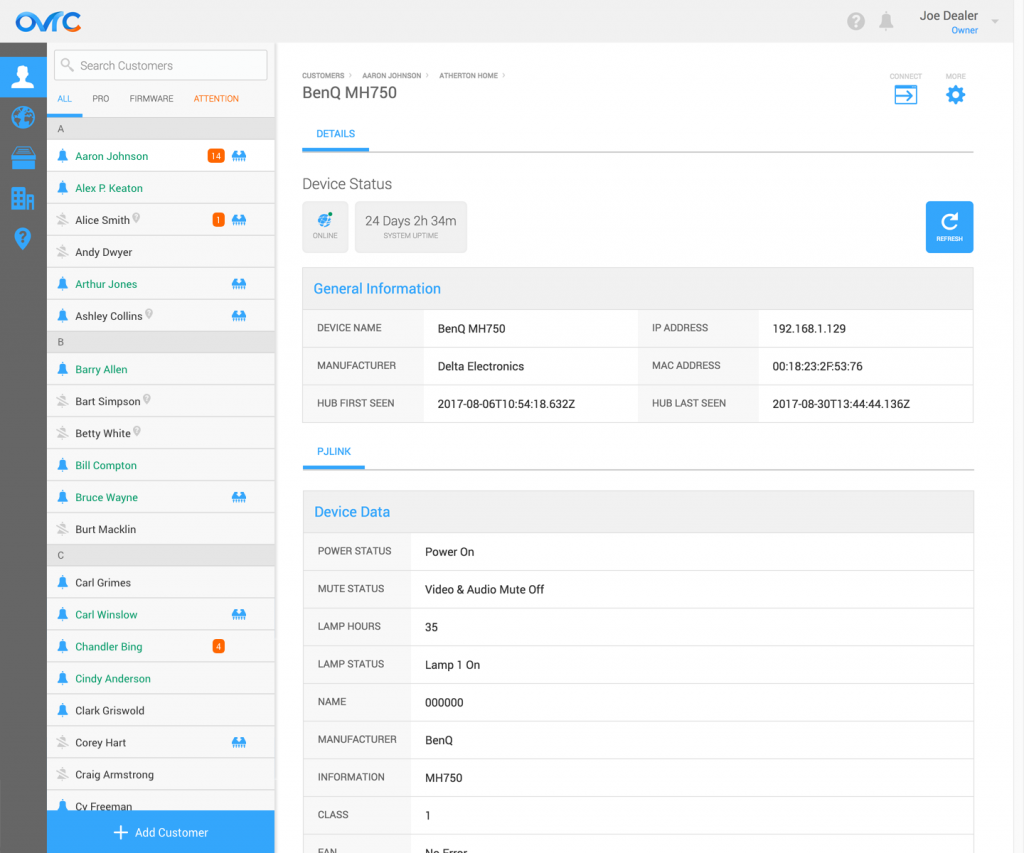
Non-SnapAV products now have their own device detail pages, like that of SnapAV products. All products include Device Status and General Information, but if they have more advanced integrations, the device icon will have a green dot next to the icon on the Device List and the additional info will show up as various tabs under the General Information table.
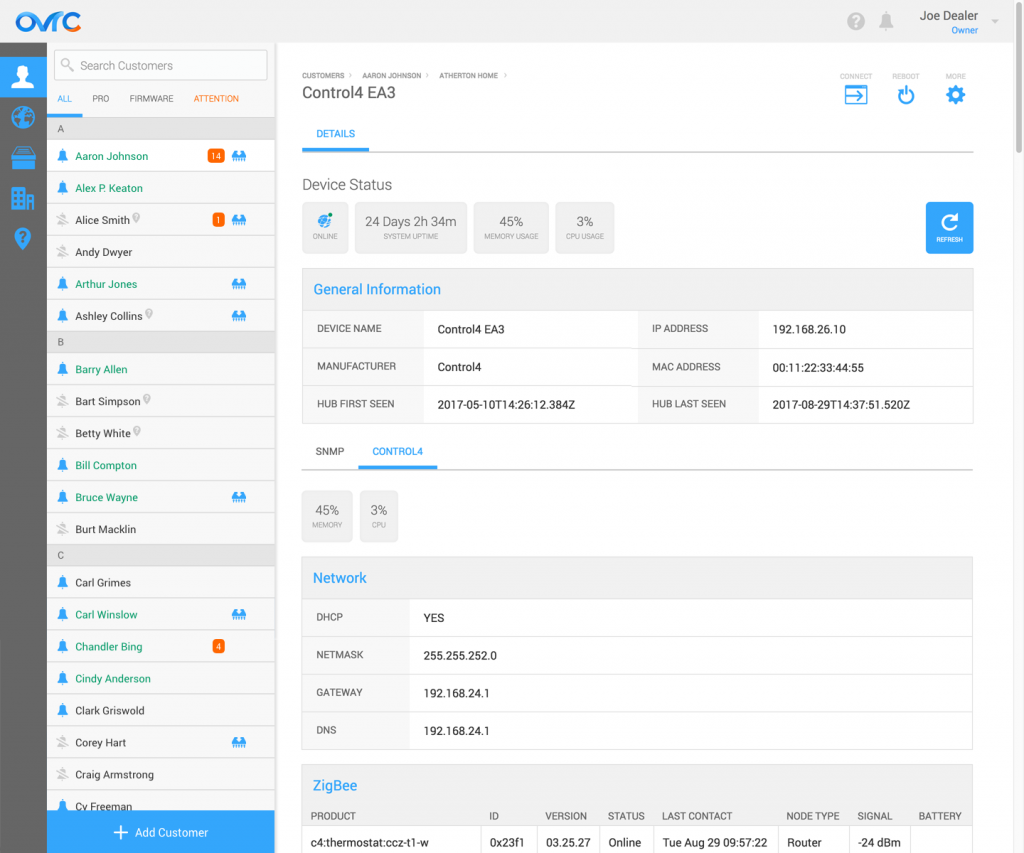
For some devices, software reboot capabilities are available from the device list or from within the device details page.
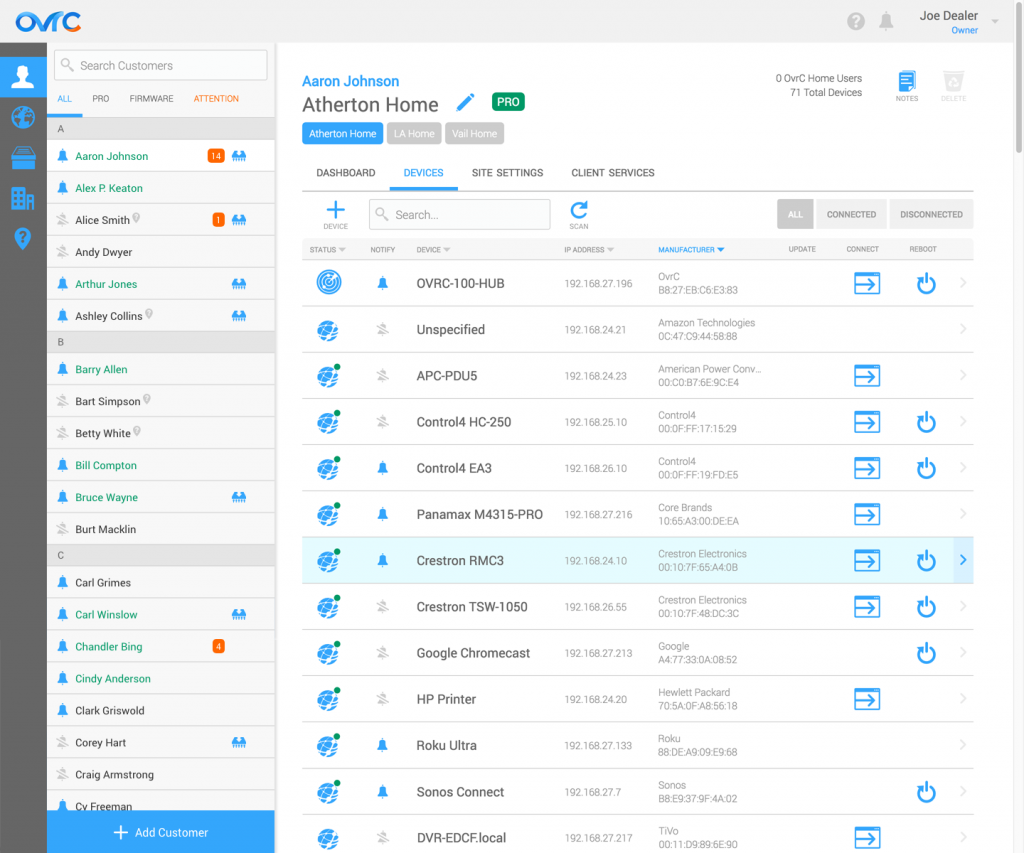
We’ve integrated additional products in this release, including Panamax BlueBOLT, Lutron RA2 and HomeWorks QS, Atlona, Google Chromecast and Google Home. For Panamax BlueBOLT products, the dealer can reboot and turn outlets on/off through OvrC.
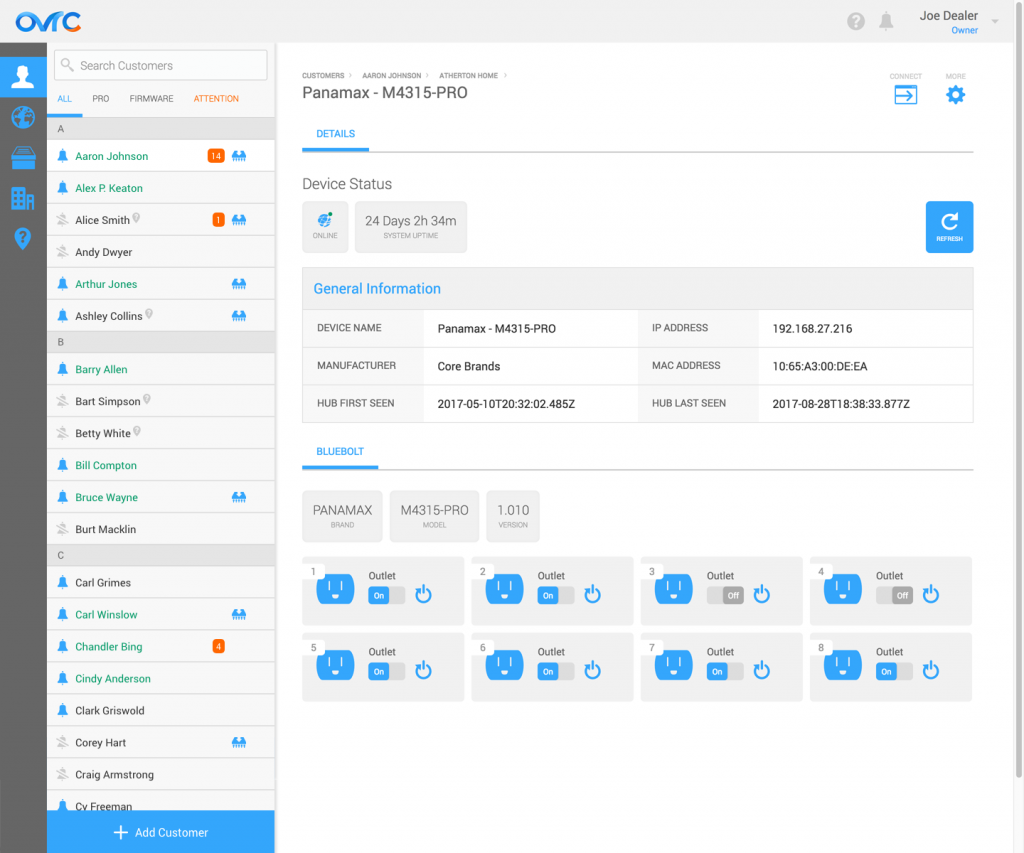
To see the full list of all the integrated products and its details, visit the Product Integration section of the OvrC Pro product page.
Previously, we added SNMP and ONVIF standard protocols to the Hub to report back networking and surveillance information from the standard-compliant products. With this release, we’ve added PJLink protocol, a standard projector protocol that pulls in status information about inputs, volume, errors, and the lamp.
With this update, you can access more than just the local UI of a device. You can also access a device’s command line interface using SSH or Telnet from OvrC, if applicable.
In addition, we enable you to establish a secure connection between a device and any third-party software running on your remote computer with a secure URL. Examples include remotely accessing a Crestron device via Crestron Toolbox and an onsite computer via a remote desktop application.
In this release, we are launching a limited BETA for Parental Controls capabilities within OvrC Home. This includes the ability to filter content at a location, provide basic levels of cybersecurity, and allow clients to manage Wi-Fi usage for their children, either manually or on a schedule.
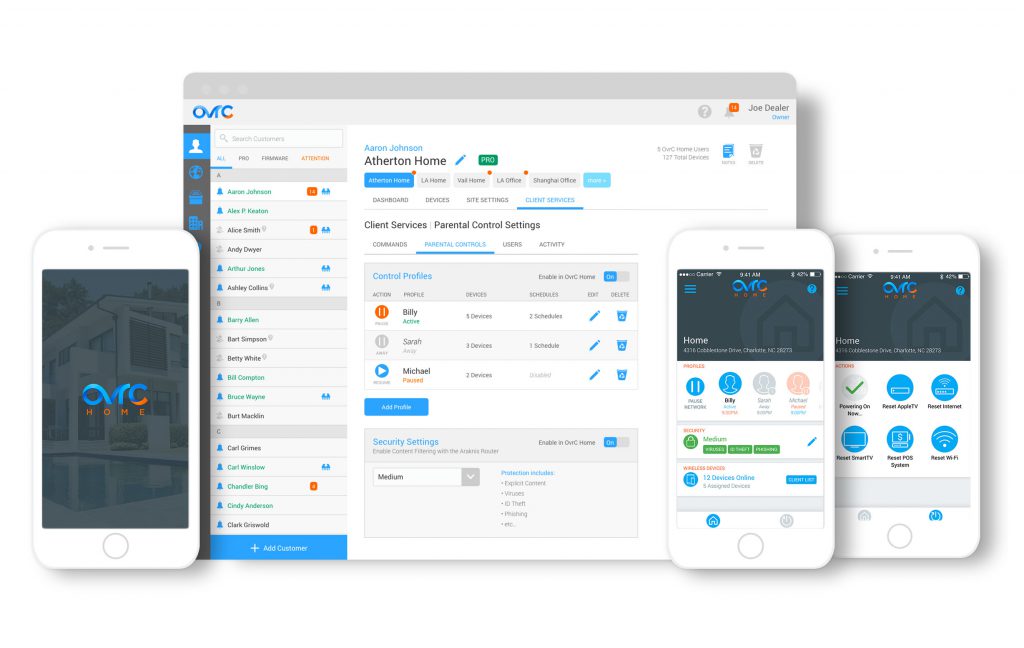
In this release, dealers could take snapshots from Luma IP cameras in OvrC and get access to number of significant enhancements to OvrC Pro, including the ability to control PoE outlets on non-SnapAV switches, and reboot projectors that use the standard PJLink protocol.
With a new firmware update for the Luma IP cameras, dealers could now take a snapshot from OvrC mobile or desktop with a click of a button. This provides integrators a quick method to check the field of view during installation or check on a camera’s view during a support call. No need to open any ports or leave your OvrC dashboard during troubleshooting.
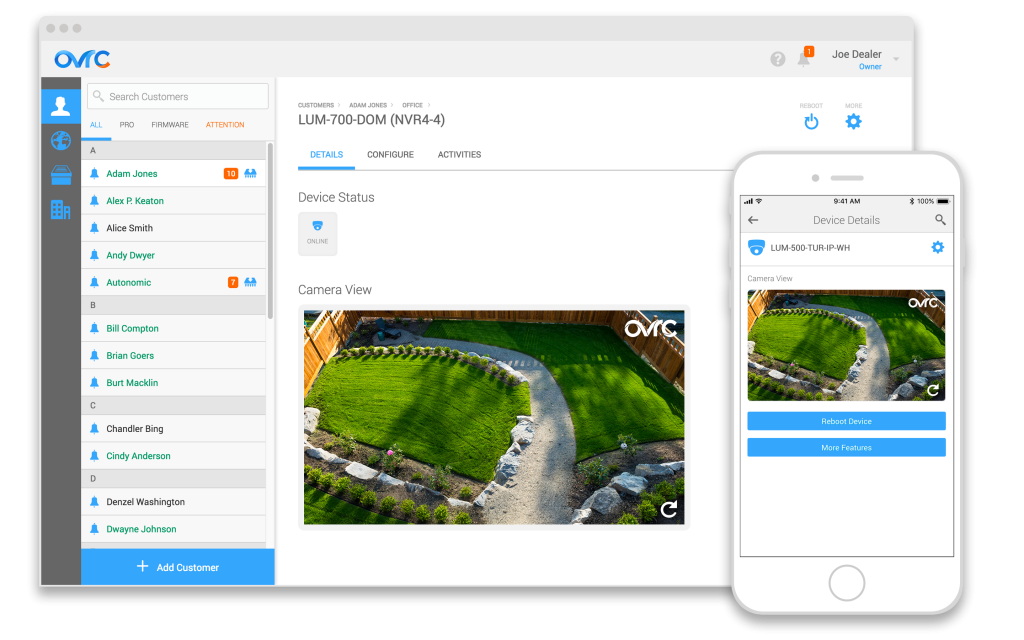
Ever since our initial launch of OvrC Pro, we continue to evolve the product with additional product integrations and troubleshooting tools based on your feedback. This release includes a number of really powerful features that are critical for troubleshooting networks.
We all know that rebooting IP devices resolves problems 80% of the time, so the ability to reboot devices is a critical capability in your troubleshooting arsenal. In this release, we are extending your ability to reboot PoE devices connected to non-Araknis PoE switches through the OvrC Hub. No additional setup or configuration required. Just update OvrC Hub to the latest firmware version, run a new scan, and click the switches on the network to see the new features.
The switches that will work for this varies by how the manufacturer has implemented SNMP, but we have tested and validated across the following brand/models. It is likely that many other models will work as is, but if it doesn’t, we encourage you to provide feedback to [email protected] so we could integrate them in the future releases.
By the way, in case you missed the last release, OvrC Pro also supports rebooting outlets on Panamax PDUs!
We revisited some of the features and product integrations that we’ve already enabled to make them even better. Here are a few updates:
As always, we continue to evolve our product based on your feedback. Please continue to provide your thoughts and ideas to [email protected]. Thanks!
In this release, OvrC introduces a suite of enterprise management features that gives integrators greater flexibility in managing user permissions and allows account owners to share their OvrC customers with external parties, including Parasol and OneVision.
To better support the evolving support operations of technology integrators, we’ve decided to completely re-build the user, permissions, and access management capabilities of OvrC to be more flexible and robust. You can now define ‘Groups’ with associated permission levels and client access, and then manage any number of ‘Users’ for that group, whether that user is internal or external to your organization.
See the introductory video below:
With this update, you can do more with OvrC.
For this release, we’ve collaborated closely with Parasol and OneVision teams to ensure these capabilities will support their needs to start monitoring your clients on OvrC. To find out more, visit their websites:
https://onevisionresources.com/
The new features will be rolled out and made available to you on June 21, 2018. No action is required on your part if you are using OvrC from a web browser, but you will need to update your OvrC mobile applications.
Once you log into OvrC from your web browser, click on the “Account” button on the left hand column to access these new features. Note, these features will look different based on the role you have in your company’s OvrC account.
This is one of the most complex features we’ve launched in OvrC with a lot of nuances and rules built into the experience. If you have questions around some of the details, check out the technical documentation.
As always, we continue to evolve our product based on your feedback. Please continue to provide your thoughts and ideas to [email protected]. Thanks!
Introducing the second-generation OvrC Pro Hub (OVRC-300-PRO), with enhanced remote management capabilities all packed into a smaller form factor with more installation options. In addition, we have partnered with Ookla® to provide you with much improved ISP network tests.
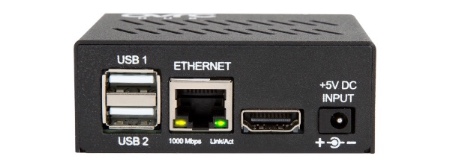
As more of your clients adopt Gigabit ISP services, the previous model of the Hub is limiting as it can only measure speeds up to 100 Mbps. The new Hub includes a Gigabit Ethernet port, giving you the ability to measure internet speeds up to a Gigabit in download/upload speeds.
We heard you loud and clear that an accurate measure of the ISP performance is important to servicing your clients. We also learned that doing it reliably across the country is difficult to achieve.
In order to provide you the best available data, we decided to partner with the world’s leading provider of internet testing, data, and analysis today – Ookla. We’ll now use their latest ISP test technology, widely known as Speedtest. This change will lead to more accurate and reliable internet speed results through OvrC.
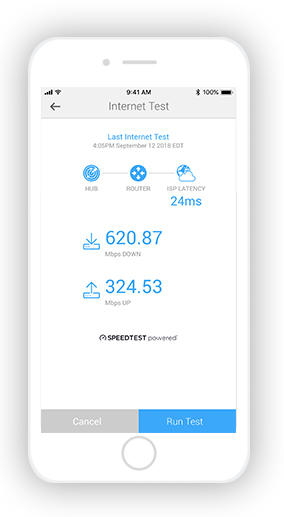
This change will also be applied to previous Hub models via a firmware update, so even your existing deployment of Hubs will provide more accurate and reliable test results moving forward. Of course, the maximum readings you will be able to achieve is 100 Mbps as that is the physical limitation of the port.
We’ve also changed the automated internet testing frequency to 6, 8, or 12 hours. Previously, you could run it every hour, but we found that running it too frequently could negatively impact network performance.
The new Hub features a sleeker hardware that is 23% smaller than our previous model. We’ve also included new bracket options allowing for easy installation on a 1U/2U rack, on a wall, or in a structured wiring can.
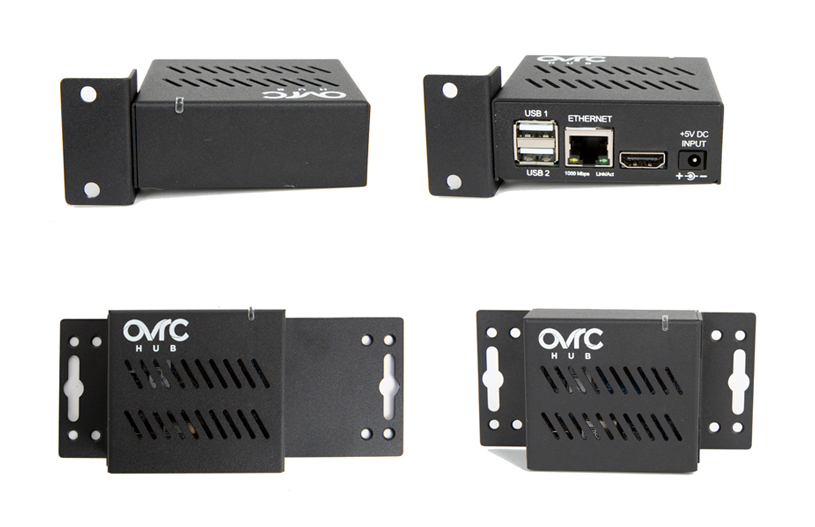
We removed the hassle of using activation codes. Now you can claim the Hub like any other OvrC product, and your location will automatically be enabled for “OvrC Pro.”
Since the initial launch of OvrC Pro, we never stopped evolving its capabilities. We released six major updates since launch, including greater breadth and depth of integrations to products and more advanced ways to troubleshoot and access those devices on the network. With the launch of the new Hub, we’re committing to continued investment in the OvrC Pro platform.
Once inventory of existing Hubs is sold through, we’ll stop offering that model and only carry the Gigabit Hubs.
As always, we continue to evolve our product based on your feedback. Please continue to provide your thoughts and ideas to [email protected]. Thanks!
Platform security and capabilities that allow users to better manage account access is of the utmost importance to us. In this release, we're launching features that provide additional layers of security and control for our users.
In this release, we're launching a two-factor authentication feature on OvrC. This provides an additional layer of security around access to your OvrC account, as it forces users to supply not only the username and password, but also a one-time verification code that will be sent to a verified device via email or SMS.
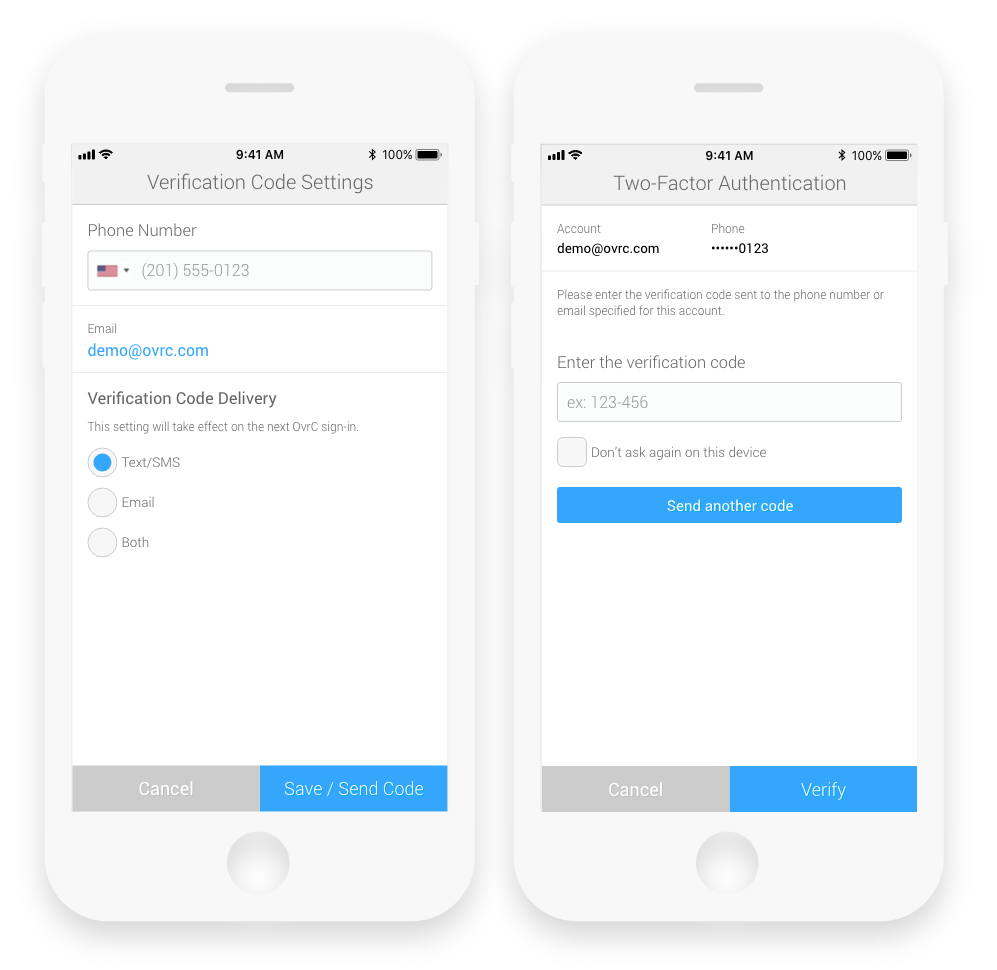
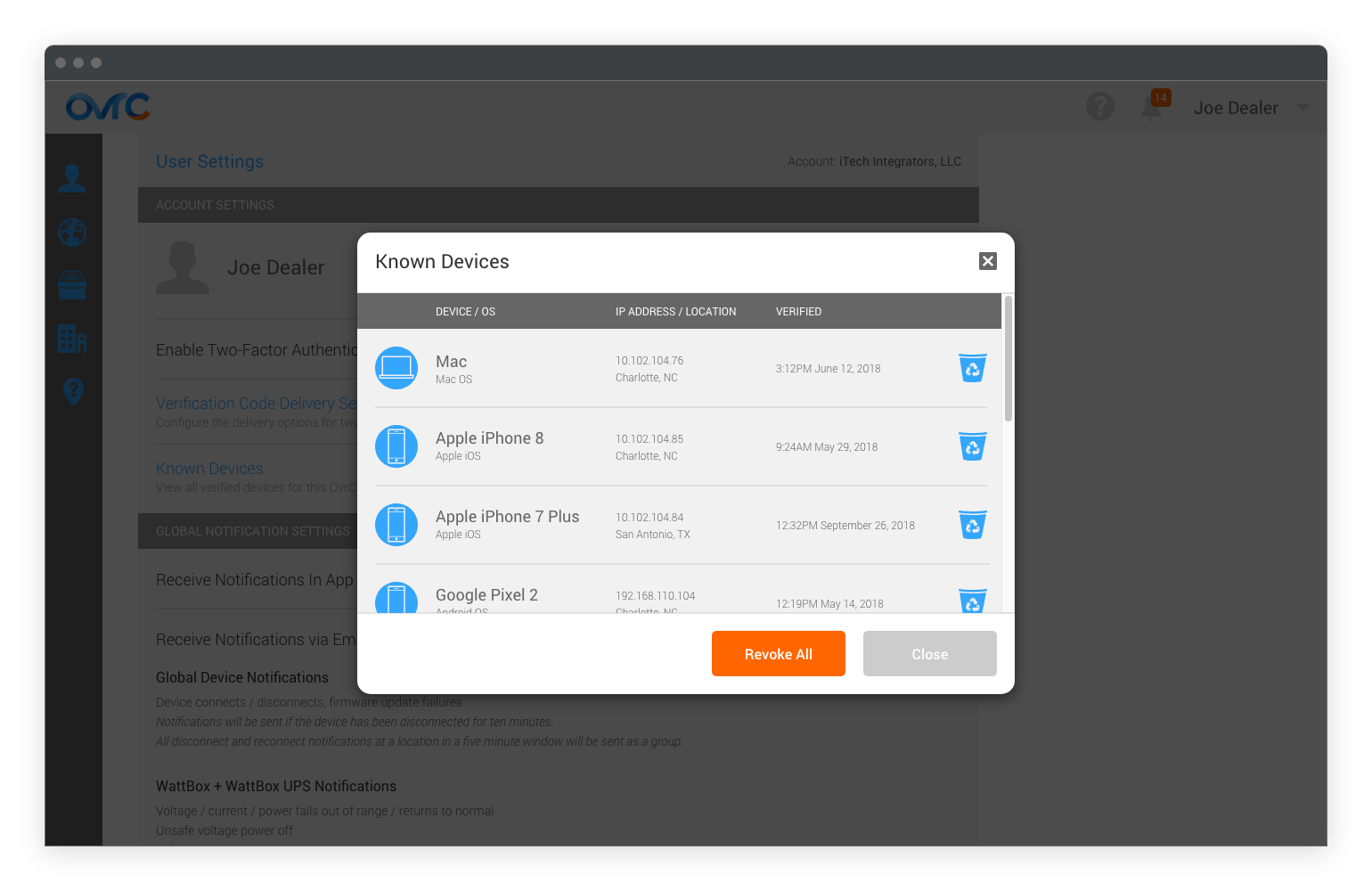
Once set up, you will also have access to the list of verified devices for your account and could manage it in OvrC.
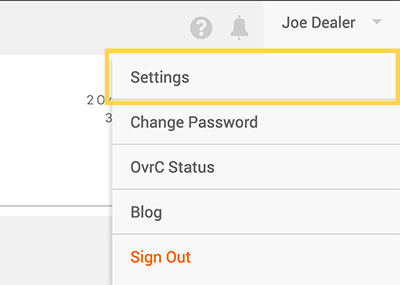
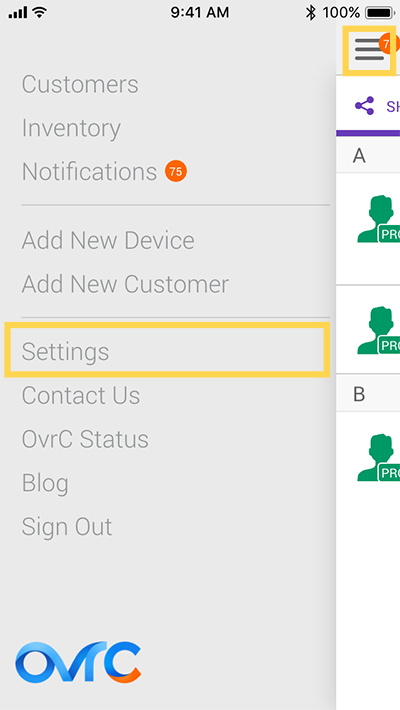
This feature is disabled by default. Please go to User Settings to enable it. Instructions as follows:
In June of last year, we launched LumaLink, a point-to-point remote access service for the Luma Surveillance App. LumaLink eliminates complicated network configurations and provides a much more secure way to access your Luma recorders under your OvrC account. View original post here.
Although this was a significant improvement from the days of port forwarding, it also made it easy for the techs on your OvrC account to get access to clients’ Luma systems.
In this release, we’re adding access to LumaLink as part of the permissions toggle that you can enable/disable as an OvrC account owner or admin for the other users on your account. This provides you with more granular control over your technician’s access.
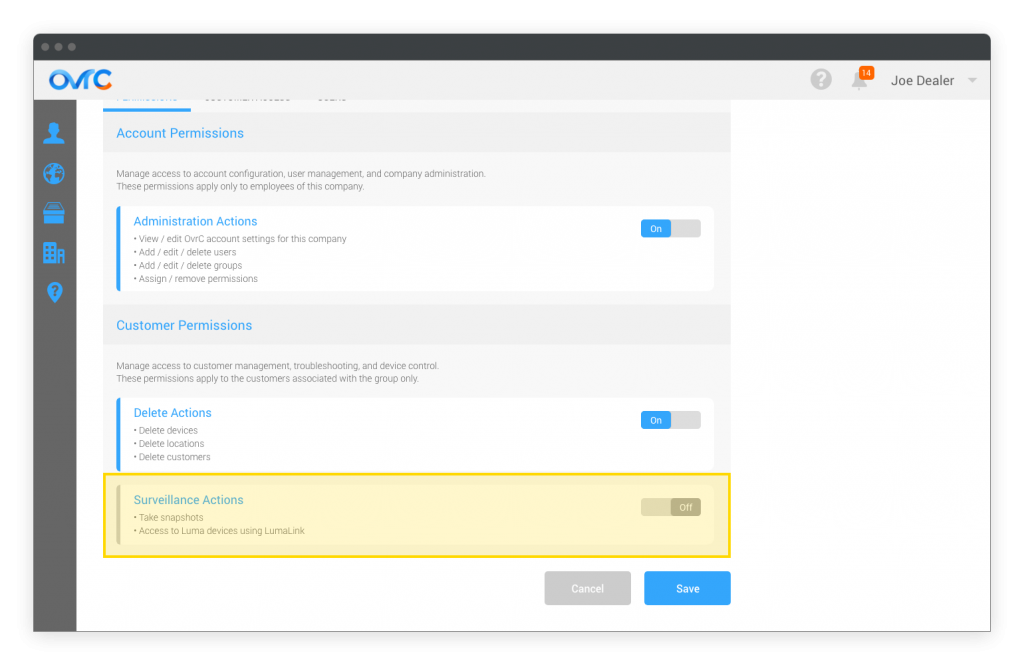
For more details around Groups & Permissions on OvrC, click here.
The current Bulk Add feature was created to make adding/claiming devices to an OvrC location easier by allowing users to add devices that share the same WAN IP address of the first device added to a location. We recently noticed that a few small regional ISPs have started to put multiple customers on the same WAN IP address through a double NAT, resulting in unintended consequences.
Although we hate to take away a feature that helps provide an easier dealer experience, we are removing this feature as we work on an alternative method for the future.
There are still other ways to easily claim all the devices on a system. Simply claim an Araknis Router or an OvrC Pro Hub first, then use the SCAN feature in OvrC to automatically claim all the devices on the same network.
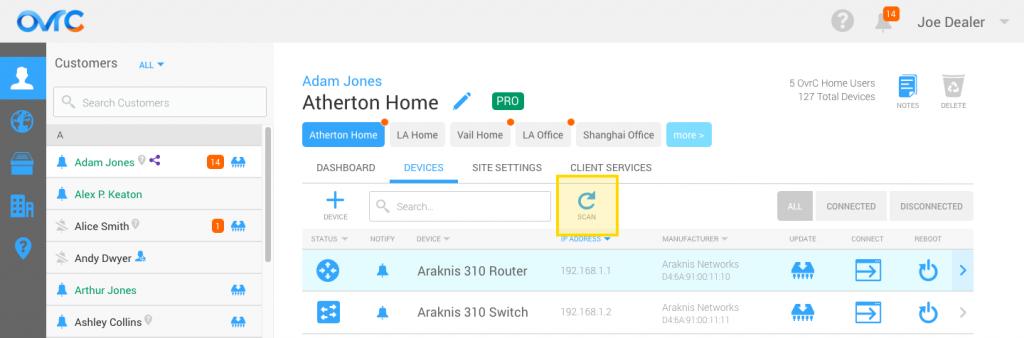
Beyond the items I mentioned above, we continuously evaluate and improve our back-end platforms to ensure we’re following the latest security standards and best practices. We are working on a documentation that you can review and share with your clients. Stay tuned.
As always, we evolve our product based on your feedback. Please continue to provide your thoughts and ideas to [email protected]. Thanks!
OvrC enhancements have been added to the SunBrite Signature series televisions and Clare Controls Cliq devices, cutting down on truck rolls and minimizing the time that services are down.
With OvrC, dealers can provide the very best in customer service and tech support, cutting down on truck rolls and minimizing the time that services are down. With OvrC enabled SunBrite Signature televisions, dealers can manage firmware, IP settings and reboot the display to get things up and running quickly. This allows dealers to maintain a great working relationship with their customers, further building their business and referrals.
Remote monitoring capabilities have added to existing and future Signature Series models. Existing models (43”, 55”, and 65”) that have been installed have already received the update giving you access to the new features. As with all OvrC enabled products the SunBrite Signature Series can be registered directly with OvrC or will be automatically discovered if there is an OvrC Pro Hub or Araknis AN-110 or AN-310 router managing the network.
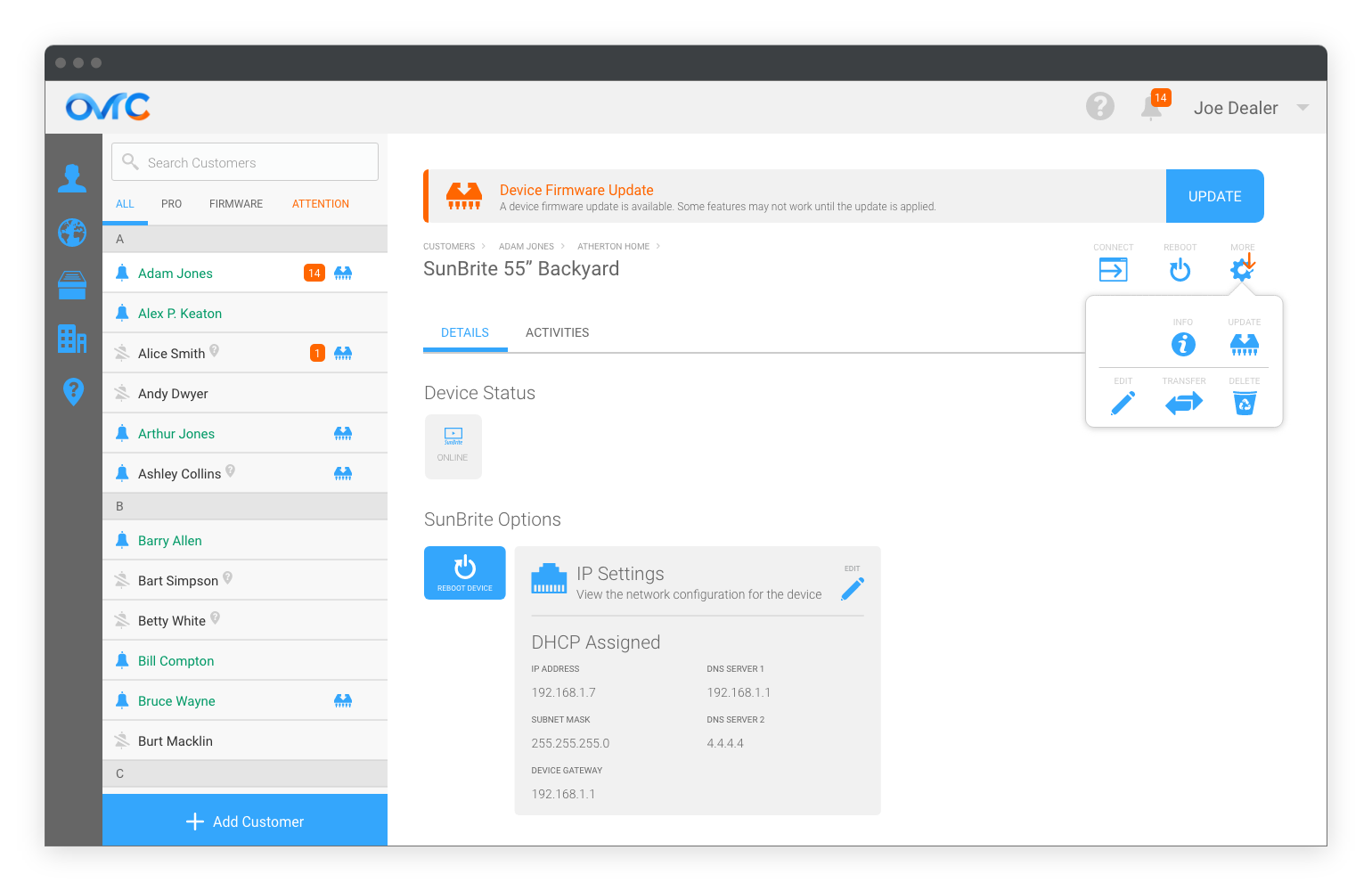
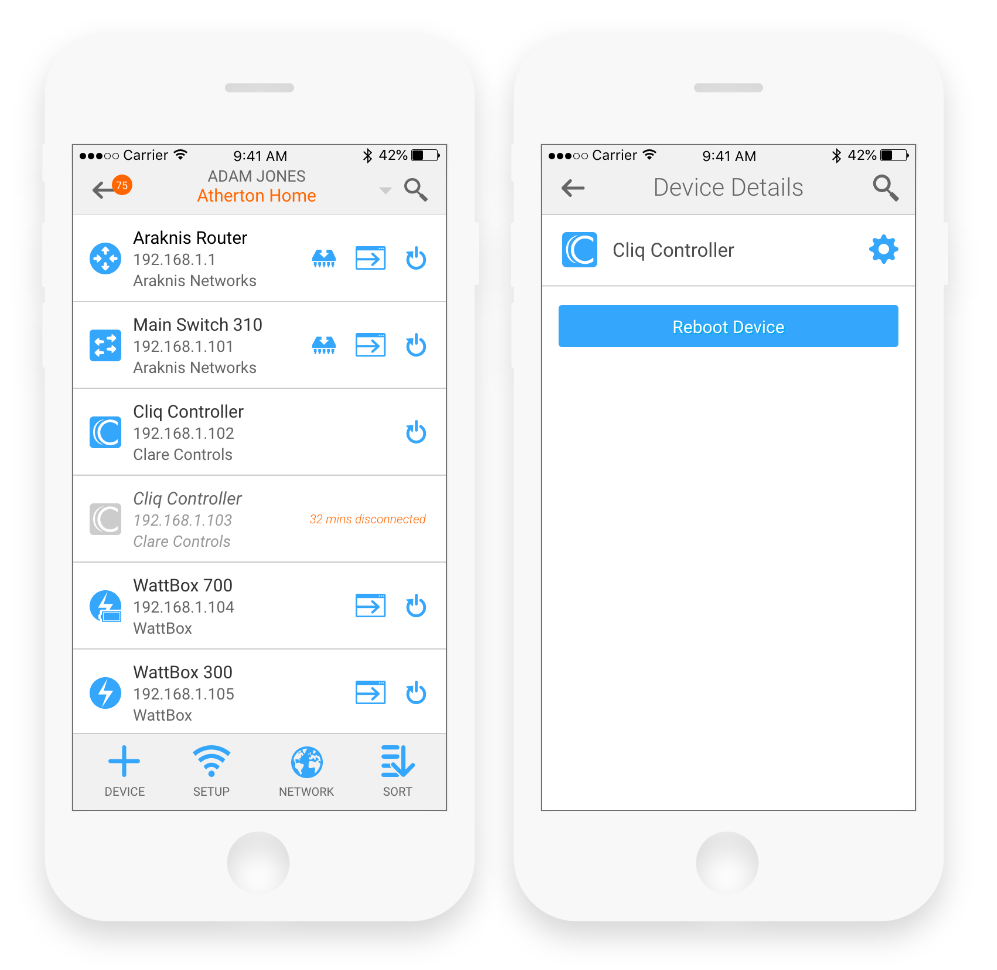
Clare Controls Cliq.host and Cliq.mini are the newest additions to the family of partner products that are OvrC enabled. The Cliq.host and Cliq.mini controllers deliver security integration, home automation, music, energy management, access control and video surveillance to home owners. Now, with OvrC built-in, dealers can review settings, monitor the online/offline status of the controllers as well as perform reboots when necessary without the need of an onsite visit or additional hardware.
As always, we continue to evolve our product based on your feedback. Please continue to provide your thoughts and ideas to [email protected]. Thanks!
OvrC Pro product integrations have been added to provide enhanced diagnostics data and troubleshooting from Triad matrix switchers, and APC Power products giving customers greater intelligence and capability remotely.
With the recent update to OvrC Pro, troubleshooting audio problems just got easier for projects with Triad AMS-8 or AMS-24 installed. This is a dealer requested addition providing visibility into the currently selected inputs for each zone as well as power status and firmware version. Additional troubleshooting actions include power on/off and manual switching of the inputs.
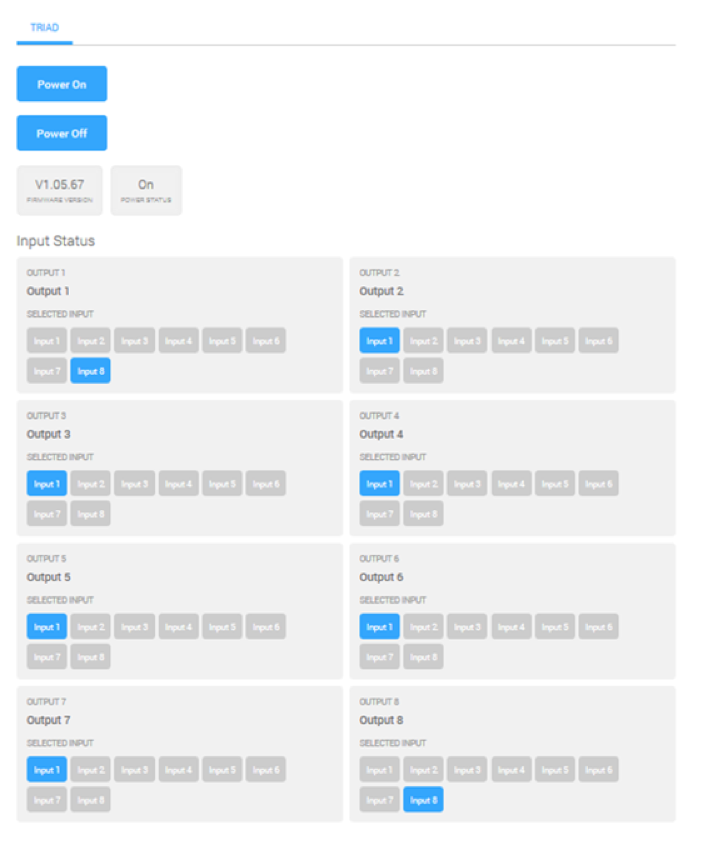
OvrC has recently added monitoring and control of APC AP8xxx and AP7xxxB family of products. The addition of these power products allows our customers to have freedom of choice without compromising system uptime or incurring additional truck-rolls. Features within OvrC include outlet status, total power consumption, reboot individual outlets, reboot all outlets, and discrete on/off for each outlet. Additionally, the device will provide additional diagnostics through SNMP if enabled.
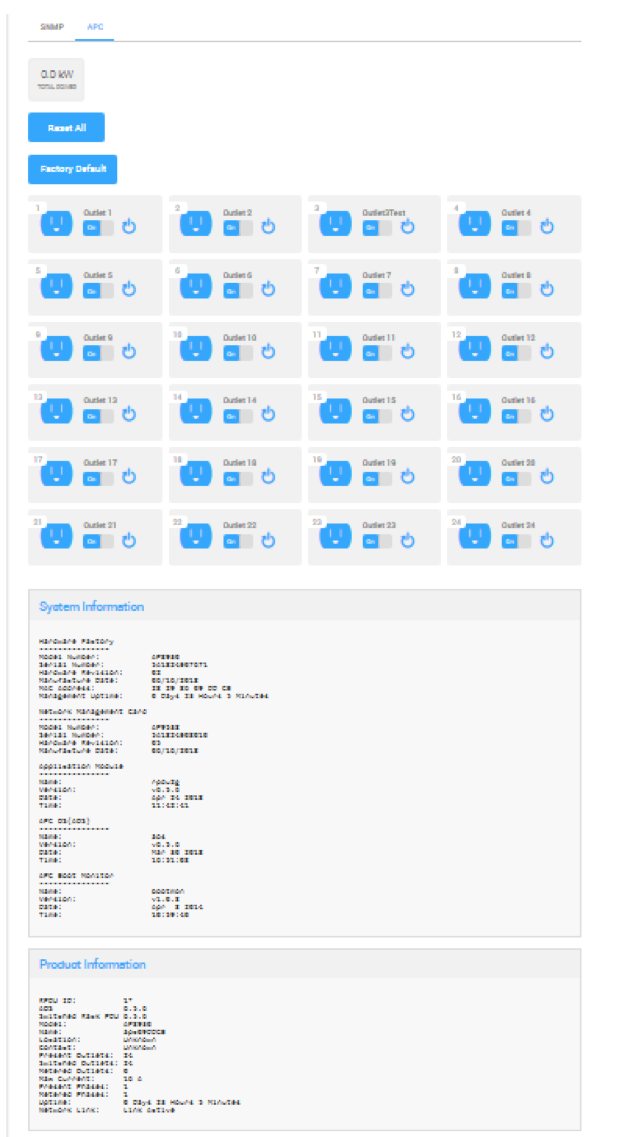
(Note: At the time of this OvrC Pro release, these features will only be available when using the OvrC HUB-100 or 300 devices. The routers will receive an update separately at a later date).
As always, we continue to evolve our product based on your feedback. Please continue to provide your thoughts and ideas to [email protected]. Thanks!
With this OvrC release, you can give your clients the ability to manage Wi-Fi access of other users at their location, either manually or on a schedule, all from OvrC Home. You can also provide clients the ability to filter web content at a location, but this feature is in its final BETA phases.
When you enable this feature, it gives your clients the ability to group any number of wireless clients into a “profile” and the ability to revoke/grant Wi-Fi access to those associated devices, either ad hoc or on a pre-determined schedule from OvrC Home. This gives clients much more control over how Internet is being used at their location.
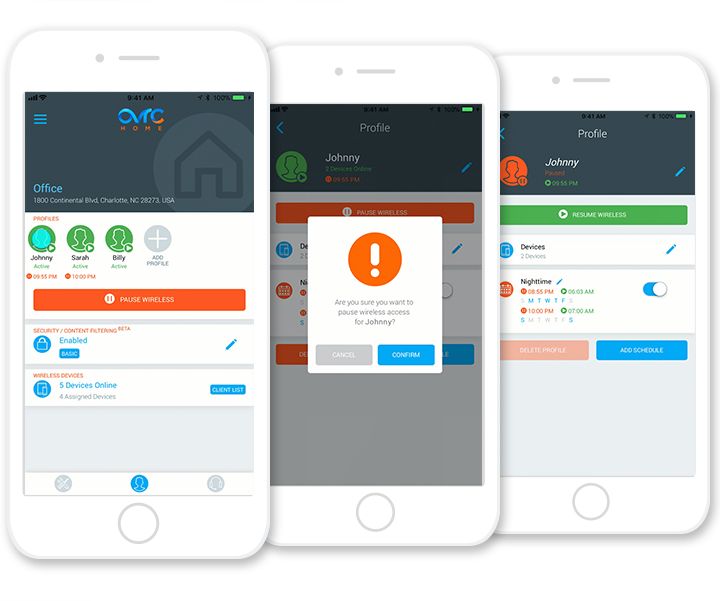
In the residential scenario, the perfect use case for this is giving parents more control over their children’s access to the Internet. As an example, your client can revoke Wi-Fi access to his kids’ tablet after 9pm to ensure he’s going to bed.
Since OvrC is natively integrated to Araknis access points, we leverage an embedded feature of the access points called Mac Filtering. When you “pause” Internet for a device, OvrC modifies the mac filtering table for the associated access points at the location.
As we use the native technologies built into the Araknis access points, this feature requires the use of Araknis access points using the latest firmware at the location. This is backwards compatible to any model of Araknis access points. This also means that wired and cellular connections cannot be controlled at this time.
Great news! Since we support this feature on all generations of the Araknis access points, you can set this up and deploy it for existing and new clients from OvrC, all without having to roll a truck. If they already are using OvrC Home, just have them log out and back in to see the latest features that you enabled. To learn more about how to set this up, watch the step-by-step video below.
With holidays coming up, this would be a great service that you could send them as a thank you for being a loyal customer and continue to add value as their go-to technology professional.
To make it even easier for you, we’ve built-in some self-help content in the app for clients to get a quick preview of what they could do with the new features.
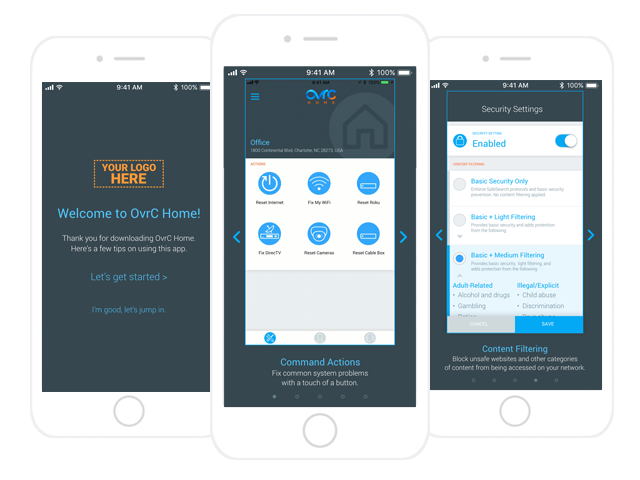
We’ve also created a templated email with hi-res graphics that you can use in your communication to the client. You can find the email template here.
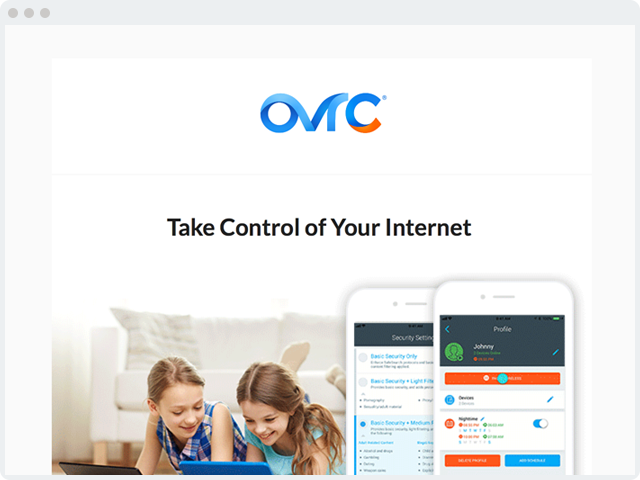
There is no catch. This is a value-added feature we’ve added to our access points so that you may be able to deliver more value to your clients. No additional hardware or licensing required. Happy holidays!
This feature gives your clients that ability to filter out and block select URLs from being accessed at their location. They are able to select one of four levels that range from just blocking malicious URLs all the way up to very stringent filters.
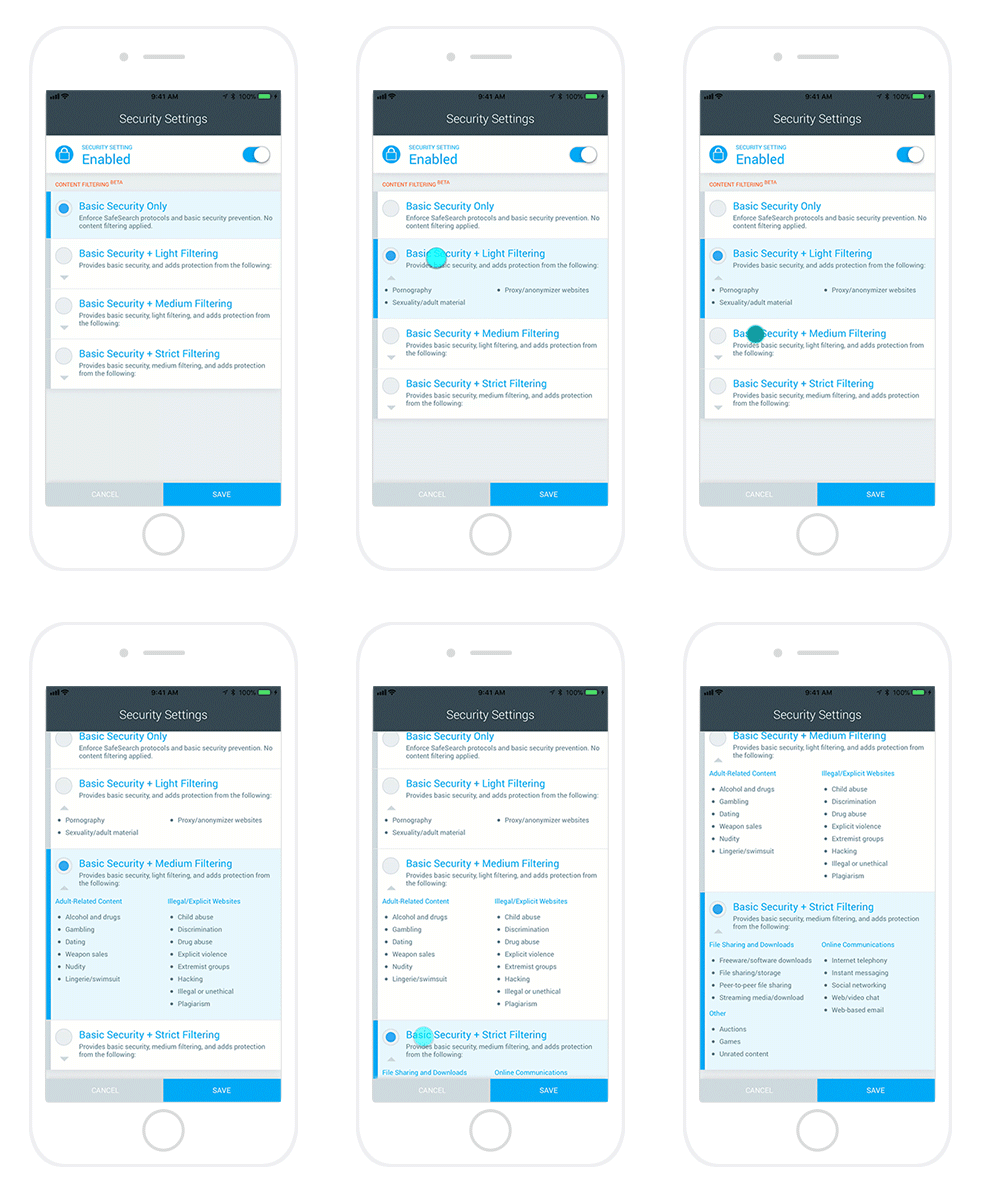
This feature does require the use of Araknis routers as we are leveraging the native capabilities to make changes in the configurations. This feature is in its final stages of BETA, so we encourage you to test the feature and provide feedback at [email protected]. Thanks!
Just in time for CEDIA, we’ve launched some exciting new features and updates.
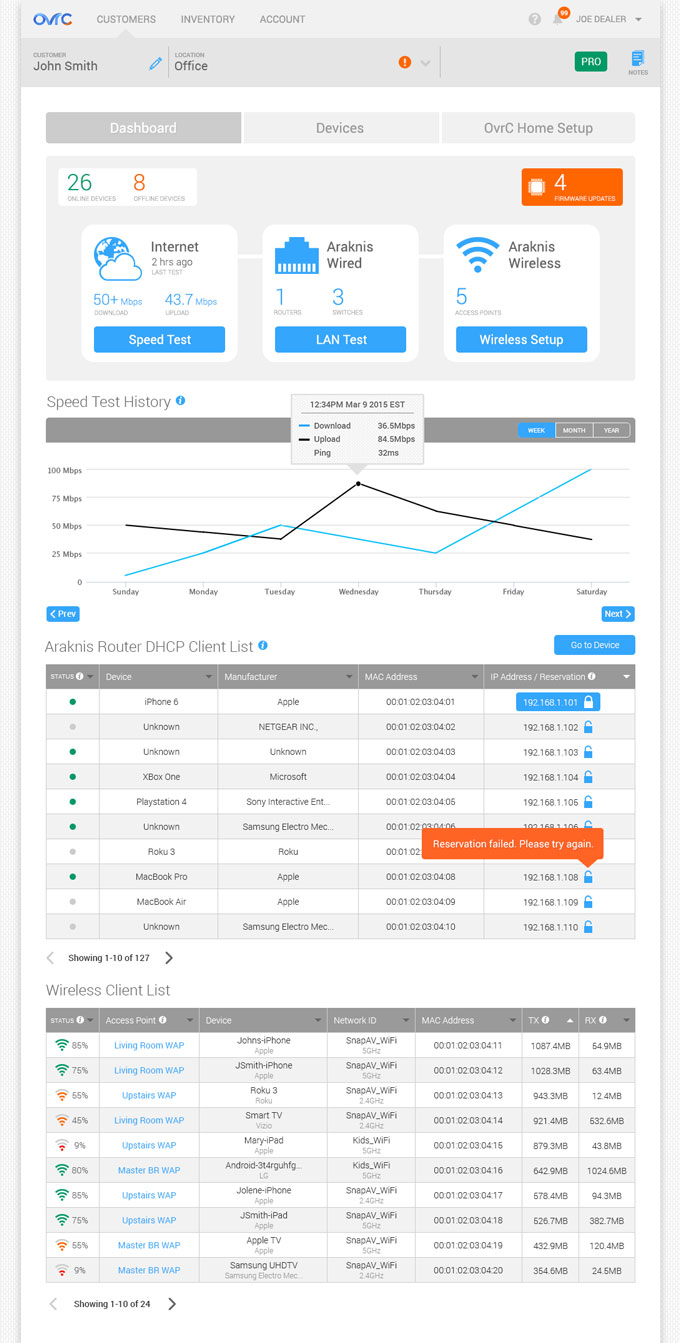
Make sure to check back here soon for training and helpful tips on how to make the most out of OvrC Pro.
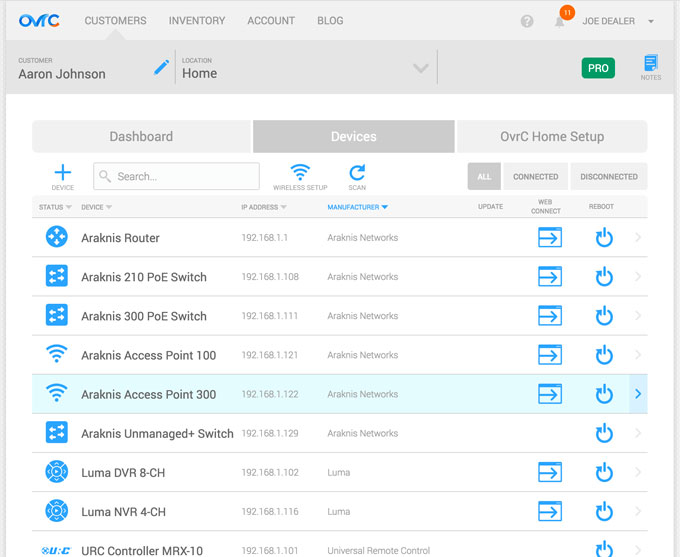
The new OvrC is faster, optimized for mobile and provides more information than ever before.
Today, SnapAV released a major evolution to OvrC® and added support for Pakedge® products, firmly establishing the platform as the industry-leading remote management and monitoring service for pros. Hundreds of enhancements across all aspects of the platform make OvrC faster, easier to use, and provide critical information at a glance, all within a powerful mobile app or web-based interface. With the expanding support for Pakedge, OvrC includes one of the largest ecosystems of integrated products from both SnapAV and leading third-party manufacturer.
The new OvrC mobile app for iOS and Android is now a fully featured app, delivering the same functionality as the web app.This enables pros to support customers from anywhere, whether they’re behind a rack, on the road, or at the office. New mobile features include the ability to add customers, view a map of all customer sites, configure site and device settings such as wireless SSIDs, guest networks, DHCP reservations, and program automatic reboots with WattBox products, to name a few.
This will require installing our new app which is available today. You can download it from the Apple App Store or Google Play Store.
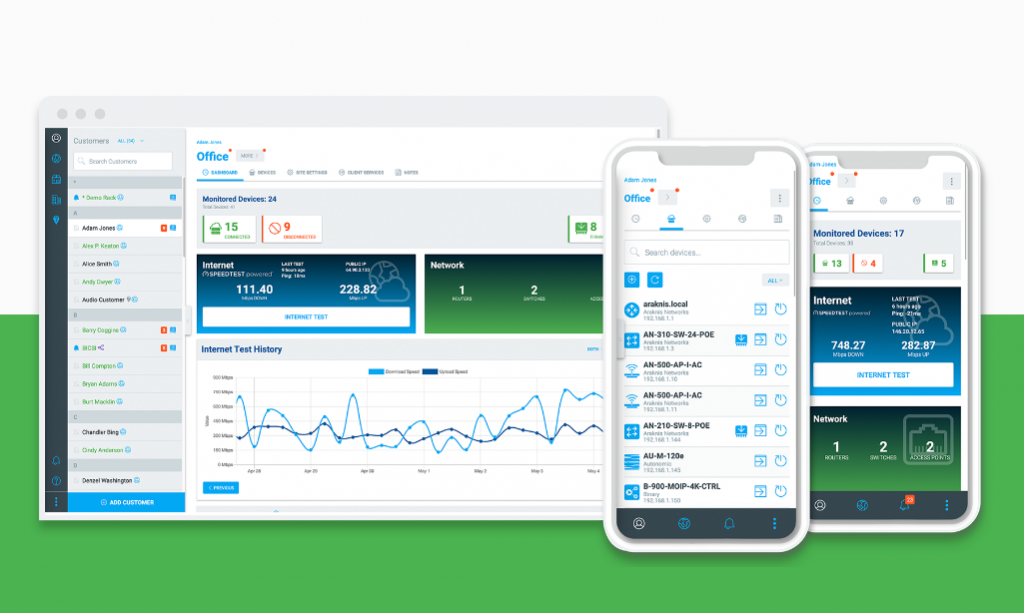
Every aspect of the new OvrC has been engineered for performance with hundreds of enhancements throughout. Now, it’s even easier for Pros to install quickly, monitor connected devices, and troubleshoot a customer’s system upon request. A new, modern design provides more information at-a-glance, giving pros quick access to the status of a project or a device. The interface is fully responsive, loading twice as fast and dynamically adapting the layout to utilize all available space on the screen.
We made hundreds of improvements. Some notable ones are the following:
As with all new technology, some old technology needs to be retired. The new version of OvrC is no longer compatible with Microsoft’s Internet Explorer. Additionally, only the most recent version of Microsoft Edge (Chromium-enabled) will work. We determined that based on their limited support by Microsoft and the overall impact to speed and performance of the OvrC app, they would not be supported. If you encounter any issues with pages loading while using these browsers, try using Chrome or Firefox instead, or updating to the most recent version of Edge.
The Easy Wi-Fi Setup feature that was available in the legacy version of OvrC will not be available in the new version as we look to dramatically improve this feature in the near future (stay tuned for details). Easy Wi-Fi Setup is used to configure SSIDs on multiple access points from a single screen, adding efficiency to setting up Araknis access points. As a temporary solution, we have provided a link in the new OvrC to the legacy OvrC so that this feature is still available. (legacy.ovrc.com). By clicking on “OVRC Legacy in the left hand menu, you will be taken to the old OvrC login.

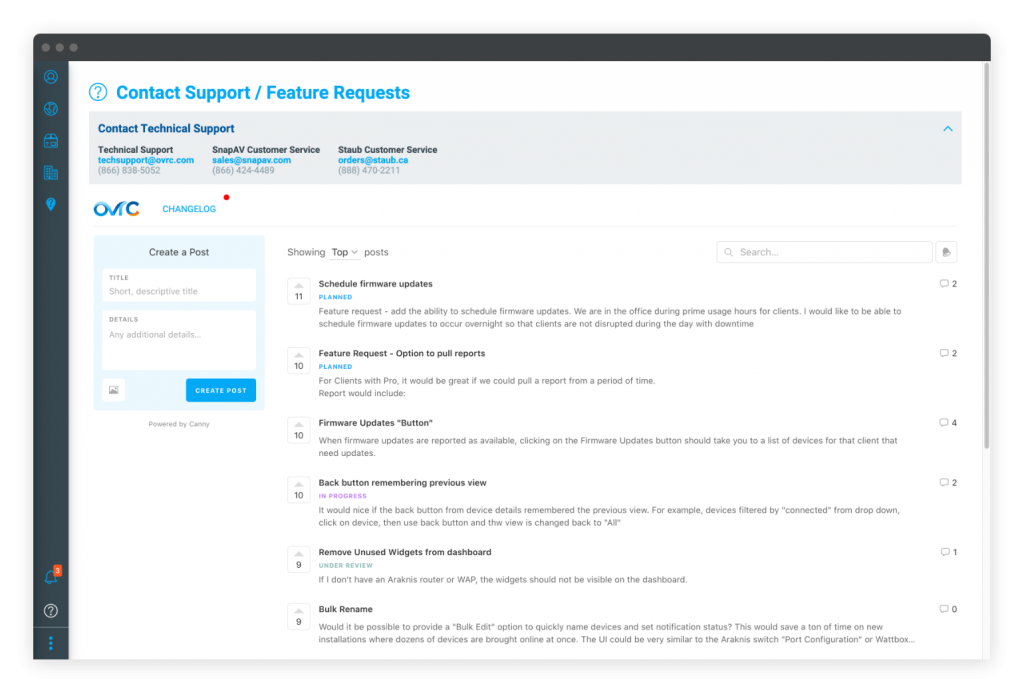
This massive improvement to OvrC was driven by our customers. Many of the new features were ideas and feedback that we received from dealers through email and conversations over the years. Now, we have added the ability for feedback to be given directly from the application. By clicking on the Help/Feedback button in the left-hand menu, you are given direct access to our development team. You can review and “up vote” shared ideas or issues. We use this tool to identify new features and fixes. As always, we continue to evolve our product based on your feedback.
This update includes improvements to Wi-Fi Management and several small bug fixes. The updated web application is available now. Updates to the mobile are waiting on final approval from Android and Apple. Please stay on the lookout for notifications prompted on your mobile device to update your OvrC app.
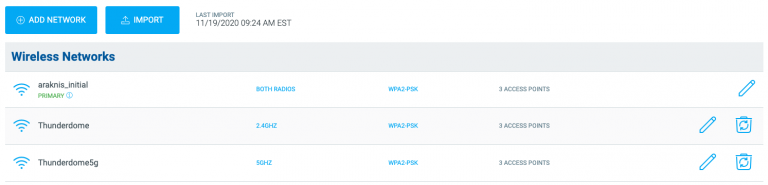
As always, we continue to evolve our product based on your feedback. Please continue to provide your thoughts and ideas to [email protected] or through the user feedback section of the web and mobile applications. Thanks!
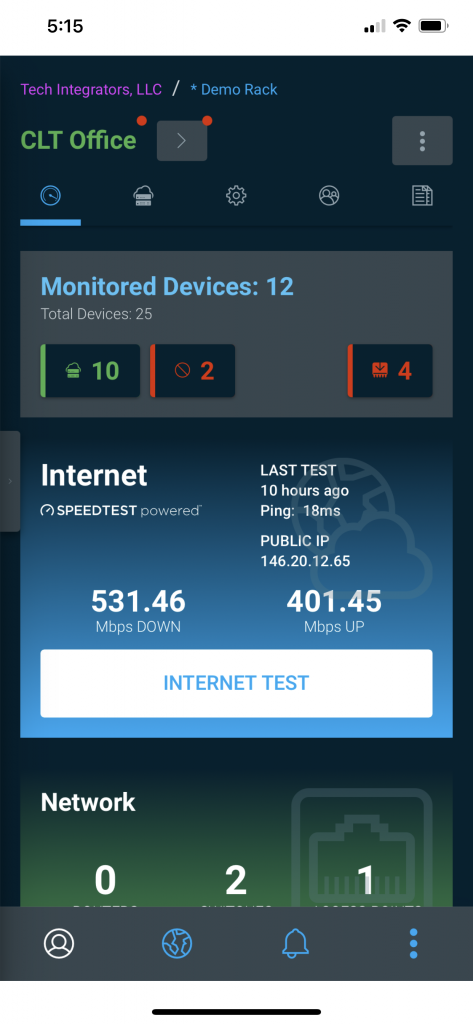
Every year, the Winter Solstice marks the darkest day of the year. In light of that (pun intended), the OvrC team would like to wish you all happy holidays with the gift of dark mode as a setting when using OvrC. This feature is available for both mobile versions (iOS and Android) as well as web and can be enabled on the User Settings page.
As dark mode becomes more prevalent on devices and applications, one can’t help but see the benefits of lowering the amount of blue light exposure while sitting in front of a computer all day. A more likely benefit is that you can now reboot that pesky cable box in the middle of the night, for your super demanding customer, without waking your spouse by lighting up the room with your phone. Either way, it’s a win!
We here on the OvrC team, hope that everyone has a safe, healthy, and service-call-free holiday season. May you all have uninterrupted time with your families and less eye fatigue while using OvrC.
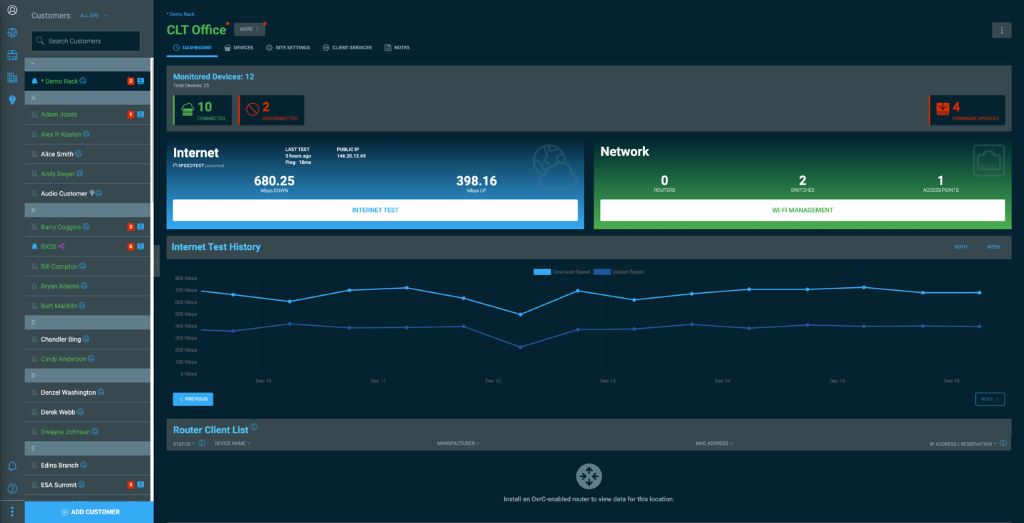
To enable dark mode:
(Note: dark mode settings will need to be set on Mobile separate from the web application.)
As always, we continue to evolve our product based on your feedback. Please continue to provide your thoughts and ideas to [email protected] or through the user feedback section of the web and mobile applications. Thanks!
Cool off this summer with our new Araknis features, and let OvrC do the work for you!
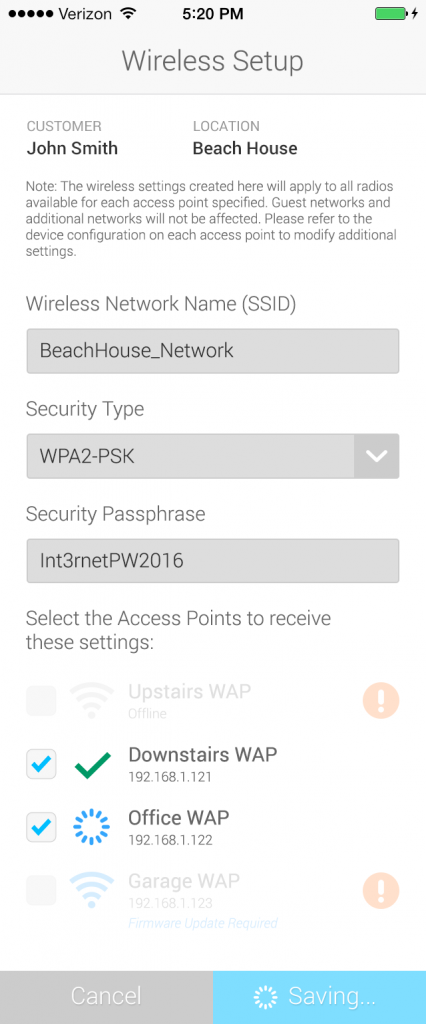
We’ve heard from a number of you that setting up a network at a new job site can be cumbersome. We’ve streamlined the process so that you can create a wireless network across multiple Araknis access points with the click of a button on desktop or mobile. Just enter a network name, security type, and password, and you’re good to go!
Note: This is for first time setup and using this feature to edit an existing network is not recommended.
We’re always looking for feedback, and we’d love to hear from you. Send your thoughts and suggestions to [email protected].
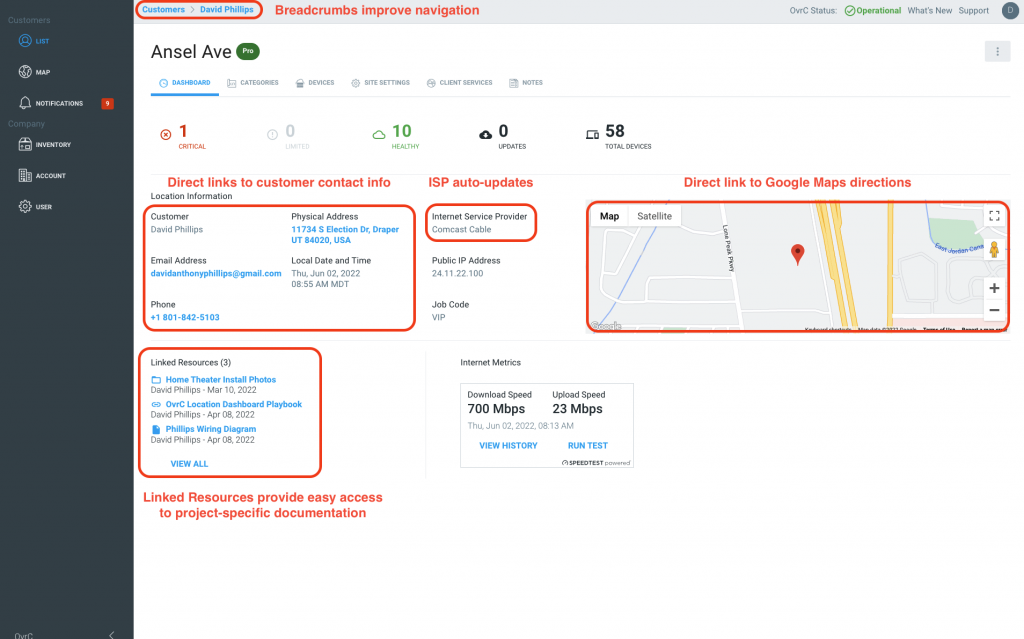
Designed to streamline workflow, the newly redesigned OvrC Location Dashboard gives you the information you need to make OvrC a valuable and functional tool for your business. Find customer contact information, a high-level overview of system status, as well as an all-new linked resources section that provides one place for all team members to get project-related documentation quickly and easily.
Location Dashboard—redesigned
The new Location Dashboard is designed to improve workflow and elevate customer service. The Dashboard is now visually consistent from project to project and delivers operationally essential information to your entire team.
Easier Navigation
Breadcrumbs to help with navigation—moving around OvrC has never been easier. Whether on mobile or browser, breadcrumbs now provide the ability to quickly move within the application. This improves the user experience by removing the need to restart navigation when you need to move back a screen.
Key contact information—including single click to call or email your customer and get directions to their property—right on the Dashboard—even on the go.
Collaborate on Shared Documents
New Linked Resources section introduces the concept of including links to project-related documents in OvrC. Simply add links from your existing online document storage to make collaborating and sharing project information a breeze.
ISP Auto Update
Automated ISP recognition for Pro locations – Now, global Partners can have accurate ISP information by performing a speed test
As always, we continue to evolve our product based on your feedback. Please continue to provide your thoughts and ideas to [email protected]. Thanks!
Just in time for CEDIA, we have several exciting improvements on the OvrC Platform.
OvrC Pro 7.0.0
With the release of OvrC Pro application v7.0.0 we have added third-party support for select models of Sony AVRs, soundbars, and line array speakers. Now, when Sony products are paired with an OvrC Pro agent host device (Araknis/Pakedge routers, Control4 controllers, or the OvrC Pro Hub) technicians will have extended information available through OvrC for advanced troubleshooting. New capabilities for the Sony products include:
For more advanced configuration, the local web UI of the device can be accessed remotely using the OvrC WebConnect feature.
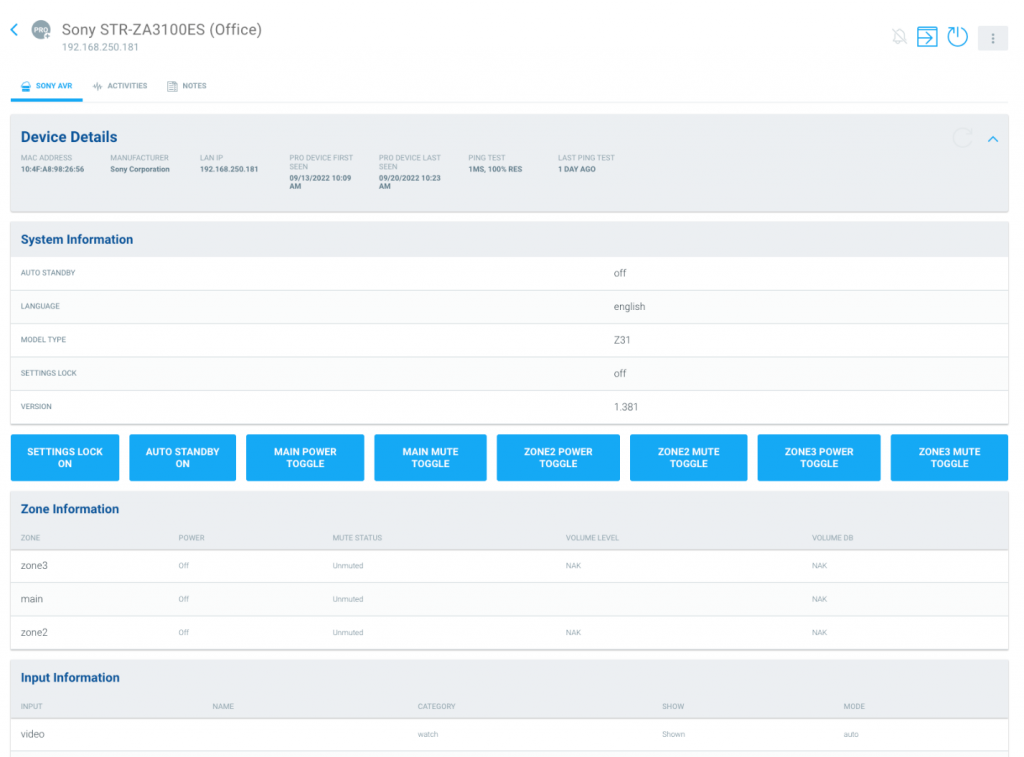
Additionally, there are improvements made to identifying Sony Bravia TVs that are wirelessly connected to the network so that the existing third-party integration on supported models properly show up in OvrC as Sony devices.
OvrC App Version 2.37.0
With the release of the OvrC web app version 2.37.0, we have made improvements to the OvrC mobile and desktop experiences including an improved process for adding new locations, and automatic transfer of OvrC-discovered third-party products to the location where they were last scanned.
Adding a new location
There are several improvements when adding a new location in OvrC. First, when adding a new customer, there can only be a single location added at that time. If additional locations are needed for a specific customer, new locations can be added by clicking on the “3-dots” on the right-side of the customer row. From there you can edit customer information, edit location information, or add a new location.

We have added Address Line 2 as a field without impacting the Google verified address or how the pin appears on the map in OvrC. Also, when the address is selected, it’s broken out into separate fields for address 1, address 2, city, state or province, and postal code instead of a single line of text containing all fields.
Discovery and Transfer of Third-Party Devices
Based on feedback from our Partners, we have improved how we handle discovery of third party devices. Often, these discovered devices like mobile phones, tablets or laptop computers will physically move from one OvrC Pro location to another – for example, when your technician’s laptop was discovered on one job, then that technician goes on-site to another OvrC job. This has created confusion in falsely reporting that a device is connected to the network when it’s not physically in the system, or caused issues with trying to discover a device that was already claimed in a different location and not being able to get the device to show in its correct location.
OvrC now allows for the automatic transfer of third-party devices to the location where they were most recently scanned by an OvrC Pro agent. To transfer OvrC-enabled devices, eg. Wattbox, from one project to another still requires a manual transfer. If the locations are still within the same Partner account, this can be done directly within your OvrC account. If the original and new customer locations are tied to different OvrC accounts, then they must be transferred using the Take Over Process Learn More.
As always, we continue to evolve our product based on your feedback. Please continue to provide your thoughts and ideas to [email protected] or through the user feedback section of the web and mobile applications. Thanks!
From the desk of Evan Marty, Director of Product Management – OvrC
Back in January, we released an exciting OvrC update that brought lots of great new features. It also introduced some UX changes that our Partner community let us know fell short of delivering the best experience, especially on mobile devices. We take your feedback seriously and today I’m excited to let you know that we heard you, we took your feedback to heart, and we have released an update to improve that experience. This update applies to desktop and mobile browsers, as well as iOS and Android mobile apps.
New Device List User Experience
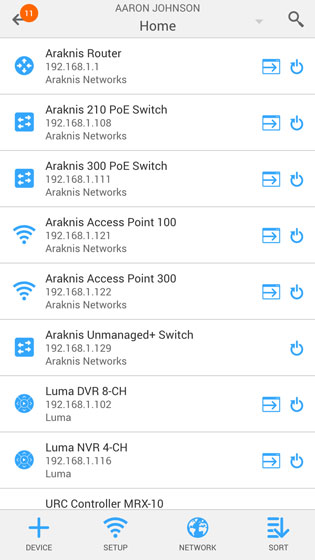
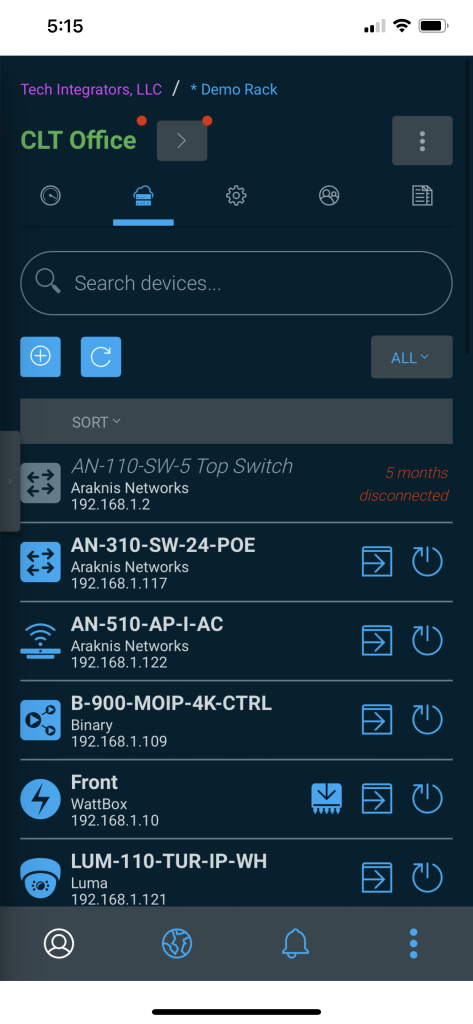
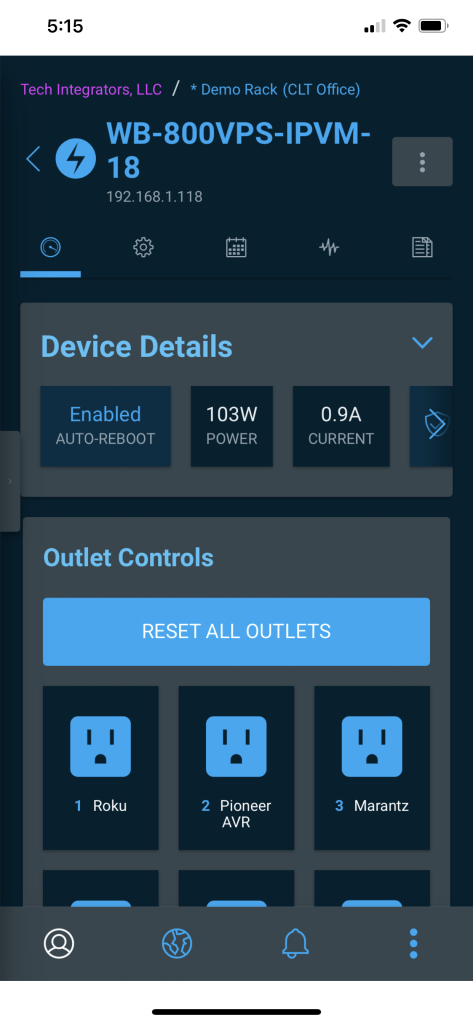
We heard you loud and clear. When you’re in OvrC, you are there to get a job done- like finding a device and rebooting it. And you do this a LOT via mobile, where screen real estate is limited. This latest update features a redesigned Device List that more resembles the old one you loved, plus some notable improvements:
* Below is a screenshot of the latest device list on Mobile. As always we will continue to evolve, refine and improve the experience, and we welcome your feedback! Want to test drive new OvrC features before they are released? Sign up for our Beta program!
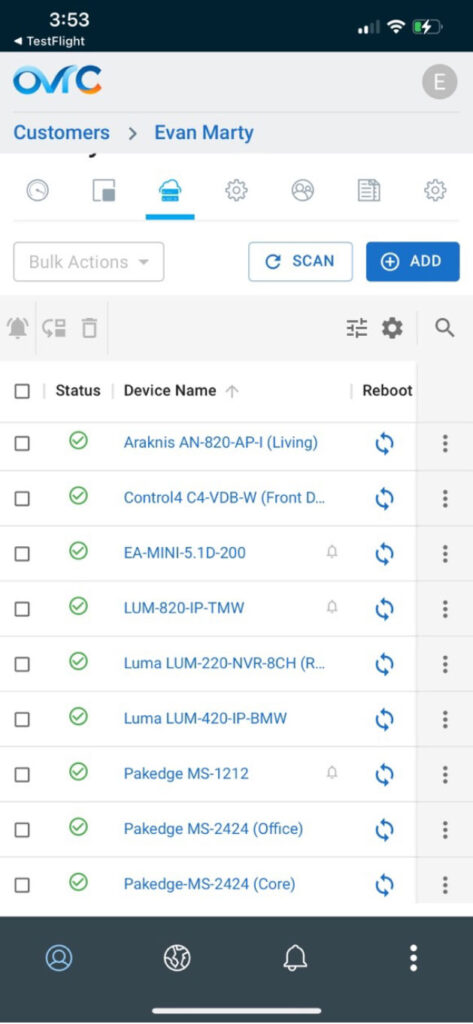
In case you missed the exciting updates since January- here’s a quick recap!
Network Health and Changes to Speed Tests
To truly understand network performance requires more than just internet speed tests. Earlier this year we released Network Health. This new feature adds latency testing for both Local Area Network (LAN) and Wide Area Network (WAN) to provide better visibility to the entire network. As noted in previous communications, with these added Network Health tools automated speed tests have now been reduced to once every 24 hours.
Network Health was introduced to provide better visibility into both internet performance and local network performance, while reducing potential impact to the customer’s network. Speed tests could negatively impact a customer network by overloading it and are not frequent enough to give you a good total picture. With the addition of WAN/LAN latency tests, we are able to run much more frequent tests without impact to the network.
Learn more about Network Health
OvrC Connect Changes and Bug Fixes
On February 3, we corrected known issues within the OvrC Connect app that were affecting customers’ ability to use certain portions of the OvrC Connect mobile application.
We have made some great updates to the OvrC platform in months. Here are a few highlights in case you missed them:
As always, we continue to evolve our product based on your feedback. Please provide your thoughts and ideas to [email protected]. Thank you!
From the desk of Evan Marty, Director of Product Management – OvrC
Three weeks ago, we released an OvrC update that brought lots of new features to the platform and we were excited for our Partners to take it for a drive. But even with all our user-testing, we unfortunately missed on delivering the best user experience. In this blog I’ll provide an update on a) what we’re doing to fix the mobile UX; b) address feedback on our new Network Health feature and speed test changes; and c) summarize some of the other new features and improvements we’ve been making.
A. UX Updates for OvrC Web and Mobile
We heard you loud and clear. When you’re in OvrC, you are there to get a job done- like finding a device and rebooting it. And you do this a LOT via mobile, where screen real estate is limited. Our January update made navigating the Device List on small screens more difficult than it should be, so we’re actively working to fix it. In future updates (exact dates TBD but we’re expecting weeks not months) you will see a redesigned Device List that more resembles the old one you loved plus some notable improvements:
* Below is a design mockup we have been reviewing with user-experience testers. Please note, this is concept only and subject to change before release. Want to test drive new OvrC features before they are released? Sign up for our Beta program!
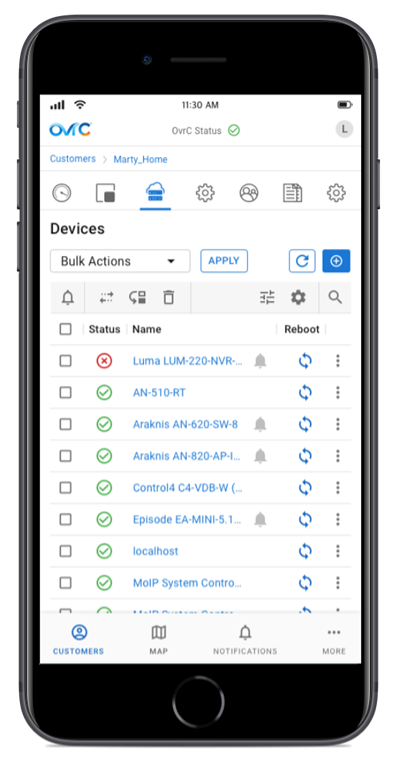
B. Network Health and Changes to Speed Tests
To truly understand network performance requires more than just internet speed tests. So, in last month’s OvrC release we released Network Health. This new feature adds latency testing for both Local Area Network (LAN) and Wide Area Network (WAN) to provide better visibility to the entire network. As noted in the previous OvrC release, with this update automated speed tests have now been reduced to once every 24 hours.
Network Health was introduced to provide better visibility into both internet performance and local network performance, while reducing potential impact to the customer’s network. Speed tests could negatively impact a customer network by overloading it and are not frequent enough to give you a good total picture. With the addition of WAN/LAN latency tests, we are able to run much more frequent tests without impact to the network.
Learn more about Network Health
C. Other Features & Fixes
OvrC Connect Changes and Bug Fixes
On February 3, we corrected known issues within the OvrC Connect app that were affecting customers’ ability to use certain portions of the OvrC Connect mobile application.
ICYMI
We have made some great updates to the OvrC platform in recent weeks. Here are a few highlights in case you missed them:
As always, we continue to evolve our product based on your feedback. Please provide your thoughts and ideas to [email protected]. Thank you!
In response to your feedback – THANK YOU!! – we are excited to announce the next round of improvements for the OvrC mobile application. We heard you loud and clear that the new device list was more difficult to navigate and was missing some key functionality that required extra clicks to perform common actions like Reboot and Update firmware.
With this release, we have added an optional “card view” within the device list. This expands on the “grid view” that was released earlier this year. The advantage of the card view is that it’s showing each device’s important information in a card and surfacing quick action buttons for rebooting a device or initiating an update if available. The grid view is still available to perform bulk actions like setting the monitoring bell, deleting a device or assigning devices to a room. The combination of the two views provides easy readability as well as power-user features in the palm of your hand. Make sure to update your mobile application to benefit from this new look.
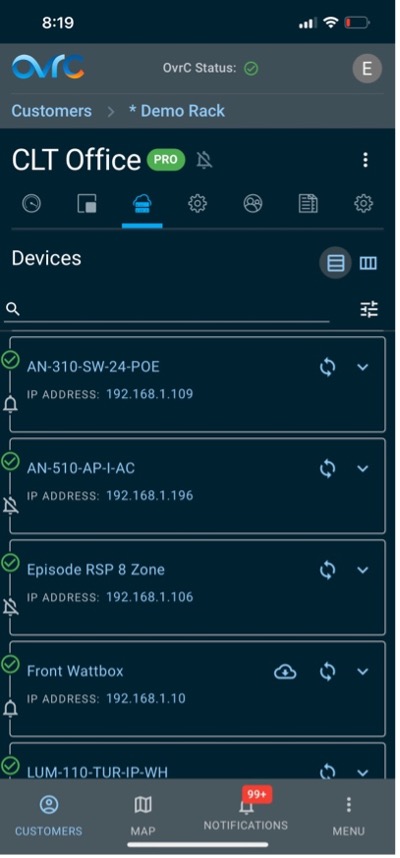
One item to note, the monitoring bell is now informational on the device list and toggling the state can being done from the grid view or in the device details page. This was done based on feedback that the device bell states are rarely changed after initial configuration but seeing the information was still important.
Snap One continues to invest significantly in cloud advancements as OvrC becomes operationally essential for integrators.
OvrC has Evolved.
Thanks to feedback and engagement from our Partners and the responsiveness of our Snap One engineers and product development team, OvrC has matured to be an essential platform that streamlines day-to-day operations, installation and configuration, and long-term client care.
“What began as a remote monitoring tool is now a central platform that streamlines operations and provides installation and configuration efficiencies in addition to its core remote management functionality,” says Evan Marty, Director of Product Management for OvrC at Snap One.
OvrC now offers:
Evan Marty continues, “And it’s only going to get better as Snap One continues to add new features at a rapid rate to improve the Partner experience. OvrC has evolved and will continue to evolve because we are committed to being responsive to Partner needs and making OvrC the most useful, operationally essential tool for integrators.”
Significant Cloud Investments
OvrC operates across the planet on a scale of millions of devices, has tens of thousands of users, and is in use every second of every day.
As OvrC becomes more and more operationally central to integrators businesses, we understand Snap One has an increasing responsibility to deliver a platform that is world class in terms of reliability, scalability, and security. With respect to this responsibility, Snap One has been investing heavily in infrastructure advancements, process improvements, and security tools.
“We strive to be the most trusted company in our industry. At Snap One, we believe a kilobyte of prevention is worth a terabyte of cure when it comes to reliability, scalability, and security. When something goes wrong, it should have as little an impact for the shortest time possible. That’s why we’re continuing to invest heavily in cloud advancements and always seeking to improve processes,“ says Alex Mann, SVP of Engineering for Cloud, Data Science, Cybersecurity.
Delivering a Reliable and Scalable Platform
In recent years, OvrC delivered 99.95% cloud availability, but we’re not satisfied with that. Snap One strives to be the best in the business which means delivering continually greater cloud availability and ensuring Partners can access OvrC quickly and easily, no matter how many people are using it. That’s why we’ve made, and will continue to make, significant investments in our cloud infrastructure.
Recent investments towards greater reliability and scalability include:
Control4 has also benefited from OvrC cloud investments that Snap One has made over the last year. The improved responsiveness of key Control4 mobile experiences is in large part thanks to Snap One’s overhaul of the remote-connection infrastructure and the migration of Control4 services to OvrC’s faster and more reliable “lightning” servers.
Delivering a More Secure Platform
Snap One has made significant investments in our OvrC security infrastructure in recent years. These investments include leading-edge Web Application Firewalls (WAFs) to protect OvrC from bad actors, improved backup and disaster recovery solutions that give peace of mind and accelerated recovery, identity infrastructure that will scale with OvrC into the future, extensive secure coding training to build OvrC secure by design, and a host of other tools for developers, engineers, and support teams to respond quickly and effectively to any security problem.
These security measures are regularly tested using 3rd party resources and Snap One’s own team of Whitehat hackers so we can be confident that these investments make OvrC the most secure platform in the industry.
More recent security investments include:
A Great Responsibility
“We’re not finished. We’re committed to constant improvement and to OvrC becoming the most useful and operationally valuable tool for integrators,” said Kenny Kim, VP of Product Management for Platforms & Services at Snap One.
He continued, “The reliability, scalability, and security of our platforms is essential to creating premium customer experiences and supporting an integrator’s growth and reputation. Snap One takes that responsibility very seriously and we are investing a lot of time, people power, and money to ensuring our Partners can count on us.”
Join the public beta for OvrC.
Help us develop the best solution for you.
To start the new year, we have made some exciting new changes to OvrC, including the ability to create Rooms, Network Health, and other improvements.
Introduction of Rooms
Navigating and finding specific devices or groups of devices on a network can be challenging, especially with the increasing number of devices being connected. OvrC has introduced the Rooms feature to address this issue, which allows for better organization and efficient navigation by grouping devices together. As seen with early testers, this can be applied in various ways, such as grouping devices by buildings, floors, or spaces. Additionally, the Rooms feature also facilitates faster troubleshooting.
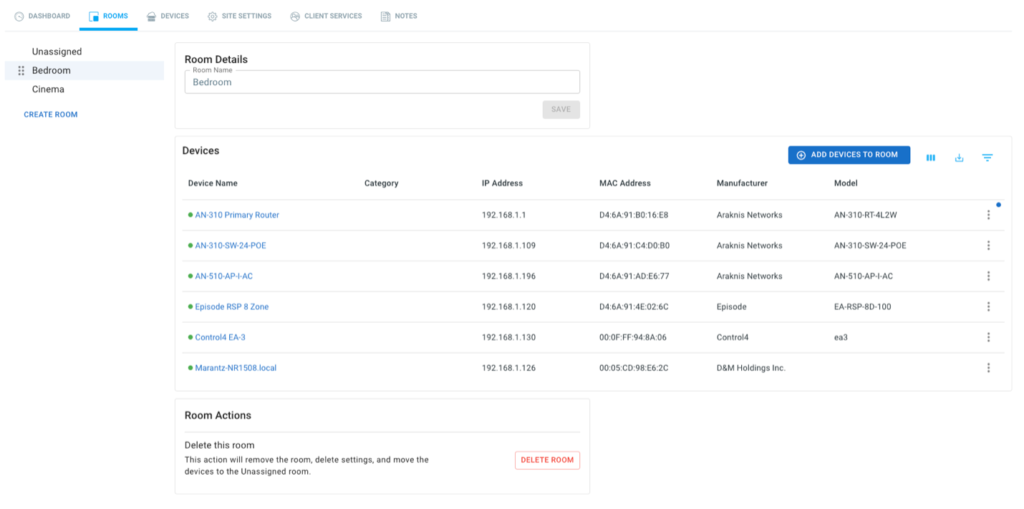
New Device List
Along with the Rooms feature, we have also improved the device list to provide better functionality. The new table layout provides lots of new functionalities:
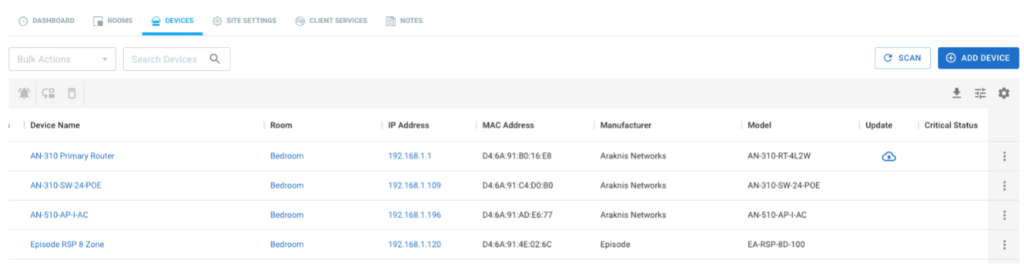
To learn more about Rooms and Device List, please visit the Snap One Tech Community.
Network Health
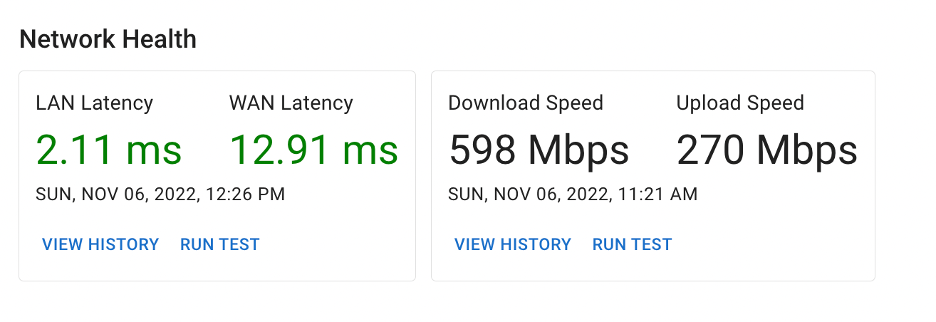
Previously known as Internet Speed Test, Network Health has been changed on the Location Dashboard to provide more information. Speed tests alone cannot provide enough information to determine if a customer’s network is running as expected. OvrC now measures latency, or response time, for the internet and local network separately.
In preparation for this feature, we have proactively configured these settings on existing locations. This means that Network Health should already be working in your locations without any action needed by you.
All OvrC Pro locations have already been configured to use 8.8.8.8 as the target for measuring WAN latency as well as a target device has been selected for measuring LAN latency. Additionally, changes to speed test frequency have also been applied.
To learn more about Network Health, please visit the Snap One Tech Community.
Fixes and other improvements
With this update we have addressed some underlying bugs within OvrC
As always, we continue to evolve our product based on your feedback. Please continue to provide your thoughts and ideas to [email protected] or through the user feedback section of the web and mobile applications. Thanks!
WattBox delivers reliable, scalable power control for today’s connected environments. With IP-enabled PDUs, seamless Q-SYS integration, Double Conversion UPS backup, and OvrC remote management, it’s the complete platform integrators trust for commercial installs.
IP Power Distribution
Commercial systems are demanding more power, more control, and better protection, but most power solutions aren’t built to scale with modern commercial installs.
WattBox delivers:
OvrC
OvrC gives integrators complete, centralized control of WattBox power devices, making multi-location management simple, efficient, and reliable.
WattBox + OvrC delivers:
Q-SYS Integration
Power control is often disconnected from the main control system, creating added complexity for commercial integrations.
WattBox delivers:
Double Conversion UPS
Even a momentary power loss can disrupt sensitive systems and cause costly downtime.
WattBox delivers:
No matter the project, WattBox has the solutions to keep you powered, protected, and ready for what’s next.
As an award-winning leader in smart power management, WattBox continues to deliver reliable, scalable solutions designed for modern integrations.
Today, an improved and refined workflow is now available that allows you to transfer existing customers’ OvrC Pro devices (Control4 Controller, OvrC Pro Hub, or Araknis/Pakedge router) to a new customer or to Inventory, eliminating the need to delete and reclaim OvrC Pro devices in order to transfer between locations.
CUSTOMER-OF-RECORD CHANGES
There are times when one of your customers wants to transfer account ownership to a new customer. For example, an existing customer has sold their residence or retail/commercial space, along with their system, to a new homeowner or business. As you are already the dealer-of-record for the account, a system takeover is not necessary. Instead, the existing customer account needs to be transferred to a new customer account.
We have implemented two new enhancements in OvrC that will greatly simplify and streamline that process.
OVRC PRO AGENT TRANSFERS
Until now, a customer account transfer required a separate OvrC Pro Device, like the OvrC Pro Hub, to execute a SYSTEM TAKEOVER to claim devices from an existing system in order to move them to a new customer site.
Today, OvrC Pro Devices can now be transferred to INVENTORY, like all other exclusive brand devices. This allows you to:
SYSTEM TAKEOVER MATRIX
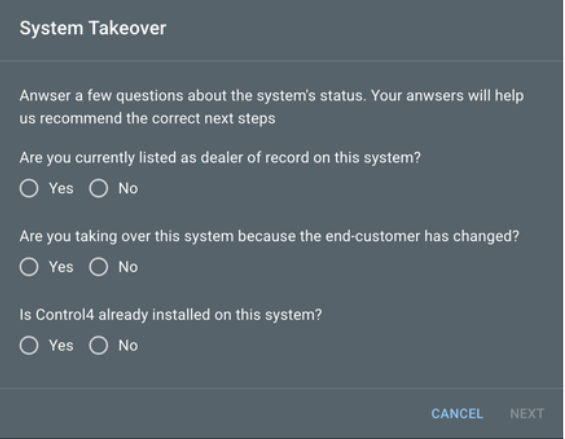
To simplify the complexity of account ownership, dealer permissions, and security requirements, the SYSTEM TAKEOVER button in OvrC now includes a matrix survey to identify the correct process required. To access, navigate to the CATEGORIES page from the top menu, select REMOTEMANAGEMENT, and then PROTOOLS.
Based on your responses, you will be prompted with the next steps to complete the request.
For a complete guide for the System Takeover Matrix, with descriptions for each required process, check out the following scenarios and their recommended next steps:
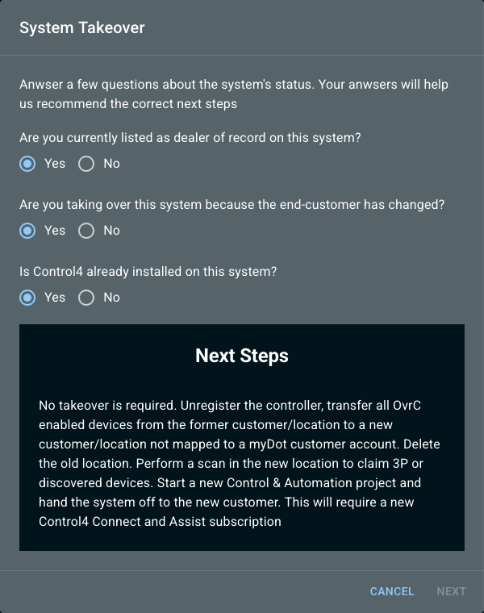
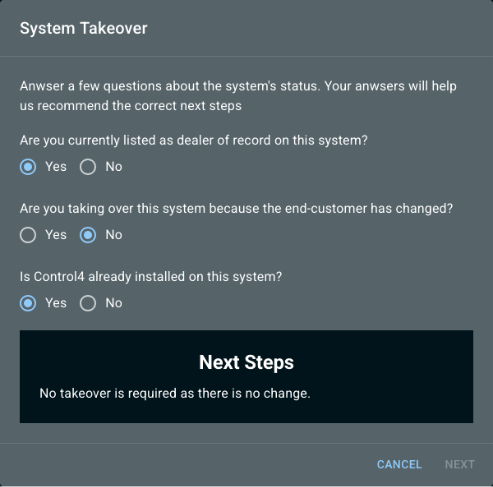
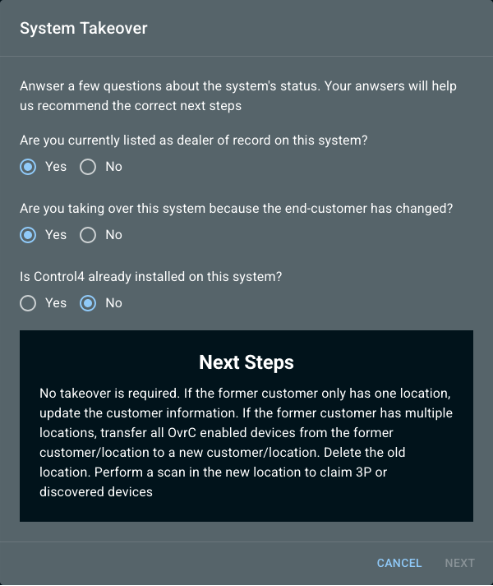


We’ve redesigned OvrC to make your workflow faster and simpler. The new Categories Page consolidates all configurations, settings, and tools into one streamlined view.
Toggle on the new experience from the top menu bar and explore what’s possible.
New OvrC features for Wattbox devices allow you to deploy faster and manage easier.
BULK FIRMWARE UPDATES
All Wattbox 150, 250 and 800 series* devices can now be updated simultaneously with a single button click, exponentially reducing the time that it takes to deploy new installations, or update your customer’s existing systems.
The What’s New toggle at the top right of OvrC enables this new feature; to access Bulk Firmware Updates:
NOTE: Wattbox Bulk Firmware Updates are currently limited to 200 devices per update instance
NOTE: Step-wise updates will be automatically managed when necessary, but the user will need to re-select and update again once that step is complete.
*Bulk firmware updates for legacy Wattbox 300 and 700 series devices will be coming soon.
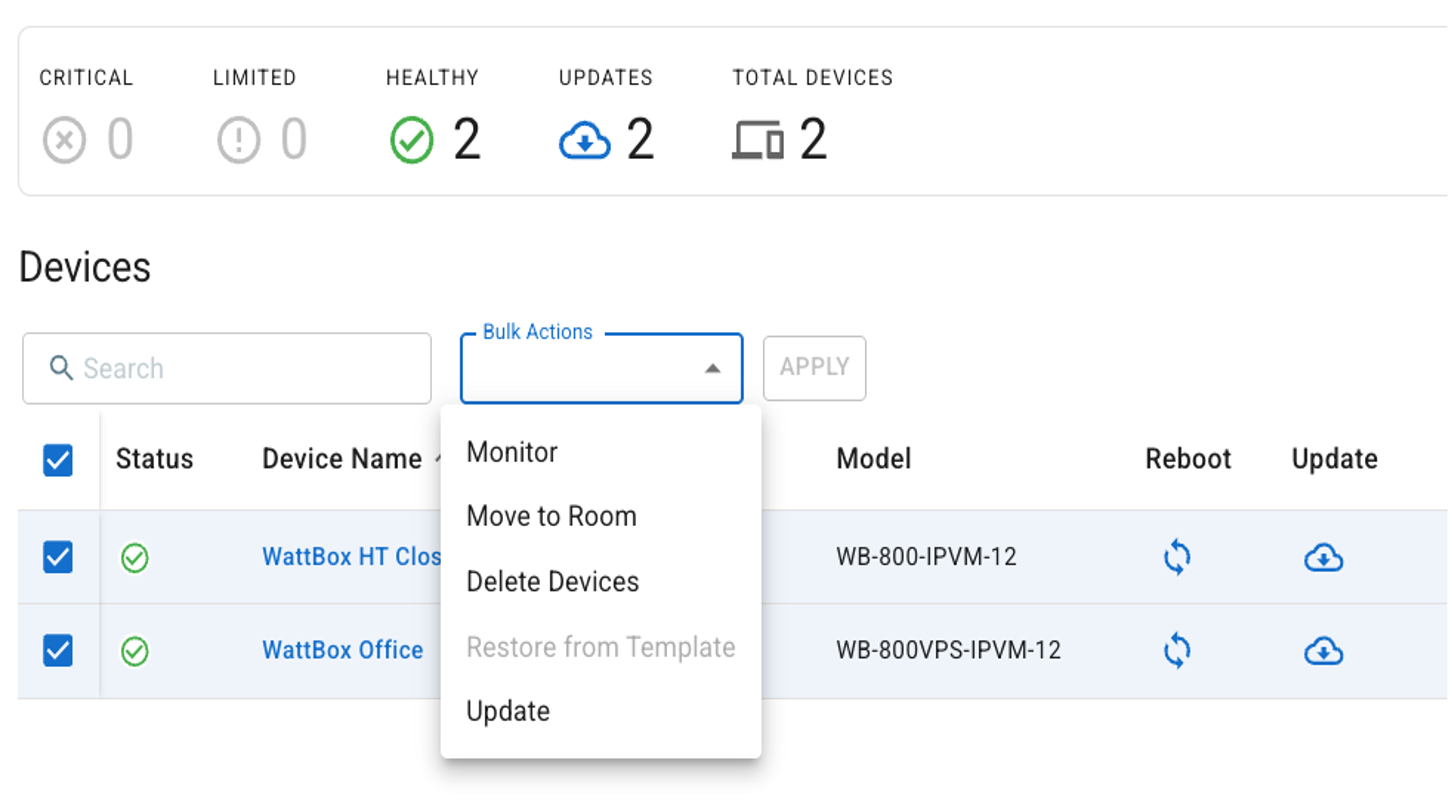
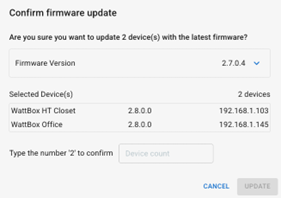
NEW FIRMWARE ENABLES DEVICE TEMPLATES
In conjunction with this new feature, a new firmware update is now available for Wattbox 150, 250 and 800 series* devices, which enables the ability to BACKUP a device configuration to the cloud, which can then be RESTORED to a Wattbox of the same model and firmware version, allowing you to configure every Wattbox in a deployment in a fraction of the time it would normally take to configure just one.
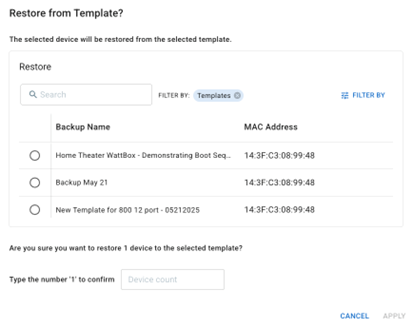
Device Templates allow you to create a ‘golden template’ for each Wattbox 150, 250 and 800 SKU that includes all your common configurations. The cloud-stored BACKUPS can be applied locally to other devices, and after clicking SAVE AS TEMPLATE the configuration can be used for any future deployment in any other customer site. This also allows a remote-located technician to RESTORE a Device Template as soon as the devices have been physically installed and automatically claimed in OvrC.
The What’s New toggle at the top right of OvrC enables the new Device Template feature; BACKUP a Wattbox 150, 250 or 800 configurations:
NOTE: Device configuration file BACKUPS are stored in OvrC and can only be accessed by RESTORING to a device of the same model and firmware version. The cloud-stored BACKUP cannot be manually downloaded.
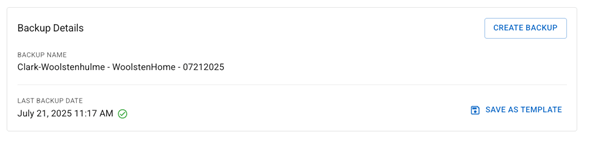
To RESTORE a Device Template to a Wattbox 150, 250 or 800:
NOTE: You can click CUSTOMIZE and VIEW BY in order to sort the device list by model and firmware
NOTE: There is currently a limit of 1 BACKUP per device and 5 TEMPLATES per Wattbox model
NOTE: OvrC Connect Macros are currently not saved in Backups nor Templates
*Device Templates for legacy Wattbox 300 and 700 series devices will be coming soon.
We are excited to offer you early access to the all-new OvrC Connect app, which replaces the existing OvrC Home app.
The new OvrC Connect app empowers your customers to resolve common issues and manage the network, day or night, providing insight, independence and peace of mind. The new app moves away from the word “home,” properly reflecting the project-agnostic nature of OvrC. The new app comes with an all-new user interface that is simple to navigate and easy to use. Behind the scenes, we've completely rebuilt the architecture of the app to allow for easier updates and feature adds. In addition, we've introduced the ability to discretely turn on or off individual outlets on WattBox PDUs and PoE ports on Araknis switches, added international phone number support, and improved stability.
New Design
An all-new design gives customers a clean, modern interface for all their support needs
More Functionality
New functionality for WattBox with discrete on or off commands for even more control
International Support
Support for international businesses with regional phone number assistance
We encourage you to familiarize yourself with the new OvrC Connect app. In the coming weeks, we will be deploying the official release of the app. The OvrC Home app will receive an update to provide an easy transition to OvrC Connect.
To download the early access version of the app on Android or iOS please follow the instructions below.
IOS:
Android:
As always, we continue to evolve our product based on your feedback. Please continue to provide your thoughts and ideas to [email protected]. Thanks!
Snap One is excited to announce improvements to OvrC and the OvrC Pro agent!
Until now, several great troubleshooting tools have only been accessible via the local UI of an OvrC Pro enabled device. With this update, we are now making tracert, terminal emulator for SSH and Telnet, and more, available directly through the OvrC application on mobile and desktop devices. These features allow for in-depth, remote troubleshooting of devices as if the technician was locally connected to the network.
New OvrC Tab: “Pro Tools”
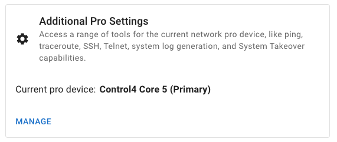
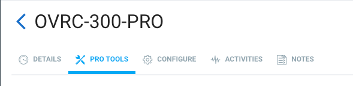
We have consolidated information that is tied to the OvrC Pro agent under a new tab called “Pro Tools” and will show up on the device details of the device that is performing network scans. We have also added a shortcut from the site settings page that takes you directly to the Pro Tools page by clicking on the “MANAGE”. Details follow:
1. Confirm which device is configured as your OvrC Pro agent in Site Settings:
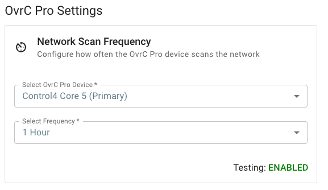
2. Go to that device’s details to access the Pro Tools tab:
Diagnostic Tools
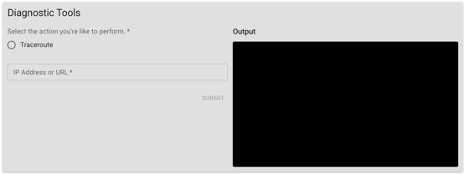
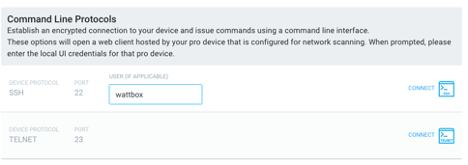
Trace route, or tracert, is a commonly used troubleshooting tool that technicians use to understand the network and many connectivity issues. With this release, those commands can now be run directly from the OvrC application (web and mobile). Additionally, a terminal emulator has been added for command line entries made over Telnet or SSH. This puts advanced troubleshooting at your fingertips and provides a virtual presence on the network to further reduce truck rolls. These features can be found using the newly added Diagnostics tab on the OvrC Pro enabled device. NOTE: if there are multiple OvrC Pro-capable devices on the project (ex. Araknis router and Control4 CORE controller), this tab is ONLY visible for the device that is configured to perform network scans.
Terminal Emulator
In some cases, there may be a need to open a terminal session to a device on the network. For this, the OvrC Pro Agent has a terminal emulator that uses the OvrC Pro agent as the on-premises device to open a terminal session and connect to a device using telnet (port 23) or SSH (port 22) as these are the most common. This tool is commonly used to interface with non-OvrC enabled devices for tasks like configuring switches that may not have a local UI or configuring the front panel buttons of a PDU.
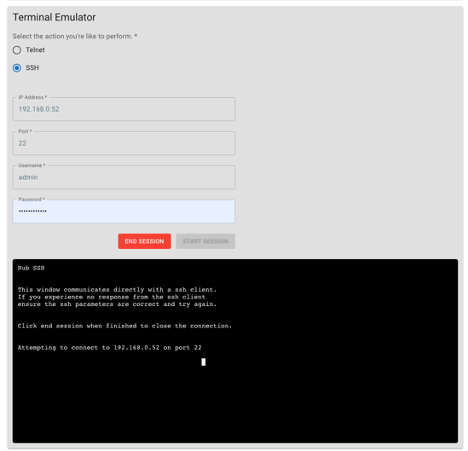
Additionally, this tool will be used for WebConnect sessions that are connecting with Telnet or SSH.
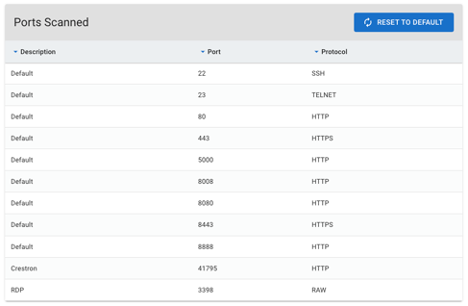
Ports Scanned
The ports scanned by the OvrC Pro agent have been moved under the Pro Tools tab and now only visible on the Pro Agent that is performing the network scans.
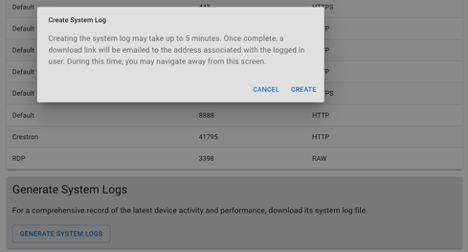
Generating System Logs
There is occasionally the need to pull logs from the OvrC Pro agent at the request of tech support. If logs are requested from the OvrC Pro agent, they can be generated from the Pro Tools tab of the device that is performing the network scans. Because log files can be large and connection speeds vary, the logs will be generated without interruption to the OvrC experience and the user that requested the logs, will be notified via email with a URL where they can be downloaded. This could take up to 5 minutes.
Future Elimination of the Local UI for the OvrC Pro Agent
With these important features moving to the OvrC cloud, access to the local UI of the OvrC Pro agent will no longer be needed and will be removed in a future update to secure the local device and protect the privacy of the customer. For devices like routers and Control4 controllers that are serving as the OvrC Pro agent, this interface was typically found on port 60000 when accessing the device directly. These devices also serve a local UI on port 80 (http) or 443 (https) and there will be no impact to that local interface.
The Araknis® Networks 920 Switch sees enhanced functionality to be used as a Media over Internet Protocol (MoIP) installation thanks to OvrC®. With the added Configure MoIP System button now in OvrC, you can more efficiently set up the system, configure settings, and move the customer’s content. When pressed, the button properly configures settings such as IGMP settings to pass multicast traffic, and even optimizes other complex settings and data traffic loads. This ensures every project offers the best performance and network efficiency while saving time on every installation.
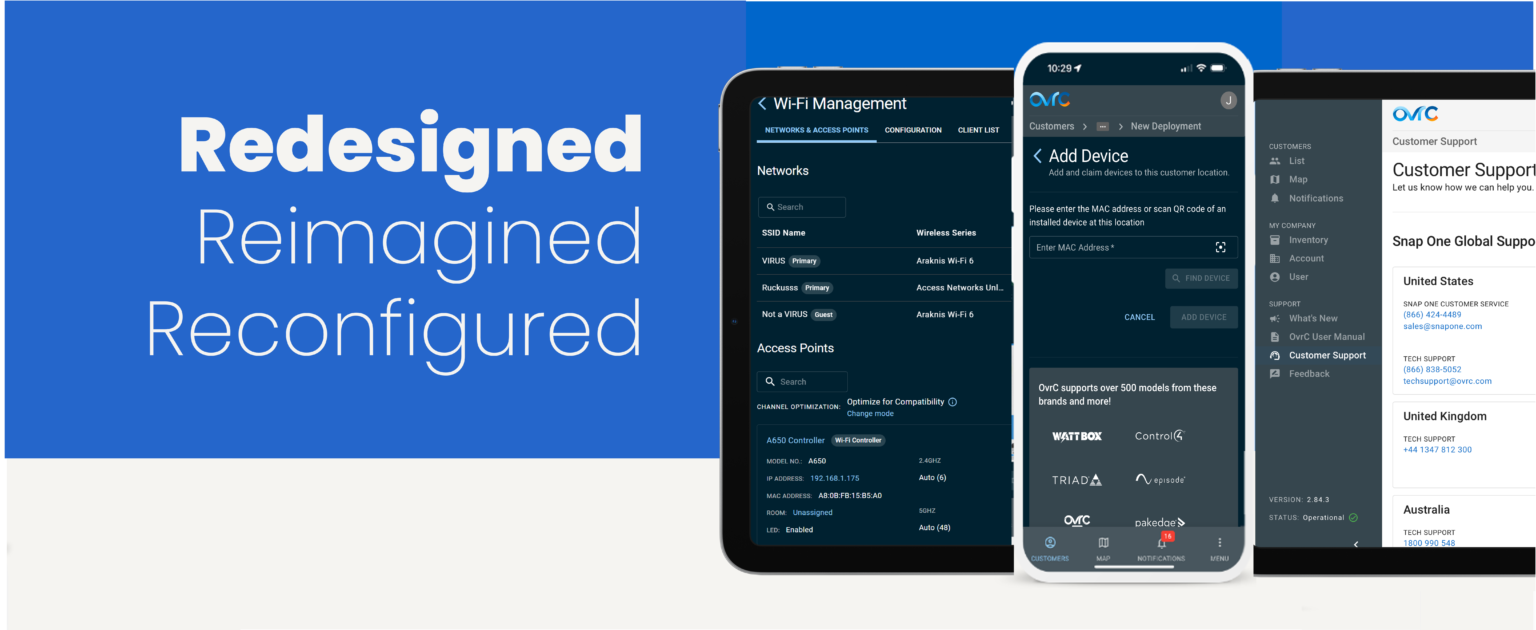
NEW OVRC FEATURES UNLEASHED
At Snap One, we seek to provide the Best Partner Tools, hoping to improve the Partner experience when installing, configuring, managing, monitoring or troubleshooting. Sometimes that means developing brand new features and capabilities, and at other times we are focused on improving the existing tools and processes.
Today we are happy to announce:
Continue reading to learn more about these updates, and then check it out yourself, these features are already live and ready for you.
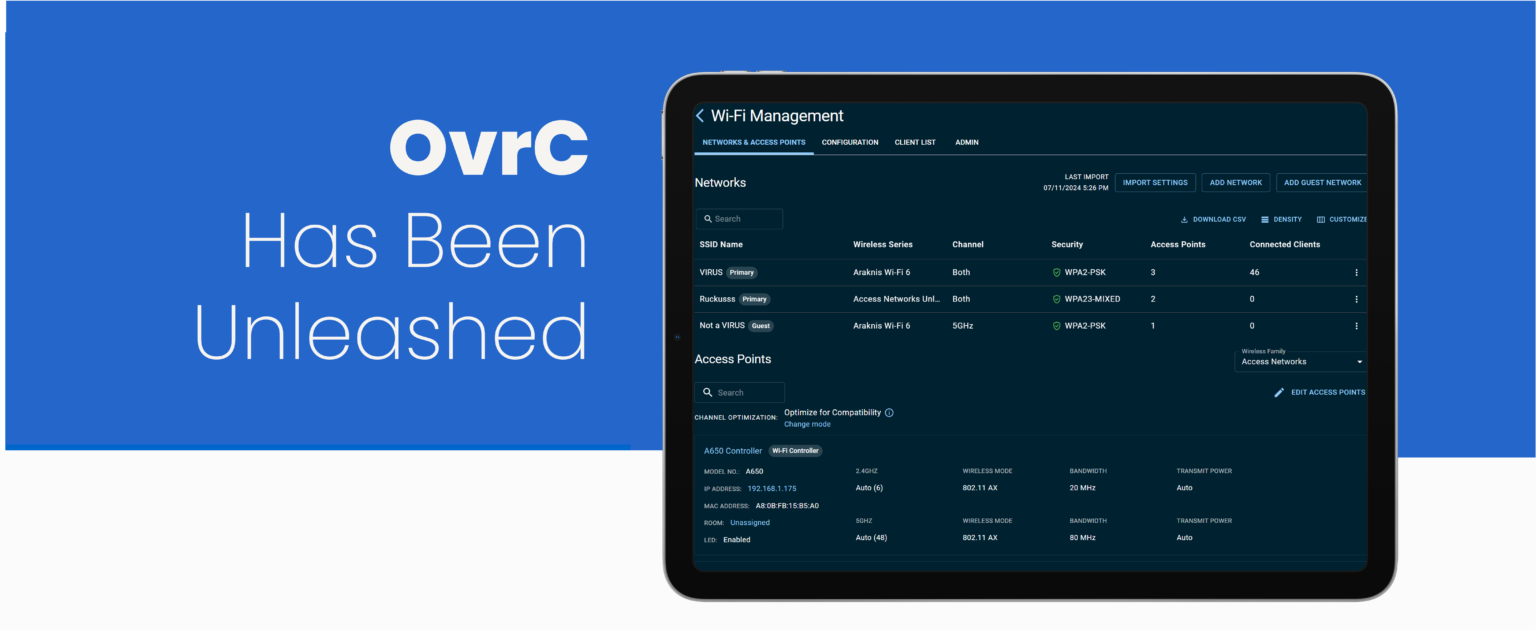
OVRC UNLEASHED IN ACCESS NETWORKS
The full portfolio of Access Networks Wi-Fi 6 Unleashed Access Points are now configurable within OvrC. This seamless integration now allows Partners to enjoy the convenience of managing their network devices from a single user-friendly interface they already know and trust. Support for Access Networks Unleashed Wi-Fi 6 Access Points has also been added to the client-facing OvrC Connect app.
The Wi-Fi Management Tool available in the Site Settings has been redesigned and rebuilt to improve your wireless deployment experience. Now, Access Networks, Araknis and Pakedge wireless access points can be configured and optimized simultaneously for a seamless configuration.
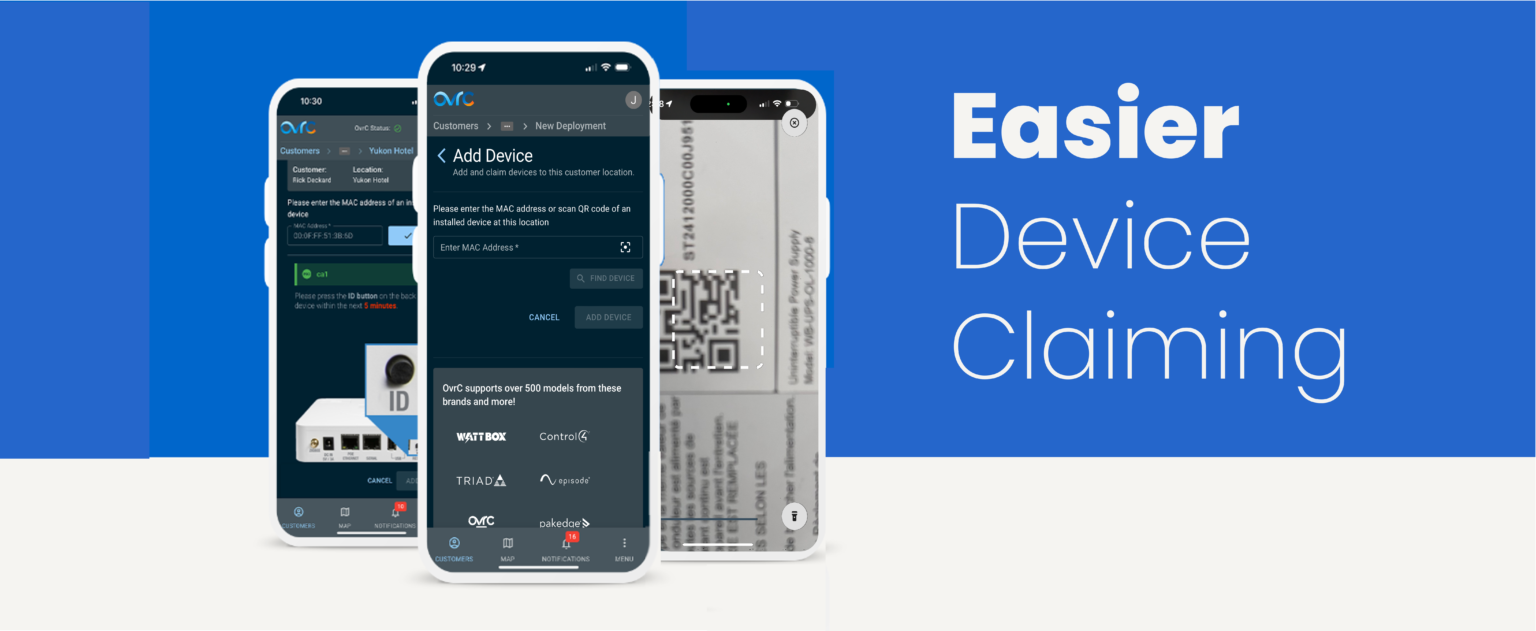
STREAMLINED DEVICE CLAIMING
As part of our continuing effort to provide faster, more efficient tools, Snap One™ is excited to announce new additional options to make claiming a new device on an OvrC® account easier.
The two additional options for claiming a device:
1. Enter the MAC address, and then press the controller’s ID button
OR
2. Scan the QR code found on the bottom of the device or on its packaging
Previously, the only way to claim a device was by manually entering its MAC address and Service Tag number, which isn’t always the most accessible method. These additional means of claiming a device are just part of the Snap One team’s goal to make every install even easier.
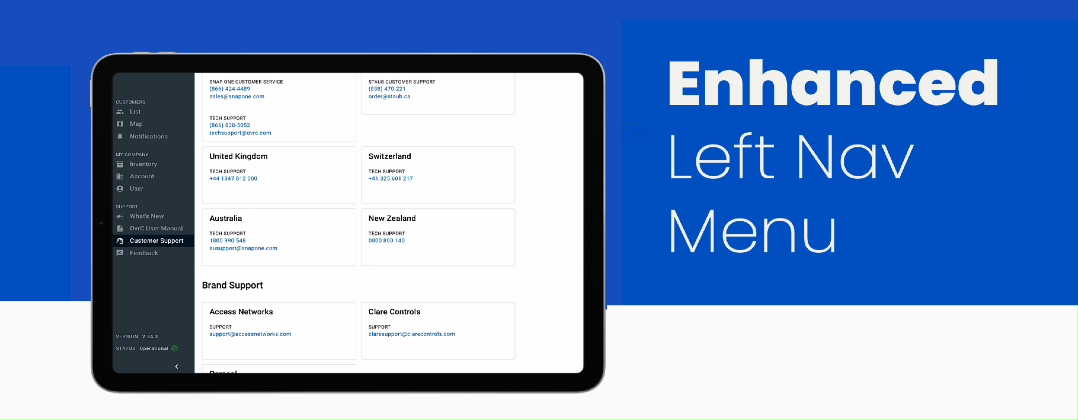
IMPROVED NAVIGATION AND ACCESS TO RESOURCES
When first opening OvrC via browser or app, the left-navigation menu will be open, displaying the menu options. However, once a customer’s site has been selected from LIST, the left-navigation menu will collapse automatically to maximize available functional screen size. A quick tap on the page icons in the menu will navigate you to the selected page or tap the arrow at the bottom to open the menu for more detail.
And while we were automating the flyout menu, we added to it, making the most of the space and making it easier for you to access these resources:
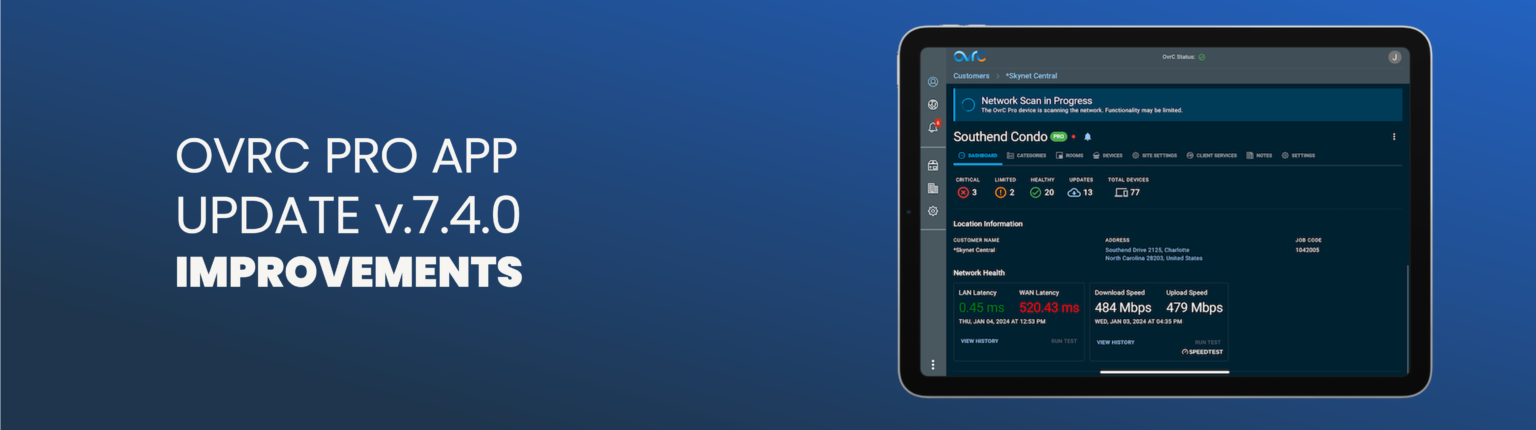
Snap One is excited to announce the launch of OvrC Pro App v7.4.0, an engineering effort that features a number of updates to the back-end processes and infrastructure, and will provide noticeable, real-world improvements. This launch is a continuation of Snap One’s mission to provide the best, fastest, most powerful, and easiest to use tools for our Partners. For this OvrC update, engineering development focused on improving the Partner experience within OvrC, with special attention to Partner-requested enhancements.
The highlights for this update include:
OvrC now validates the MAC address of discovered devices by matching the device list in the OvrC Pro agent. This provides more accurate monitoring on sites with frequently changing IP addresses.
Previous versions of the Pro Agent performed a health check every 5 minutes, regardless of the network size. As a result, small networks had a delay when notifying when the connected state changed. For larger networks, the health check scan may not have been completed before the next was triggered. This resulted in devices showing as disconnected when they were functioning as expected. OvrC Pro App version 7.4.0 now waits for the previous health check to complete before triggering the next one, for a more accurate connected state reading.
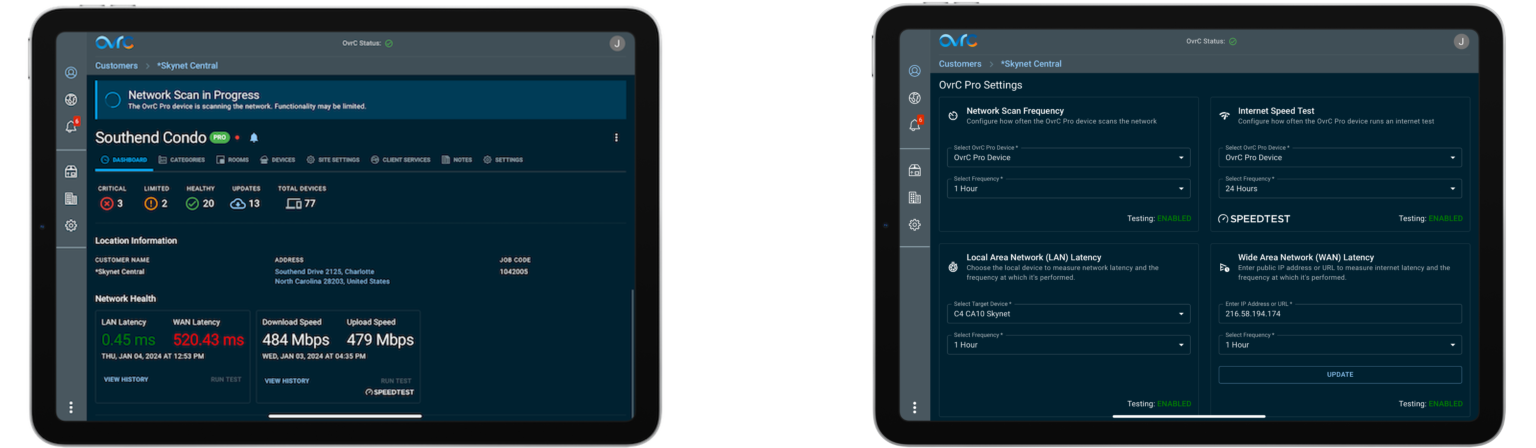
With these important features moving to the OvrC cloud, access to the local UI of the OvrC Pro agent will no longer be needed and will be removed in a future update to secure the local device and protect the privacy of the customer. For the OvrC Pro Hub, port 80 was used. For devices like routers and Control4 controllers that are serving as the OvrC Pro agent, this interface was typically found on port 60000 when accessing the device directly. These agent devices also serve a local UI on port 80 (http) or 443 (https) and there will be no impact to that local interface.
COMING SOON
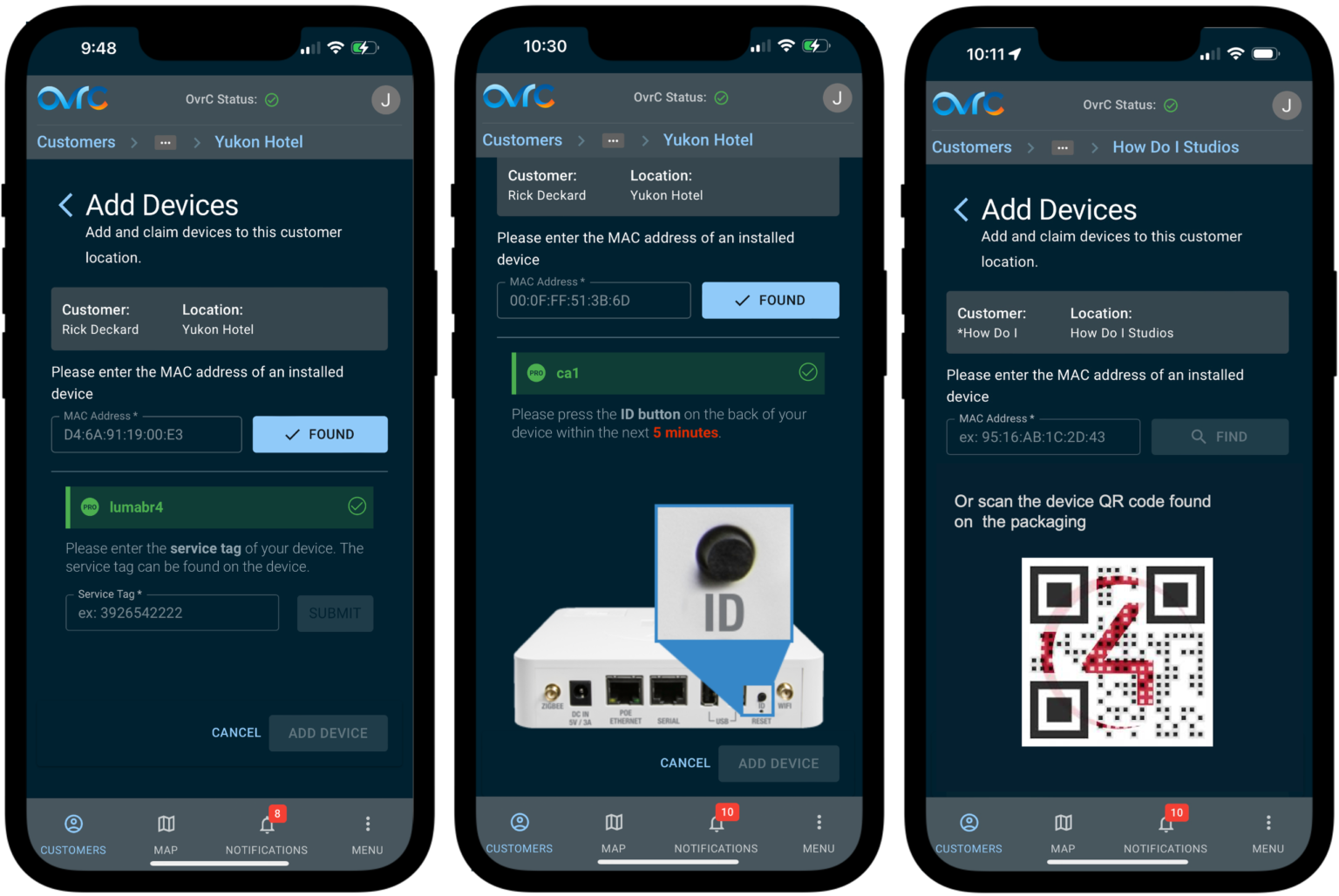
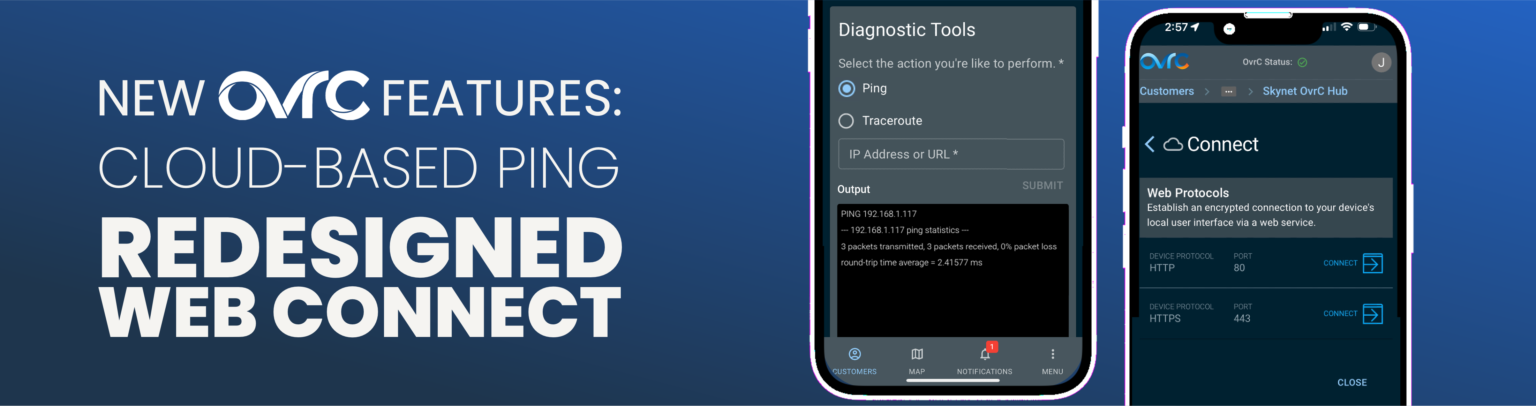
LEGACY WEB CONNECT
Arguably, one of the most useful/powerful features in OvrC is the ability to connect remotely to a device’s UI webpage as if the technician were connected directly into the customer’s local network. This feature would allow a technician, from anywhere in the world with an internet connection, in real-time, to configure that device’s settings, test for functionality, or to troubleshoot a customer complaint.
However, the feature was fraught with issues and difficulties:
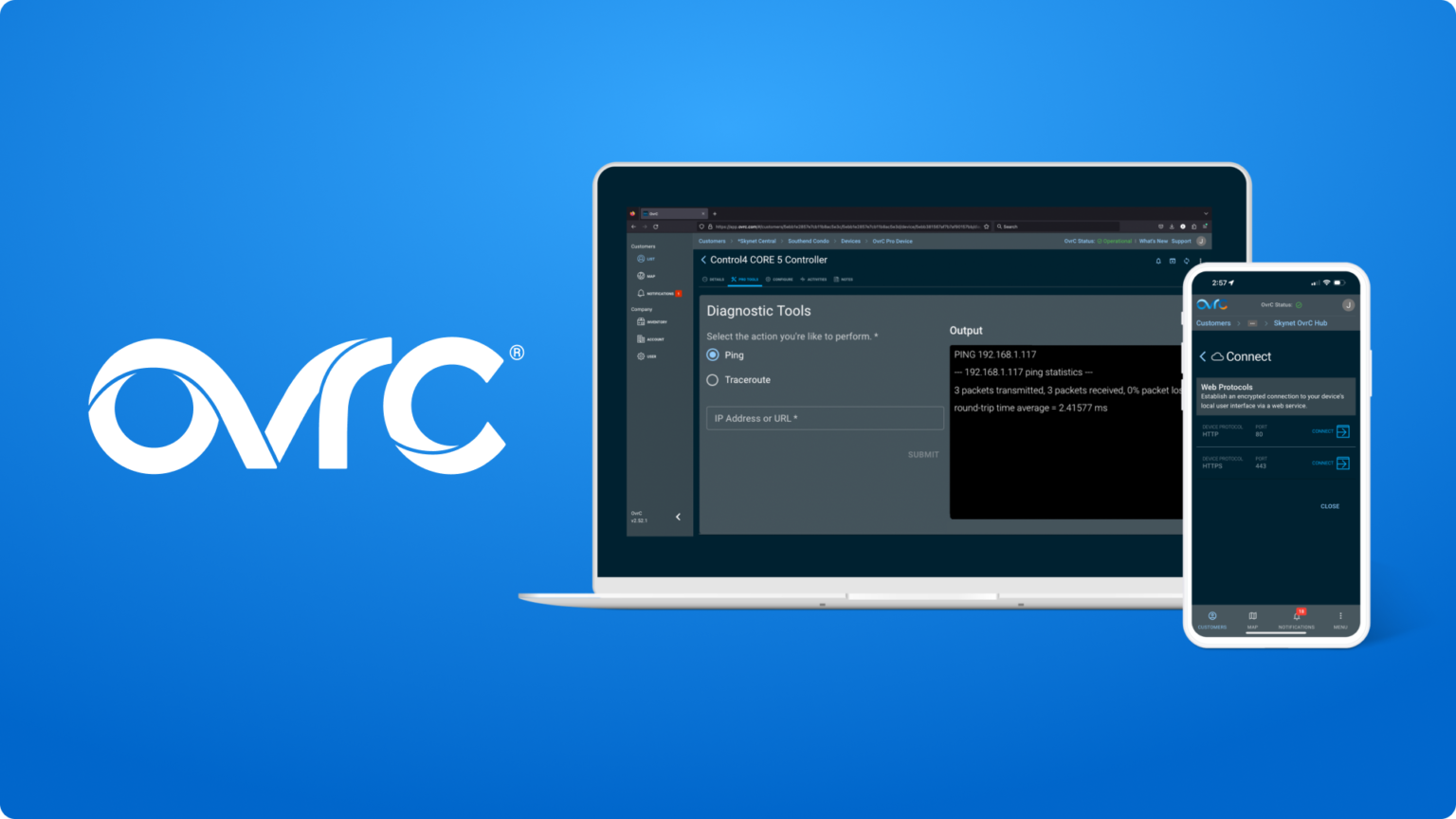
NEWLY REDESIGNED WEB CONNECT
The OvrC team here at Snap One has completely redesigned the Web Connect process to leverage the existing communication pathway between the customer’s OvrC Pro Agent and the OvrC servers. This persistent connection, which is secured and authenticated, communicates using the HTTPS protocol through a standard network port: 443.
Combined with a number of bug fixes, including a resolution for the page rendering issues, and other service improvements, the redesigned Web Connect will yield higher connectivity success rates, and faster, more reliable connections.
As all the fixes were done to the backend, Partners can try out the new Web Connect experience without having to install, update nor configure.
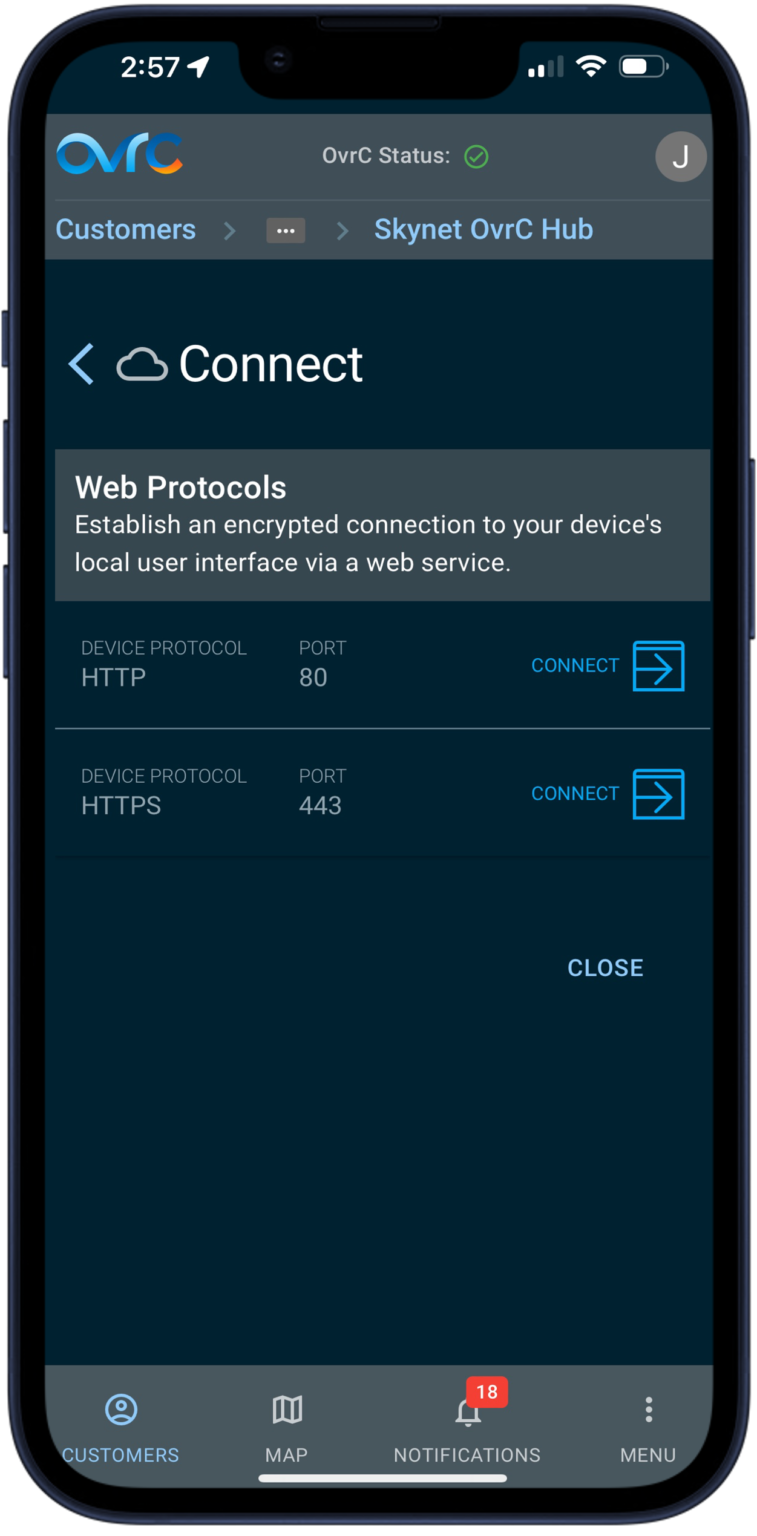
“What’s even more positive is that with the previous mechanism, the connection would be blocked by my office firewall requiring me to VPN out to use WebConnect. With the new connection mechanism this is no longer required and seems to tunnel out without issue.” – Craig Paxman
The fine print information regarding the functionality of Web Connect in different scenarios:
The new Web Connect is faster and more reliable by avoiding SSH connections that ISPs/IT policies/firewalls would prevent, avoiding the use of cookies to improve page rendering, and minimized the number of encryption/decryption steps to reduce the risk of corruption (which is why it is not recommended to execute a device’s firmware update over Web Connect). While developing this new pathway, our teams also uncovered an resolved many other bugs and issues that diminished the Web Connect experience.
This new Web Connect pathway will be used in:
*PRO TIP: some devices provide two Web Connect options: 443 and 80. Port 443 will follow the new Web Connect path using HTTPS. Port 80 communicates over HTTP.
Web Connect through SSH is available for limited use cases for Snap One devices, specifically the Wattbox WB-700/300 and the Araknis AN-620 Switch, that have known issues using the new Web Connect pathway. Those issues will be resolved at a later date most like through a firmware update, allowing them to use the new pathway at that time.
Web Connect over UPnP is still used by some legacy OvrC-enabled devices (Wattbox WB-400/600, Wirepath cameras, and Araknis X00 devices) to establish a Web Connection over WAN. This method is viewed as a security vulnerability by some ISPs, which will block this type of traffic by default. Support for this type of remote UPnP connection is also commonly disabled in the router by default.
This communication method suffers high failure rates; Web Connect over UPnP will only be used when accessing older OvrC enabled devices where there is not an OvrC Pro agent.
PING ADDED TO PRO TOOLS
Additionally, we have implemented cloud-based Ping functionality into all OvrC Pro Agents. A network ping measures the time in milliseconds it takes to receive a response. OvrC’s secured remote connection to the Customers local network will allow Partners to:
Ping can be accessed from the Pro Tools tab of the OvrC Pro device for the Customer’s site, or from Site Settings > Additional Pro Settings > Manage.
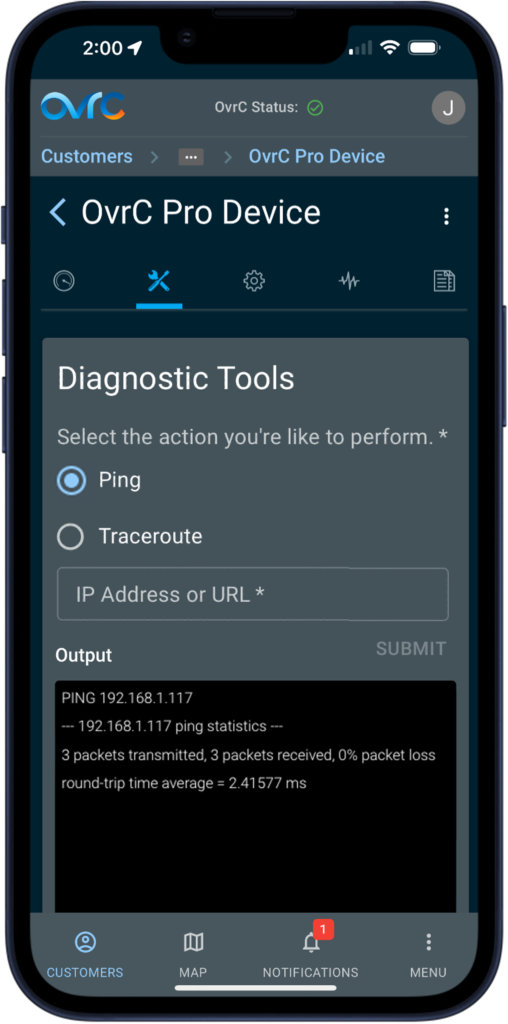
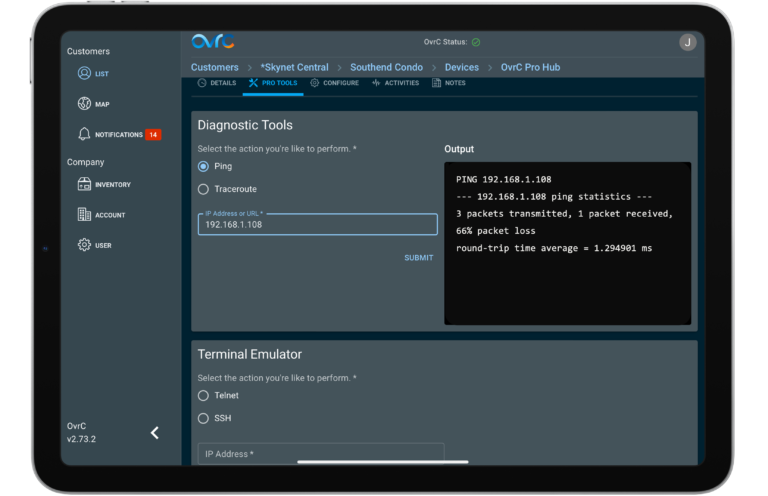
Over-Current Protection (OCP) is a feature built in WattBox units to protect your gear and installation from instances of excessive current. Over-Current Protection in the 800 Series WattBox protects from two types of excessive current:
When Over-Current Protection is triggered, ‘Device Activities’ in OvrC will differentiate between the two.
Ways to Troubleshoot
For Instantaneous OCP:
If a single outlet is off:
If 3 consecutive outlet groups turn off (1 -3, 4- 6, etc.)
For Constant OCP:
For additional information, please contact Tech Support at 1-888-400-4072 or by email at [email protected]
Starting April 23, 2024, Control4 Connect will be required for all newly registered Control4 systems in the United States.
As a result, the controller registration process will only be done through OvrC, which offers more efficiency and security. This will require a one-time mapping of your Control4 and OvrC accounts and include advanced features such as temporary credentials for the Control4 app and the customer handoff process. If your accounts are not linked, check out this tutorial.
Specifications for new systems that haven't been handed off to customers yet:
Specifications for existing systems:
We’re excited to announce the release of OvrC Wi-Fi Management for Araknis wireless networks. OvrC Wi-Fi Management offers complete cloud configuration for multi-AP projects to manage and troubleshoot Araknis wireless networks, saving you both time and money on your next deployment.
Now, from a single, centralized view, you can add/edit networks, manage SSIDs and passwords, and configure channel, power levels, and roaming features – all from the OvrC mobile or web app. Choose to push settings to select or all APs in a single click to shave minutes – if not hours – off your setup and configuration time.
When problems occur, OvrC Wi-Fi Management enables pros to support their customers faster by delivering a single view of the Wi-Fi system, eliminating the need to open multiple tabs for each AP in your browser. View and adjust channel and power outputs to ensure all connected devices have optimal coverage to deliver the best possible performance.
Gone are the days of configuring your wireless networks with a laptop and multiple web browsers. Now, even the largest wireless installs can be quickly and completely configured from OvrC using a mobile device or single web browser.
Below is a list of all Araknis access points supported by OvrC Wi-Fi Management:
Below is a list of Araknis access points not supported by OvrC Wi-Fi Management:
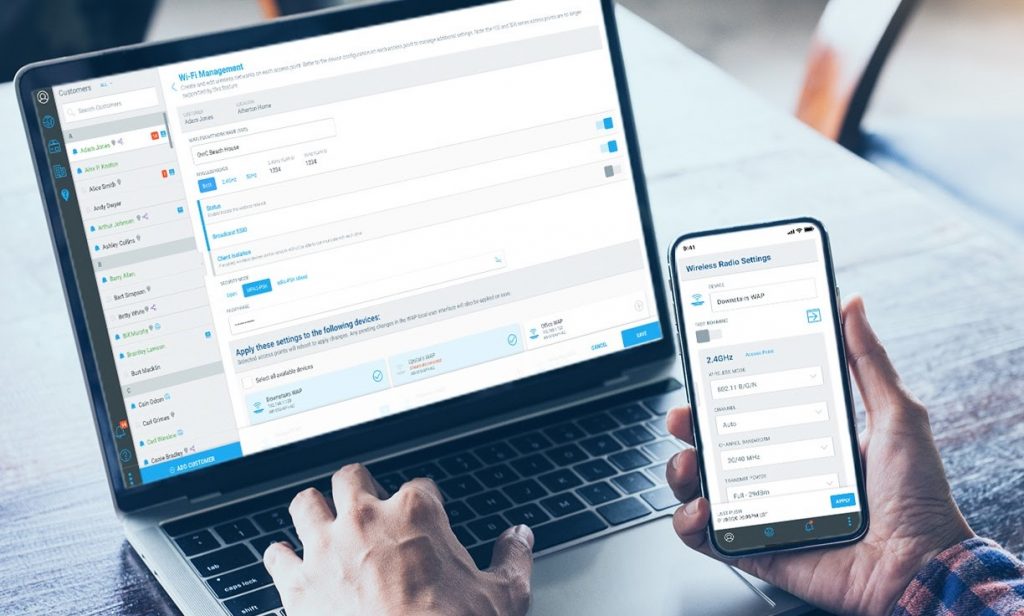
To navigate to Wi-Fi management from the main OvrC dashboard, go to “Wi-Fi Management” in the “Network” section.
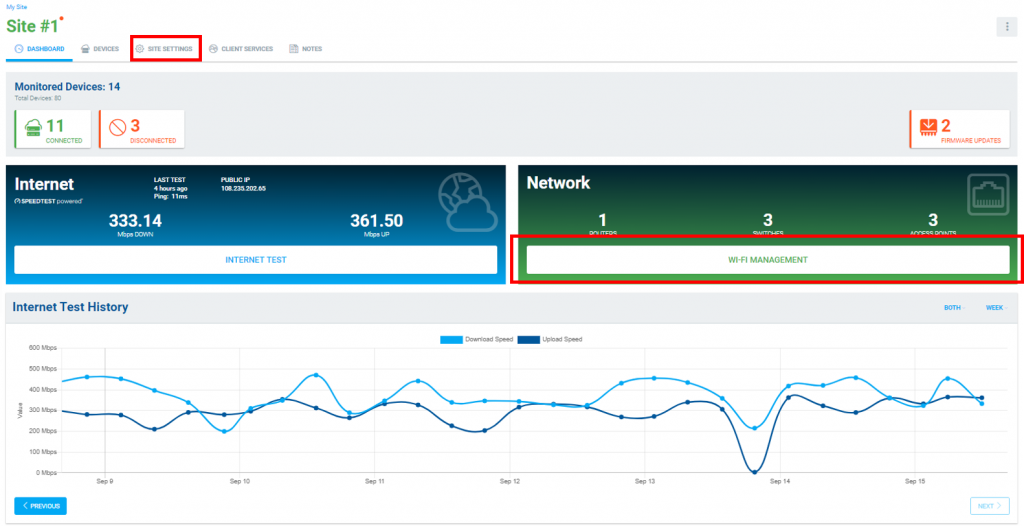
Or, select the “Site Settings” tab, then “Wi-Fi Management” under “Network Settings.”
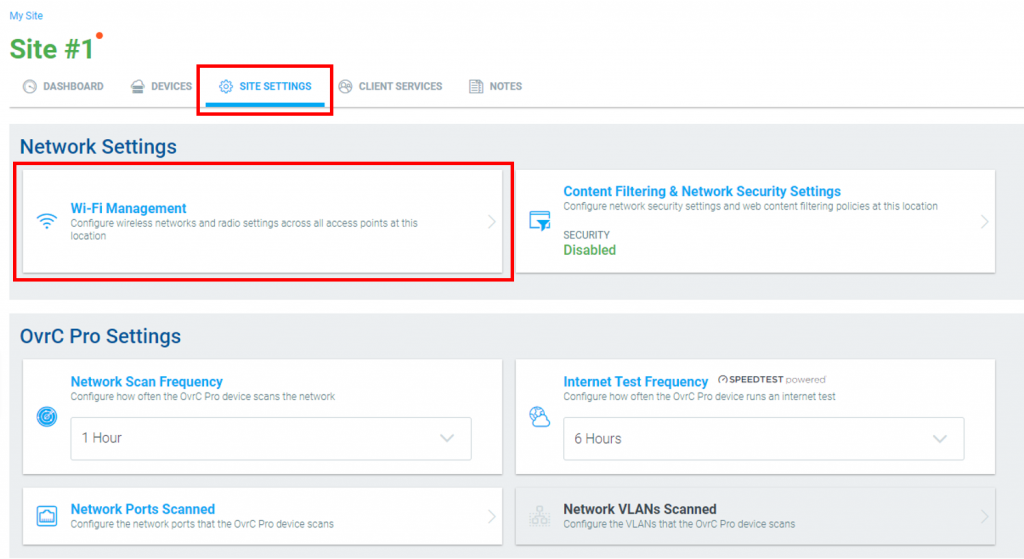
Then, select “Get Started.”

Review the notice regarding importing configurations and select “Confirm.”
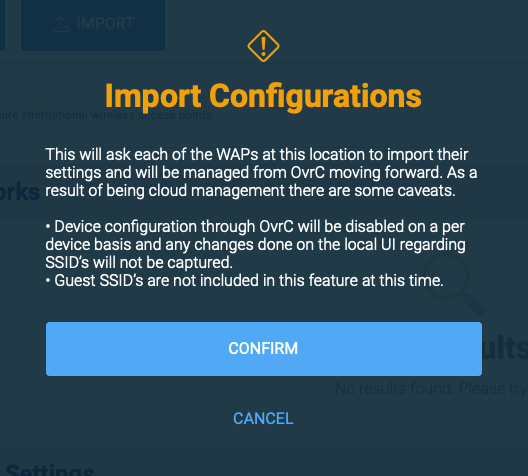
Select “Add Network” to create a new network, or simply edit the existing “Araknis_initial” for new installs.
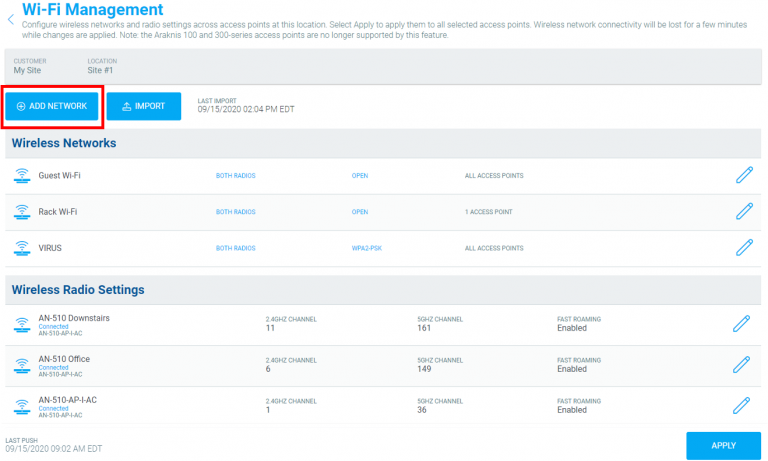
(Note: Araknis_initial can be edited or disabled but cannot be removed).
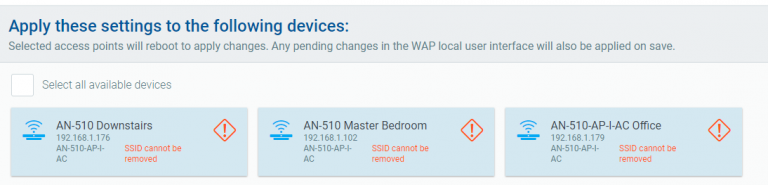
To fine tune the network after initial setup, you can adjust the radio settings for each AP for optimal coverage and performance, including wireless mode, channel, channel bandwidth, transmit power, and roaming.
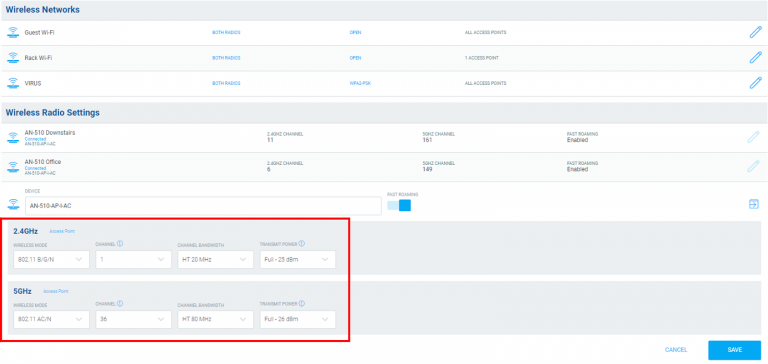
Guest SSIDs are not included in OvrC Wi-Fi Management at this time. An alternative solution to enable a guest SSID is to add a new network labeled Guest Wi-Fi and enable client isolation.

Guest SSIDs enabled on your AP on an existing site can be accessed by navigating to the individual AP under “Devices” in OvrC and configuring the individual guest SSID.
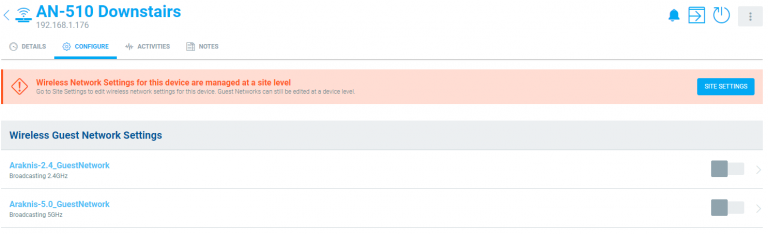
To delete an SSID, edit the “Wireless Network,” and un-select all access points assigned to this SSID. Select save.

Confirm, and apply.
On September 16th, 2020, Apple released iOS 14 for the apple iPhone, iPad, iPod touch, and Watch. This release introduces ‘private Wi-Fi address,’ a feature that assigns the iOS device a randomized MAC address for each Wi-Fi network. To learn more, check out Apple’s Support Article.
Apple has introduced ‘private Wi-Fi address’ to further protect users’ privacy. MAC randomization increases user privacy by preventing outsiders from using MAC addresses to build a history of device activity. Initially, Apple announced plans to generate random MAC addresses every 24 hours, which would have caused greater disruption to network services. Apple’s final iOS 14 release delivers a softer approach while delivering user privacy.
This article serves to inform you of Apple’s new ‘private Wi-Fi address’ feature and how it may impact you and your customers.
‘Private Wi-Fi address’ is already supported on Android devices version 10 and newer. The feature is implemented the same way as Apple devices; however, with one key difference:
When your Apple device updates to iOS 14, a new 'private Wi-Fi address' is generated for each network and causes the Apple device to be treated as a new device. This may cause some OvrC and MAC address-based network services to be interrupted for these Apple iOS devices, including:
Below covers the new expected behavior caused by 'private Wi-Fi address.' There are several workarounds available if you and your customers are impacted by this change.
Important Note: If you are using Wireless Profiles in any of your projects, we encourage you to review the potential impact this may have on your customers and determine a suitable solution.
1. Apple iOS devices appear twice in the OvrC device list
When an Apple iOS device is updated to iOS 14, the initial instance of the device will show offline, and a second instance of the device will appear. Since the new MAC address assigned is random, OvrC has no way to identify the type of device this is. As a result, the device will appear as "Unspecified" with the device type as "Unknown."
Identifying the new MAC address on the Apple device
Identifying the second device in the OvrC device list
2. OvrC Home parental controls assigned to Apple devices
Manually going through each customer project and identifying the matching Apple devices in the device list may become time consuming and largely not necessary. However, projects where Apple devices are assigned to OvrC Home ‘Wireless Device Profiles’ for parental controls will require special attention.
Assigning Wireless Device Profiles
Apple and Android devices are assigned to OvrC Home Wireless Device Profiles in order to set up client services. The MAC address of an iOS or Android device is used to identify the device through OvrC. If the ‘private Wi-Fi address’ feature is enabled, the MAC address will change and the device will no longer be recognized in OvrC Home client services.
Workaround
Users can choose to disable 'Private Wi-Fi Address' on their phone for their Private Networks. This feature is designed to increase user privacy. We encourage users to understand the impact prior to disabling. Enabling this feature is encouraged at all times when connecting to Public Networks.
To learn more, check out Apple’s Support Article.
February 1, 2024 – Changes to claiming the OvrC Pro Hub
As we work to make your customer homes more secure and make efficient use of your time, we have made an improvement based on feedback from our Partners.
OVRC PRO HUBS WILL NOW NEED TO BE MANUALLY CLAIMED
The release of the OvrC Pro app version 7.4.0 brought the elimination of the local UI on the OvrC Pro Agents (Araknis/Pakedge routers, Control4 controllers, and OvrC Pro Hubs). As a result, we have heard feedback through our support channel that this is making system takeovers more difficult as the OvrC Pro Hub, including legacy Pakedge NK-1 and supported Ihiji devices, is automatically claimed by a scan before the technician can claim the device to their account.
To resolve this issue, the OvrC Pro Hub device will no longer be claimed when found in a network scan, and instead will have to be manually claimed to the location. This change does not impact any Araknis/Pakedge router or Control4 controllers. Those will continue to be claimed through a network scan or manually without any change.
Learn how to move a customer’s existing OvrC devices to your OvrC account in this post in the Tech Community.

RECOMMENDED BEST PRACTICES
In situations where a Partner is taking over an OvrC location from a different Partner, Snap One recommends the following as best practices:
As always, we continue to evolve our product based on your feedback. Please continue to provide your thoughts and ideas to [email protected] or through the user feedback section of the web and mobile applications. Thanks!
Your OvrC Hub just got much more powerful and reliable! Firmware version 3.0.0.2 is the first major update to the Hub since its launch in September, and it’s a doozy. Our new OvrC Embedded & Control Systems Team, formerly HouseLogix, completely re-built the entire Hub software from the ground up, introducing new features and utilizing the latest in technologies to ensure a rock-solid product.
See More
- Multiple VLANs support – Monitor and scan devices across multiple VLANs
- Support Class B networks – Scan larger enterprise-sized networks that have up to 65K devices
Do More
- Scan for any web port – Add/modify the list of web service ports that the Hub scans for you to access the devices’ local UI (via Web Connect)
- Ping test any URL – Run ping tests to any external URL or local IP address to test latency and packet loss
Improved Performance
- Faster operations – At least a 4x in improvement
- More reliable – The connection and performance of the Hub is significantly improved
- Better data – More protocols are used to get better data about devices
Better Experience
- Completely new local UI – A redesigned local UI of the Hub is more user-friendly
All of the new features mentioned above are currently accessible through the local UI of the OvrC Hub only – not in OvrC. In another words, you have to click the Hub’s “Web Connect” from the Device List to get to the new features. In future releases, we will incorporate these new features natively into OvrC. If you have any issues with the update, please contact tech support at (866) 838-5052 or [email protected]
As the former President of HouseLogix, I’m excited to see how SnapAV continues to stand behind and evolve the OvrC platform. Even before our engineering team came on board, I used OvrC in my own house and to help manage our local A/V installation clients. Now that we have been part of SnapAV for 6 months, I’m even more excited about what is coming to help dealers (like HouseLogix used to be) grow their business, reduce customer calls, and move the whole industry in an exciting direction.
Our primary role since day one has been to couple our experience as an A/V integrator with the vast years of software and hardware engineering knowledge and completely rework the OvrC Pro Hub into a faster, more extensible and secure platform. This is evidenced by the recent release of version 3.0.0.2 which includes great new features like enhanced scan results with better host name discovery, detection of more devices, multiple VLAN support, a completely redesigned local UI which is mobile friendly and has tools such as a real-time ping and speed test.
There are so many features I cannot touch on in this short blog, but the most significant changes are the ones that you won’t even see. Under the hood almost nothing has been re-used from the previous version and we’ve designed the new code in a way that allows us to quickly roll out even more awesome features that are in the works.
Happy Holidays from OvrC! We got you the best gift of all – new features.
This was one of our highest-requested features from early adopters of OvrC Pro, and is like nothing else on the market. Now, you can create OvrC Home commands that trigger up to 5 different “reset steps” in one command sequence.
A “reset step” could be:
This enables you to create much more powerful OvrC Home commands for your clients, and prevents end user confusion. Now, clients won’t need to click multiple buttons or figure out which devices to reboot in order to fix any issues they’re experiencing.
Here are some example commands:
This capability is now available for any existing and future OvrC Pro locations.
Another highly-requested change was for the ability to turn OvrC notifications on/off by device. This is available for all OvrC users for all types of locations.
Today, you get notifications for ALL OvrC-enabled devices falling offline/online – and can only change notification settings globally. Sometimes the volume of notifications was overwhelming. With these new features, you can now determine which devices and systems you want to monitor, as some are less important than others.
Important Note: This is a notification preference for your entire company, not just the individual user.
For example, if a user turns off notifications for a WattBox, everyone sharing that OvrC account (including the owner, admins, or other technicians) stops receiving notifications for that WattBox until alerts are turned back on.
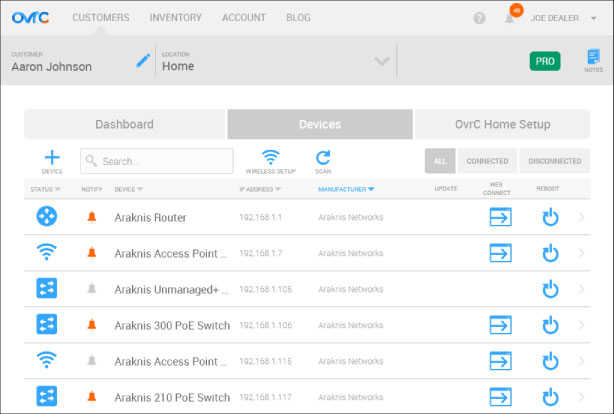
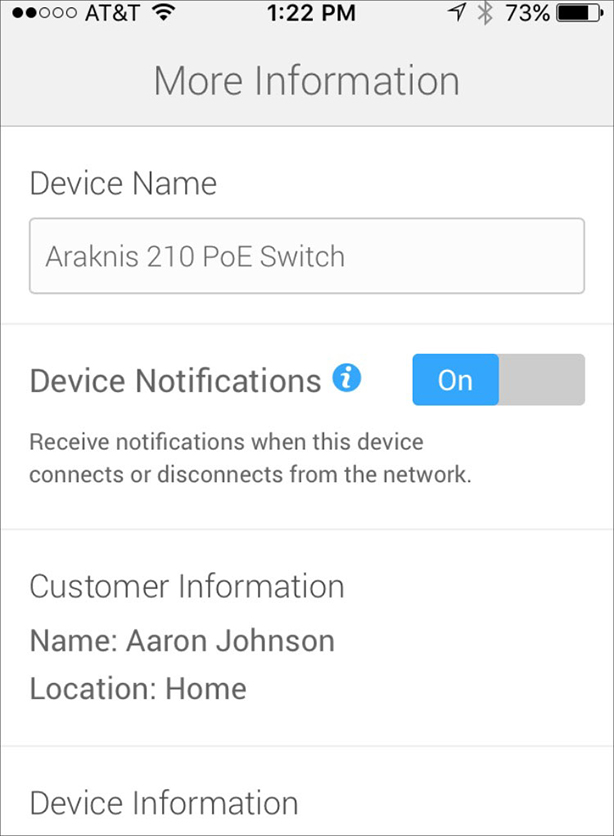
Email and push app notification delays have been reduced from 60 minutes to 10 minutes. This is available for all OvrC users, for all types of locations.
The sixty-minute delay was originally built-in to allow devices to re-establish communication to the cloud if the signal was intermittently disconnected. Many devices do this as a result of common ISP issues. We have now reduced that delay to ten minutes, as we found that most devices recover after a few minutes, without impacting the experience of the end users. If a device does not re-establish connection to the cloud within 10 minutes, the situation may require your attention and expertise.
Shortening notification times simply gives dealers the opportunity to react quickly to critical information.
We’ll post again soon with additional updated features, assorted tips and tricks for using OvrC, and more information about OvrC Pro.
This OvrC update is focused on making the DEVICES list more powerful, more customizable, and easier to use. Forge your own personalized Device List experience, one that provides the data you need, presented the way you like it.
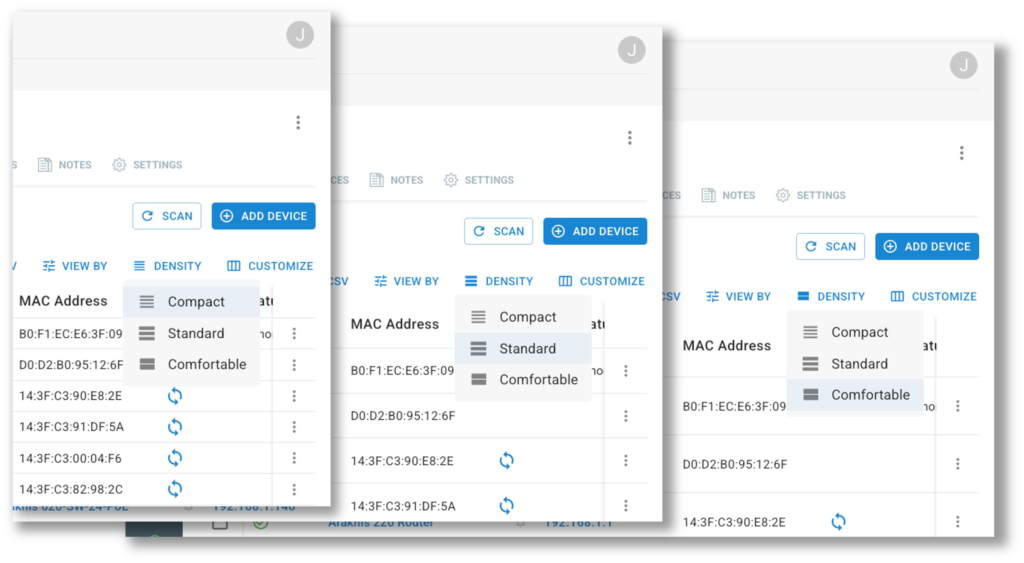
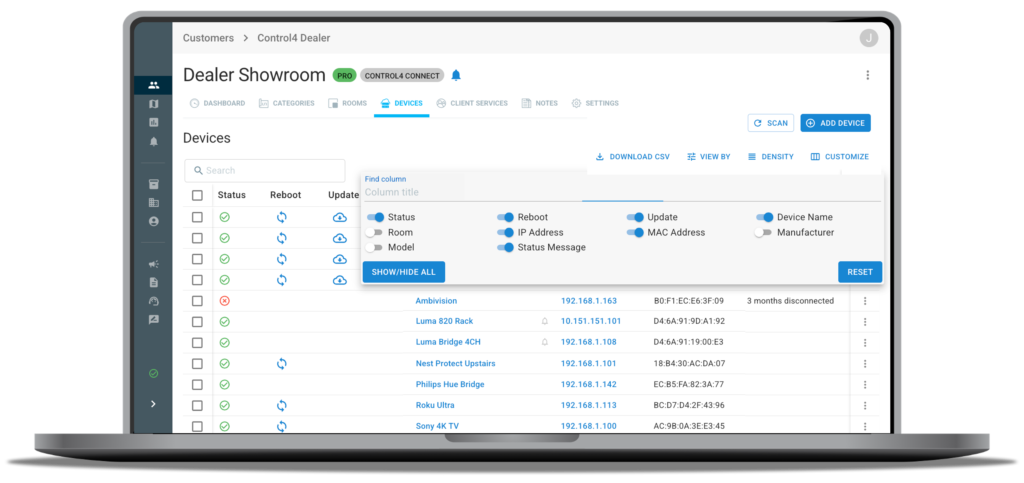
OvrC has also be updated to help you access and use that data more efficiently. Check out the new smart and sticky features that you won’t be able to live without:
Data is only as useful as it is to find, so we’ve figured out a solution to declutter the Devices List: the Automatic Removal of Locally Administered Address (LAA) devices:
LAA devices are mobile devices (iPhones, iPads, Android, etc) that override their burnt-in MAC for a locally assigned MAC that changes once a week to prevent tracking and help protect consumer privacy. Some LAA devices are listed as Unspecified in OvrC, but not all Unspecified are LAA devices.
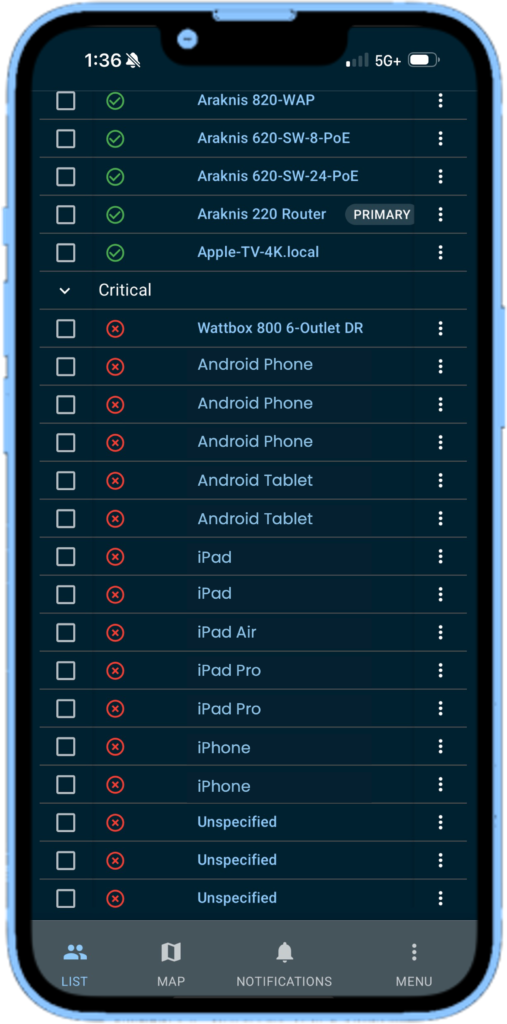
OvrC App update v7.6.1 introduces a new way to discover new devices, while also providing more correct and complete device information.

A new REPORTS Page has been added to the Left Navigation Menu in OvrC, that provides a customizable and downloadable dashboard overview of your Control4 Customer systems and accounts. If are a Control4 Dealer and do not see REPORTS in the OvrC menu, make sure that you have linked your Control4 Account to OvrC.
Listed between MAP and NOTIFICATIONS in the CUSTOMERS section of the OvrC menu, REPORTS launched with two tab. The SUBSCRIPTIONS tab reports enrollment info and status for customer Connect, Assist and Assist Premium plans. The CONTROL4 ACCOUNTS tab provides a dashboard overview for your Control4 Customer Accounts with customizable columns that include OS Version, (primary controller) Model, Subscription Status and expiration dates, and more.
SUBSCRIPTIONS provides a dashboard view for your Control4 Customer’s subscription plans, including Control4 Connect, Assist, and Assist Premium. The page includes filters for Plan, Month, and Year at the top of the page, metrics and Month-over-Month (MoM) trends, and upcoming subscription renewals.
The Plan Metrics card displays the Total, New, and Canceled Subscriptions registered to your OvrC account. Upcoming Renewals are counted in 30, 60, and 90-day values.

Note: These values are based on the month and year the page is filtered by.
Pro Tip: Use the Control4 Accounts tab to see the Subscription Expiration Date for your Customers.
The Ticket Metrics are the total number of tickets submitted to the Control4 Assist support team and filters them by Unresolved, Escalated, and Resolved. Month-over-Month (MoM) trends are provided beside each ticket type.

The Monthly Customer Insights table displays Customer-specific system and ticket information. Click the Customize button to change the table rows.
Click the Report icon in the Customer’s row to download a copy of the Control4 Insights Report they received for the selected month.


This Control4 Accounts Dashboard helps identify which of your customers are ready for a Control4 OS update, a hardware upgrade, when their service subscriptions are about to expire (4Sight or Connect) or if their controller potentially needs to be restarted, based on the last time it checked in.

Click Download CSV to save a copy of the report as currently displayed.
Click the Customize button to select the most relevant content for your company, or the task at hand.
Columns can be dragged, allowing you to customize the order and create the most efficient view for you.
Customers whose names are in blue have been registered in OvrC, or had their Control4 system claimed through an Account Takeover; clicking their name will take you to their Site in OvrC. Customers not listed in blue are listed in your my.control4.com account, but do not have – or are not yet associated with – an OvrC Site.

Can you explain OvrC? After a decade of use, could you describe what OvrC is, or what it does?
After growing and evolving over the last 10 years, OvrC is no longer just the “free remote monitoring and management platform” that you remember.
Let’s take a look at how OvrC got to where it is right now, give you a peek at what’s coming ahead, and let you decide for yourself: “What is OvrC to you?”
OVRC, A (very brief) HISTORY
2014 – The Humble Origin of OvrC
The platform you know today began as a remote portal for Wattbox outlet control; it was an offsite reboot button. But it wasn’t long after that separate dashboards were created to provide remote access to Luma and Araknis systems. Later, an update to the OvrC platform allowed Partners to group these individual device dashboards together within a Customer’s Site for better organization and easier access.
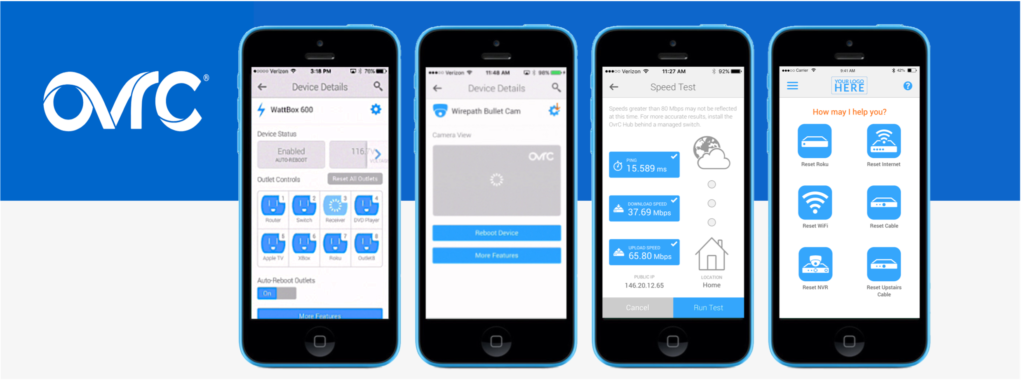
Since then, OvrC has continued to grow, adding new capabilities, expanding to additional categories and integrating with more brands. If you look at the features that got added to OvrC, and when, you might notice that the platform first provided a solution for the most critical needs and worked backwards to the point where OvrC could prevent issues:
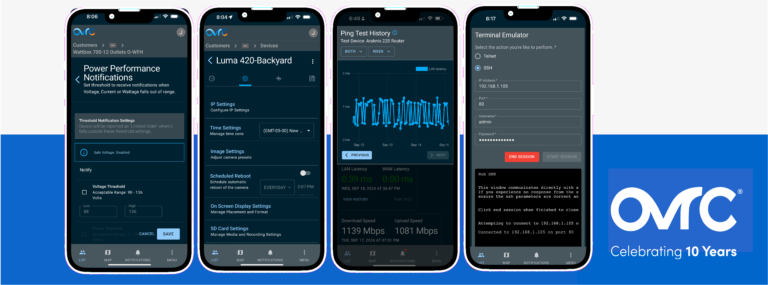
2018 – Expanded Ovrsight with OvrC Pro
This pivotal feature unlocked full remote visibility of all connected devices, Snap One products and third-party devices, enabling entirely new capabilities and functionality. Through the OvrC Pro Agent – hosted on an Araknis or Pakedge Router, a Control4 Controller, or by installing the OvrC Pro Hub – Partners have a persistent secured and authenticated remote connection that provides network access and functionality as if they were locally connected. This higher level of network transparency enables more comprehensive system health monitoring:
Looking deeper, the local OvrC Pro Agent also provides device-level visibility, executing regular scans of the customer’s network to:
The evolution of OvrC has revolutionized the way routine maintenance and troubleshooting of customer systems are carried out, eliminating the necessity for onsite visits while still nurturing strong customer relationships. This has instilled a sense of confidence among dealerships, heightened customer satisfaction through round-the-clock support, and established revenue-generating opportunities for Partners, with high profile case studies like Parasol and Control4 Assist forging the path.
Standard protocols such as SNMP, ONVIF, and PJLink are fully supported, providing advanced device details, enhanced diagnostic data, and troubleshooting support -alongside cloud tools like Ping, Traceroute, log creation, and a terminal emulator for telnet and SSH – for an expanding list of third-party supported products.
Investing into and developing deeper integrations with all all those brands allows OvrC to offer an additional category of functionality: configuration and deployment. Through the OvrC Pro Agent, regular network scans not only discovers devices, but also identifies them as well, automatically populating the device page with information and available functionality enabled through those deep integrations:
That combined functionality, especially when leveraged with other devices and services available on the same network, allows us to develop far more powerful capabilities and much more efficient, streamlined workflows. For example, network configuration and device configuration settings can be auto-pushed to auto-discovered devices, which can then be auto-programmed to execute commands or send automated notifications, all with minimal integrator intervention.
Current generation devices – like the Luma X20 IP Cameras and the Araknis Access Points – are quickly setup in OvrC, and then able to push those settings to other devices on the network. And whether you are using your phone, a tablet or a web browser, OvrC Pro offers streamlined configuration options for complex systems such as:
OvrC is part of the key strategy to increase product adoption and increase sales. Our concept is to use cross category adoption within a project to improve and simplify installation, integration, and troubleshooting through OvrC. The ease and reliability they experience encourages Partners to purchase more brands that feature those deep OvrC integrations, which increases Partner use of the streamlined workflows in OvrC, which increases product adoption, making our Partners more successful.
OvrC offers the most comprehensive range of features and seamless integration, setting it apart as the unparalleled solution for remote management in the market. Use OvrC to streamline installations, optimize processes, and efficiently manage your time and your clients while aggregating information for easy access when and where it’s needed. Post-installation, OvrC can help you proactively maximize uptime, minimize service calls, implement vigilant monitoring and alerts, and enable effortless device and system maintenance. OvrC is your single portal to ensure heightened customer satisfaction and increased customer referrals on their first day with the system.
Take advantage of the powerful platform and features available through OvrC and guarantee customer satisfaction by offering service and support plans to your clients, generating monthly RMR. Pairing the active monitoring capabilities, with automated notifications, self healing capabilities, service tools and immediate access from virtually any device through OvrC’s persistent, authenticated and secured connection.

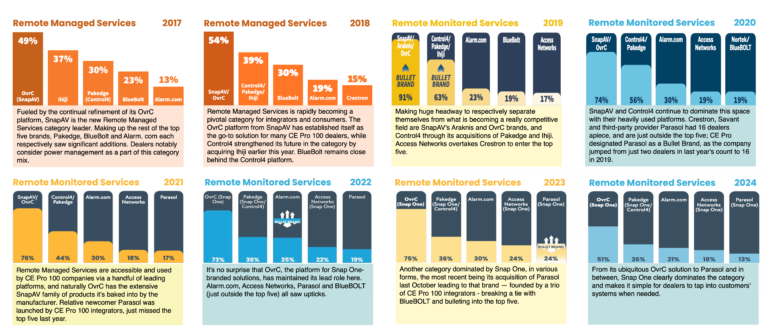

Check out the new Wattbox features in the Power Category: Bulk Firmware Updates and Device Templates with Backup and Restore
This OvrC update will fundamentally change how you use OvrC, making you faster and more efficient device and system configuration, troubleshooting, and device management. These improvements will come about by changing your initial destination within OvrC from the DEVICE LIST to the CATEGORIES PAGE.
Once exclusive to just Control & Automation, Categories is now the consolidated home for the Site Settings, Pro Tools, OvrC Pro Settings, as well as device and sub-system configuration and management. This significant navigational update comes with a toggle button, allowing users to quickly switch between the old and new views. New OvrC Categories will consolidate Partner Tools:
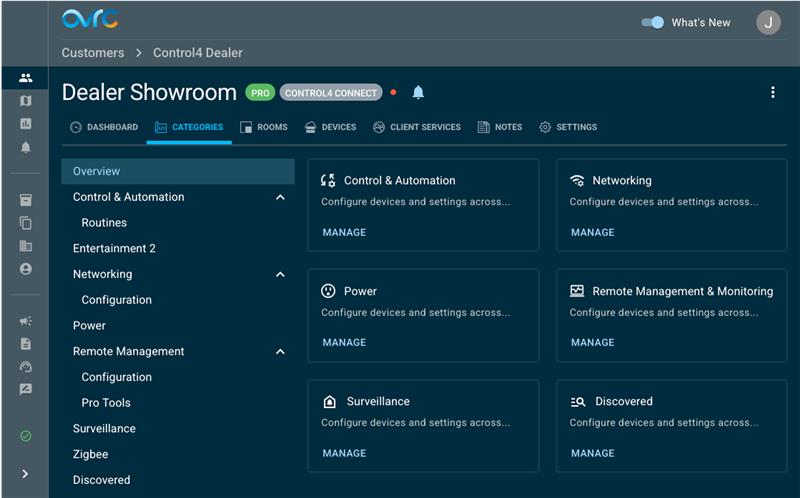
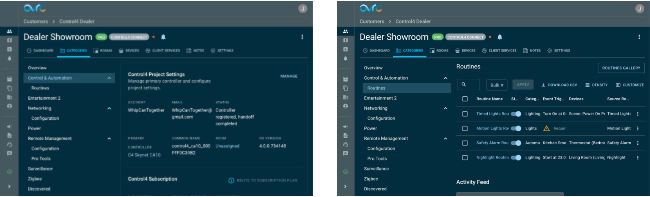
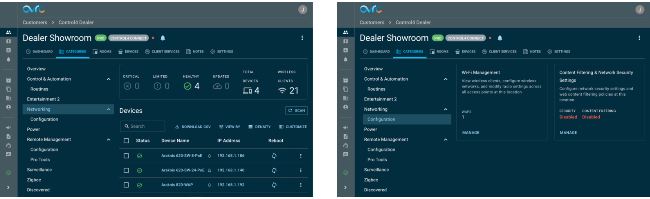
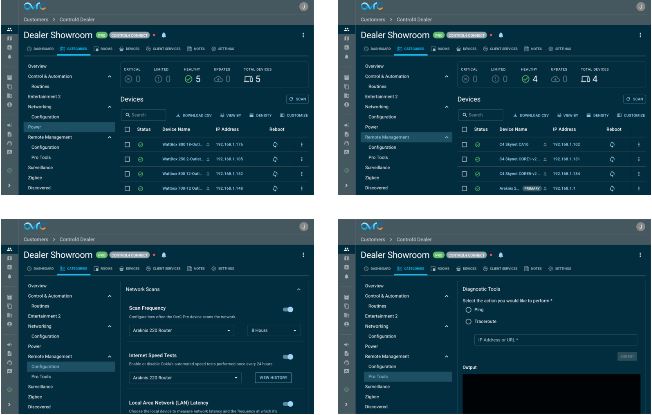
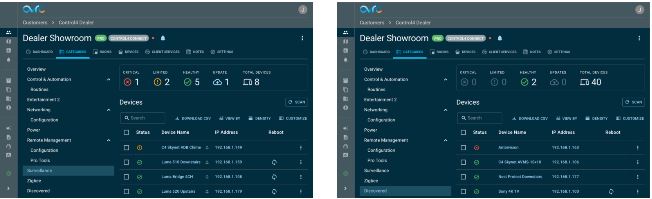

When the need arises due to a corrupt project, failed controller, or a controller update, OvrC now allows you to load a cloud-backup of the project file onto the primary controller – from anywhere!
A new REPORTS Page has been added to the Left Navigation Menu in OvrC, and provides a customizable and downloadable dashboard overview of your OvrC-registered Control4 Customer systems and accounts. If are a Control4 Dealer and do not see REPORTS in the OvrC menu, make sure that you have linked your Control4 Account to OvrC.
provides a dashboard view for your Control4 Customer’s subscription plans, including Control4 Connect, Assist, and Assist Premium. The page includes filters for Plan, Month, and Year at the top of the page, metrics and Month-over-Month (MoM) trends, and upcoming subscription renewals.
helps identify which of your customers are ready for a Control4 OS update, a hardware upgrade, when their service subscriptions are about to expire (4Sight or Connect) or if their controller potentially needs to be restarted, based on the last time it checked in.
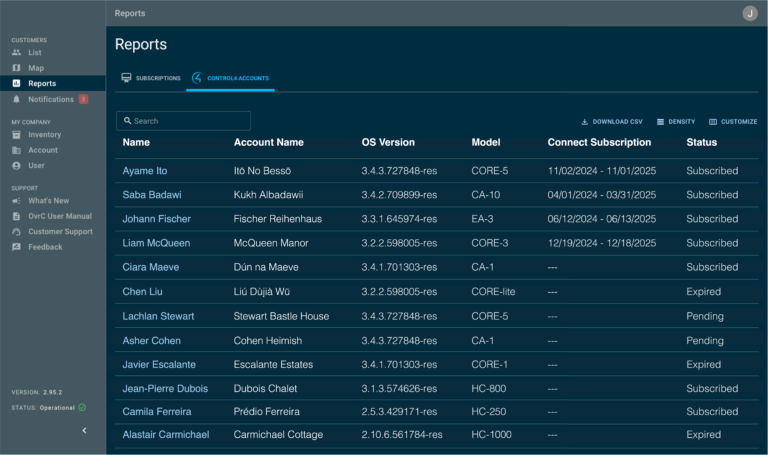

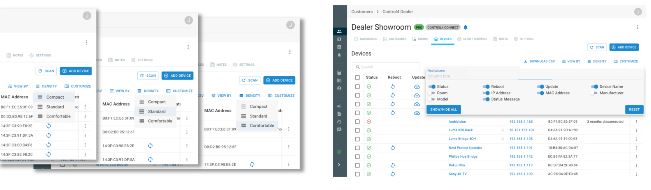
This update introduces MATTER as a discovery protocol to be used during Network Scansin order to provide more correct and complete device information.
Managing firmware updates across multiple access points just got a whole lot easier.
With the new Bulk Firmware Update feature in OvrC’s Wi-Fi Management tool, you can update all your Araknis Wi-Fi 6 APs simultaneously, right from your browser. This saves time during installs and makes managing larger jobs much more efficient.
The Bulk Firmware Update feature, found under Wi-Fi Management in OvrC, makes it faster to commission and deploy Araknis Wi-Fi 6 APs by allowing you to push firmware updates to multiple devices simultaneously. No more updating APs one at a time.
Supported Models:
FAQs
Q: Will this work with older Araknis models?
A: No. The Bulk Firmware Update feature supports Wi-Fi 6 access points only.
Q: Is this feature already live?
A: Yes. The Bulk Firmware Update feature is live now in your OvrC Wi-Fi Management tool.
If you’re installing multiple APs or refreshing firmware, here’s how to take advantage of this new feature in the OvrC Wi-Fi Management tool.

Navigation & Setup
The Bulk Firmware Update blue hyperlink button will only appear if there are updates available. If APs have already been updated the blue hyperlink button will no longer be visible.
Here’s what your Wi-Fi Management tool will look like if firmware updates are available to install:

Once in OvrC Wi-Fi Management:
Remember, the Bulk Firmware Update blue hyperlink button will only appear if there are updates available. If APs are updated already, the blue hyperlink button will not be visible.
We are constantly enhancing OvrC to make your job easier. This is just one example of how we’re streamlining setup and support to save you time and simplify every install.
Stay tuned for additional product lines that will gain Bulk Firmware Update support.
WattBox has just rolled out two exciting updates to the OvrC platform, designed to give integrators more control, flexibility, and efficiency when managing WattBox deployments.
WattBox Faceplates: Now Recognized as Individual Devices
Integrators can now manage faceplates directly within OvrC, reducing complexity in installations when working with the WB-800-FP (Standalone Device) and WB-800ICH1U-IPVM-8 models.
This improvement allows integrators clearer visibility and easier access for setup and management, independent of the connected WattBox units.
Advanced Faceplate Button Customization
Each button on the faceplate B1, B2, B1+B2, and Power- can now execute specific actions across up to three connected WattBox devices. With these new actions, users can perform Discreet On and Off, Reset, and Disable (for added security).
This customization enables integrators to create powerful automation sequences, allowing users to control multiple outlets or devices at the press of a button. This means greater flexibility and control for end-users while also decreasing the number of service calls needed for adjustments.
To get started with these updates, refer to the OvrC guide.
In our mission to provide the best Partner Tools, Snap One� has streamlined the controller registration with the help of OvrC. With this new workflow, you will reap the benefits of enhanced cyber security, temporary credentials for the Control4 App, new customer handoff functionality, and the ability to monitor and troubleshoot from virtually anywhere. It all begins by linking your Control4 account to OvrC, easily accomplished with this step-by-step tutorial.
OvrC's optimized registration process has not only been proven to simplify the deployment process but also increases your capacity to support the end-user. After months of successful use, Snap One invites Control4 Partners to transition all controller registrations to OvrC ahead of the full deployment scheduled for April 23rd. For additional information, step-by-step guides, and more check out the resource page in the Tech Community.
Snap One™ continues to deliver Partner Tools that optimize new project deployments, keep end user information safe, and more efficiently diagnose and troubleshoot existing projects. The OvrC Team invites you to join the open BETA for a newly developed Controller Registration process, brand-new Customer Handoff capabilities, and a new suite of Partner Tools for Control4 projects. Free from Composer Pro, these web-based cloud-built tools can be used locally or remotely from any laptop or mobile device regardless of OS.
Does Snap One plan on charging for OvrC in the future?
Why does OvrC it say devices are offline when they are not?
And Why move local configurations to OvrC?
Those are some of the questions we address in our first-ever Ask Me Anything (AMA) Session.
Answering questions today, we have:
Our mission here is to build trust and to offer some transparency, as we answer questions and respond to feedback that was submitted via our AMA form. We also plucked some questions directly from integrator forums.
https://vimeo.com/837492625/c60348daae?share=copy
Suggested read:
A Great Responsibility: Snap One Invests in Cloud as OvrC Becomes More Essential
Are you interested in shaping our new suite of troubleshooting and diagnostic tools? Then we invite you to join our open BETA test and share your insight on some new tools we are adding to OvrC. Pro Tools can be accessed through the Customer's Site Settings tab, or from the Device Details page for the site's OvrC Pro Device. The new tab in OvrC will provide a more secure, single-point solution for troubleshooting and management and will replace terminal access. Your feedback as a BETA tester is crucial for developing the features that function to your standards and helps us make better tools for you.
WattBox OvrC Enhancements
In our efforts to continuously improve the WattBox experience via OvrC, we have added new features that can be found on the Configuration tab. To take advantage of all the newest features and capabilities, make sure you are updated to the latest firmware version 2.3.0.8.
LED Dimming
Thanks to Partner feedback, we have added an LED brightness control feature on all WattBox devices with Faceplates. Take control of the brightness level of the LEDs on WattBox faceplates using a simple slider in OvrC.
Models with this feature available:
WB-800CH1U-IPVM-8
WB-800-FP
WB-800ICH1U-IPVM-8
WB-800I-FP
Power Performance Notifications
Closely mange power on an installation with Power Performance Notifications. Set thresholds for Voltage, Power and Current. When the device is outside of the set thresholds, it will go into a limited state (not critical, but not green) and send a notification, giving you the control and information, you need.
Safe Voltage Toggle
Now have even more control over your installation. Available on certain WattBox devices, we�re offering the ability to enable and disable Safe Voltage directly from OvrC.
Models with this feature available:
WB-800CH1U-IPVM-8
WB-800ICH1U-IPVM-8
WB-800I-IPVM-6
WB-800IVPS-IPVM-12
OvrC Pro 7.1.0
This release adds enhanced OvrC Pro support for 2022 models of Denon and Marantz AVRs, and extended support for Sony projectors; including detailed device information and remote firmware updates.
OvrC Pro now has enhanced support for Denon AVC-A1H and Marantz AV 10, AMP 10 models, including the following features:
For more advanced configuration, the local web UI of the device can be accessed remotely using the OvrC WebConnect feature.
Additionally, we have added support for select Sony projectors, providing remote troubleshooting capabilities and advanced diagnostics when connected to the network.
Supported functionality for these devices is:
For more advanced configuration, the local web UI of the device can be accessed remotely using the OvrC WebConnect feature.
As always, we continue to evolve our product based on your feedback. Please continue to provide your thoughts and ideas to [email protected] or through the user feedback section of the web and mobile applications. Thanks!
Get access to curated OvrC Connect assets to help get the word out! Our Brandfolder marketing toolkit includes impactful email content, images, and social copy you can use to promote OvrC Connect to your customers. ?
OvrC Pro 6.3.0 brings notable improvements to network scanning and device discovery, as well as additional support for VLAN scanning when using a Control4 controller as an OvrC Pro device. SNMP support is also now available for Access Networks ANX and Ruckus ICX Switches. In addition, both guest network and VLAN management are now configurable through OvrC's Wi-Fi Management.
Discover More Devices
OvrC now utilizes the power of Control4's SDDP (Simple Device Discovery Protocol) technology to discover and identify more devices on the network. SDDP is used by hundreds of manufacturers, including Sony, Samsung, Sonos, and LG, to broadcast the device brand and model over the local network. This results in more accurate naming of SDDP devices and fewer devices tagged as Unspecified.
VLAN Scanning Support for Control4
Based on your feedback after the release of OS 3.2.2, we've added the ability to scan devices across VLANs when using Control4 as an OvrC Pro device. This feature was previously available for OvrC Pro projects using Araknis routers and OvrC Pro Hubs and brings Control4 OvrC Pro systems to parity.
SNMP Support for Access Networks ANX and Ruckus ICX Switches
OvrC Pro adds support for Access Networks ANX and Ruckus ICX Series Switches by leveraging the SNMP protocol. The following features are available for these switches:
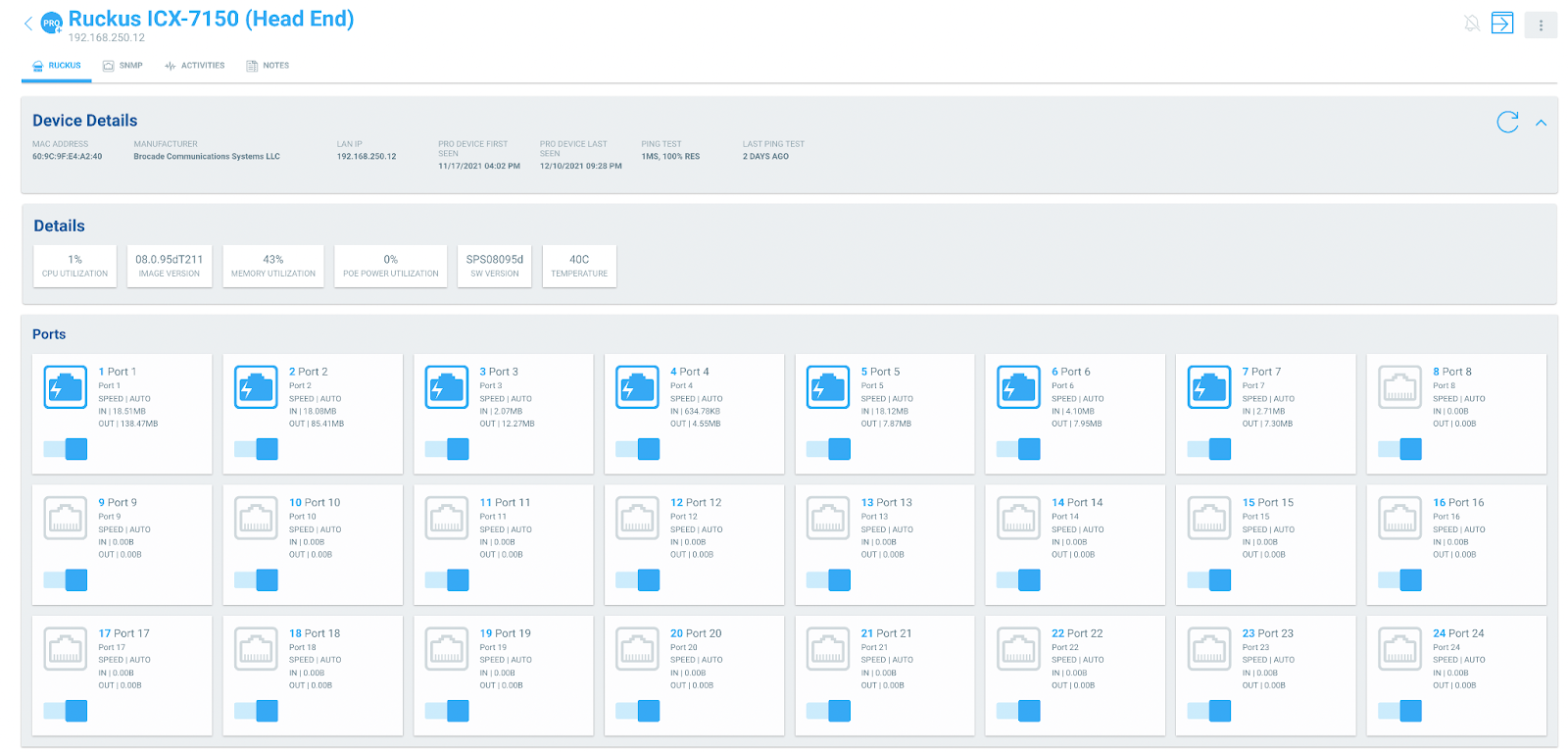
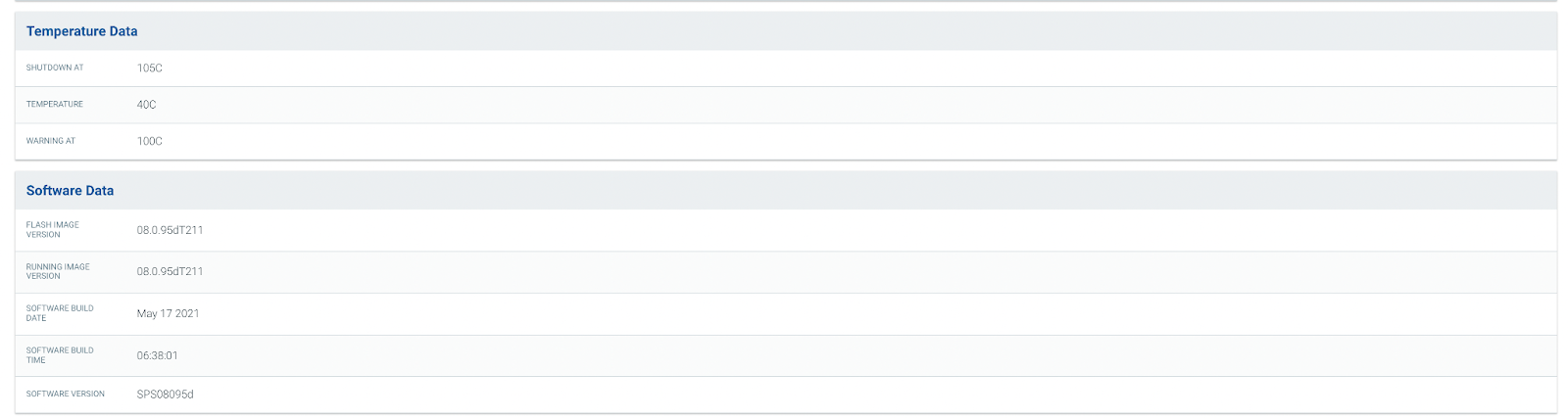
Guest Network and VLAN Support with Wi-Fi Management
We've added more tools and capabilities for Wi-Fi Management, enabling you to fully configure and manage your wireless network from the OvrC platform. The OvrC Wi-Fi Management solution now allows the user to set the wireless guest network and VLAN configurations.
As always, we continue to evolve our product based on your feedback. Please provide your thoughts and ideas to [email protected]. Thanks!
As always, we continue to evolve our product based on your feedback. Please continue to provide your thoughts and ideas to [email protected]. Thanks!
The latest update to OvrC brings improved notification accuracy, fewer notifications with more actionable information, and better UI navigation and features. We've changed the way we monitor third-party devices to significantly reduce notifications. Notifications are now grouped by device to better understand the customer impact and a new Limited device state makes troubleshooting problem projects easier than ever. If you'd like to take advantage of this new feature, please enable it from the User Setting page. Add in all-new User Interface features like project time zones, Job Codes, and fault tracking with Reference IDs, and you'll see improved workflows when using OvrC every day to better your business.
New Notification Engine
We've changed the way we monitor third-party devices to reduce notifications significantly. This increases the relevance and accuracy of alerts, giving you better insight into the health of your projects.
Improved Emails
Now, OvrC email notifications offer more information relating to the health of the project. See previously unresolved events with timestamps in the local time zone and a Reference ID to track the fault.
More Actionable Information
Changes in device state are now grouped using a Reference ID, providing visibility to the time and duration of when the customer was impacted. This provides an easy way to monitor site health.
User Interface Upgrades
A new design to the OvrC User Interface makes navigating your jobs quicker than ever.
As always, we continue to evolve our product based on your feedback. Please continue to provide your thoughts and ideas to [email protected]. Thanks!
There was number of OvrC locations incorrectly reporting that all third-party devices were disconnected dues to an issue that was discovered with the OvrC Pro Application v6.2.0. This release addresses that issue and provides a permanent fix.
Steps to update:
Araknis Routers (AN-110/110W and AN-310) REBOOT REQUIRED
OvrC Pro Hubs (OVRC-300-HUB/OVRC-100-HUB)
Control 4 Controllers (CA-Series and EA series)
Pakedge Routers (RK-1 and RT-3100)
As always, we continue to evolve our product based on your feedback. Please continue to provide your thoughts and ideas to [email protected]. Thanks!
This update includes many improvements and bug fixes. The updated web application is available now. Updates to the mobile app are waiting on final approval from Android and Apple. Please stay on the lookout for notifications prompted on your mobile device to update your OvrC app.
As always, we continue to evolve our product based on your feedback. Please continue to provide your thoughts and ideas to [email protected]. Thanks!
Over-Current Protection (OCP) is a feature built in WattBox units to protect your gear and installation from instances of excessive current. Over-Current Protection in the 800 Series WattBox protects from two types of excessive current:
When Over-Current Protection is triggered, Device Activities in OvrC will differentiate between the two.
Ways to Troubleshoot
For Instantaneous OCP:
If a single outlet is off:
If 3 consecutive outlet groups turn off (1 -3, 4- 6, etc.)
For Constant OCP:
For additional information, please contact Tech Support at 1-888-400-4072 or by email at [email protected]
Last month, we told you about our commitment to resolve issues around false notifications or poor accuracy of the device status (read our last blog here).
Today, we're delivering on that commitment with the release of OvrC Pro Application 6.2.0, focused on improving 3rd party device notifications for OvrC Pro locations, plus several additional enhancements and fixes.
The OvrC Team has improved the platform with a more rigorous process for validating the connection status of 3rd party devices. Our early testing shows up to a 30% reduction in the quantity of 3rd party device notifications and overall increase in the accuracy of device status.
In the coming months, we have several releases planned to improve the quantity, accuracy, and relevancy of notifications for OvrC-enabled and 3rd party devices.
Additional Enhancements
Resolved Issues
window.
OvrC Pro App Version: 6.2.0
Models & Firmware Version:
Note: The AN-110W-RT and AN-110-RT routers are not included in this release. In order to take advantage of these updates, the OvrC Pro device (OvrC Hub or Araknis X10 router) will have to be rebooted in order to retrieve the updates.
As always, we continue to evolve our product based on your feedback. Please continue to provide your thoughts and ideas to [email protected]. Thanks!
We know OvrC is critical to your business and for supporting your customers. We understand your pain points and frustration caused by excessive and/or erroneous notifications. Our OvrC team is in the process of making improvements to the servers and how the platform handles notifications.
This week, we discovered a time synchronization issue across our many servers, creating a conflict between connect and disconnect times. Yesterday, we corrected this and as a result have seen an immediate reduction in false notifications.
In the next couple weeks, we'll be releasing an update that introduces the first phase of several notification improvements in store in the coming months, including improving the quantity, accuracy, and information included to make notifications more actionable. Stay tuned - more details to come.
Thank you for your continued support of OvrC and your patience as we work to make the platform even better.
Please continue to provide your thoughts and ideas to [email protected].
OvrC application updates fixes bugs and improves user experience.
The latest update to OvrC addresses several requested improvements and bugs reported by our partners. Many of the improvements are focused on the recently released Wi-Fi Management feature. We listened to customer feedback and wanted to be responsive. No action is required on your part other than to enjoy the improvements and continue to report more through the User Feedback section of the app (web and mobile).
As always, we continue to evolve our product based on your feedback. Please continue to provide your thoughts and ideas to [email protected] or through the user feedback section of the web and mobile applications. Thanks!
OvrC Pro product integrations have been added to provide enhanced diagnostics data and troubleshooting for Sony Bravia TVs, Denon, and Marantz products giving customers greater intelligence and capability remotely.
Other enhancements include: OvrC Hubs now support HTTPS, updated interface for Samsung TV for consistency with other TVs, and updated Control4 UI to remove repetitive and unimportant information. Lastly, as of this release, you are now able to view the OvrC Pro application version for devices running OvrC Pro.
Important Note: In order to take advantage of these updates, the OvrC Pro device (OvrC Hub or Araknis X10 router) will have to be rebooted in order to retrieve the updates.
We have separated the OvrC Pro application from the host device's firmware. This separation allows faster releases of OvrC Pro, giving customers the benefit of new features and bug fixes more frequently. In fact, this update is our fourth update this year. In this release, 6.1.0, the OvrC Pro application version is now visible in the device details page.
We are proud to add Sony Bravia TVs to the list of products that provide deep integration when used with OvrC Pro. The integration is available on Bravia models that are Android TV based and have a model number ending in "D" or higher. Remote troubleshooting features include: view MAC address, ping test, model number, software version, serial number, mute on/off, power saving mode, power status, source, volume level, outputs, and selected inputs.
OvrC Pro now supports 2020 models from Denon and Marantz. This includes the following models: Denon AVR-S960H, AVR-X3700H, AVC-4700H, AVR-X4700H, AVC-X6700H, and Marantz SR7015. With the release, these models will now report HDMI 2.3 in addition to HDCP 1.4.
(Note: At the time of this release, OvrC Pro 6.1.0 features will only be available when using the OVRC-HUB-100 or 300 devices and AN-310 routers running firmware version 1.1.64 or higher. The AN-110 router will continue to run 5.0.3 and will receive an update separately at a later date.)
As always, we continue to evolve our product based on your feedback. Please continue to provide your thoughts and ideas to [email protected]. Thanks!
Andrew Wilson with Paragon Systems Integration and Aaron Zumbusch with Technology Design Associates, both Service Managers, discuss how they've utilized the new OvrC in their daily business to better serve their customers.
Watch this short video podcast to hear from Victor Gurel from Custom Electronics, Inc., as he joins the OvrC team to talk about the benefits of remote management. Whether you've been using remote management for years or are just getting started, check out this video for advice on how to grow your business and support your customers with OvrC.
Watch this shortvideo podcast of the team discussing the new OvrC updates!
5:12 How dealers impacted the new OvrC
5:59 How to submit feature requests
7:33 How extensive was beta testing?
7:59 The biggest change to OvrC
9:20 About thefull-featured mobile app
12:27 What network productsshould I use with OvrC?
14:37 What happens toBakPak and Ihiji users?
15:48 Early Access Beta forOvrC on Pakedge
17:24 No dealer leftbehind!
18:20 More deviceinformation, faster
23:11 Why we're excited forthe future
In this OvrC Pro Hub firmware release, we are introducing a number of additional product integrations that empower you to do more through OvrC. These integrations include brands like Samsung, Pioneer, Denon, Marantz, SurgeX, and more.
Reboot the device, control input, mute, and power. View power, TV, video, app, and cabinet status. View Art Mode on/off status.
Turn the device on/off, switch inputs, mute toggle, view system and zone info, and view volume/mute status.
(NR1509, NR1609, SR5013, SR6013, SR7013, AV7705, AV8805, SR8012)Control zones, reboot the device, view HEOS Data, system info and zone info, access HDMI Diagnostics and web setup UI.
(AVR-S640H, AVR-S740H, AVR-X1500H, AVR-S940H, AVR-X2500H, AVR-X3500H, AVR-X4500H, AVR-X6500H / AVC-X6500H, AVR-X8500H / AVC-X8500H)Control zones, reboot the device, view HEOS Data, system info and zone info, access HDMI Diagnostics and web setup UI.
UPS - Reboot the adapter, view basic UPS info, network settings, and email settings. Remote Portal - Control outlets, view energy data and outlet status. Axess Elite - Control outlets, reboot the device, view energy data, outlet status, settings, services, triggers, and users.
Switch control and view device info.
Discover lights/scenes, view groups, scenes, schedules, and sensors.
View device name, model, build version, cast revision, time settings, and whether there is an update available. Reboot the device. In addition, see the Wi-Fi network that it is connected to with its signal strength, along with all the other Wi-Fi networks that it can see. To see the complete list of product integrations, visit the �Product Integration� section on the OvrC Pro product page:https://www.snapav.com/shop/en/snapav/ovrc-hub/ovrc-pro-lifetime-license--gigabit-hub-ovrc-300-pro
These new integrations will not be immediately available on Araknis X10 routers, but will be implemented with a firmware update in the near future. We consistently evolve our product based on your feedback, so please continue to provide your thoughts and ideas to [email protected]. Thanks!
If you are tired of lengthy network setup and app configuration, check out LumaLink. It is our streamlined point-to-point (P2P) remote access service which lets you access all Luma recorders under one OvrC account. Watch this video to learn more.
For our first release of the summer, we're adding a highly requested feature: Employee Role Permissions. This new feature allows you to control which customers and locations each employee can access.This is especially useful for limiting new employees who are in training, setting up technicians who work in certain areas, or balancing workloads when a technician is on vacation.To set up Employee Role Permissions, log in on the tablet or desktop app as an Owner or Administrator, and follow these steps:
We have more updates rolling out every few weeks, so make sure to keep OvrC updated on your phones and tablets to access the newest features.
Our March release is packed with new features, including Customer List Filters, new OvrC Pro features in the Hub, and Hub configurations in OvrC.
Customer List FiltersNo more scrolling through your long list of clients to find the exact one that needs your attention. With new Customer List Filters, you can quickly sort your client list. Find customers who are Pro-enabled, who have one or more firmware updates available at that location, or who have one or more devices offline.
Network Troubleshooting Tools Ping & TracerouteNetworks can be tricky to diagnose. Use the updated Ping tool to troubleshoot specific devices, or the new Traceroute tool to identify sources of network latency, whether the latency is internal, due to a lagging ISP, or caused by the actual content provider.
SNMP Information from DevicesWhen troubleshooting, access to key device information is critical. We�ve added the SNMP protocol to the Hub to help you see more information on most network switches and some networking products, including device name, description, uptime, and network interfaces with its relevant stats.* *For SNMP-capable products, make sure SNMP is enabled.
SSH & Telnet Access to Your DevicesFor many connected devices, you needed to access the command line interface for enhanced diagnostics and troubleshooting. Now, you can establish a remote SSH or Telnet connection to any device using the in-browser tool.
Control4 and Crestron IntegrationsControl systems are at the heart of an AV system, and dealers need to have remote access to them. That's why we've completed the initial integration to Control 4 and Crestron systems.*View more information about those systems, its sub-systems (ex: C4 Zigbee devices), and even soft reboot the processor, if necessary. The best part is that this works without any configuration or setup! You do not need to install a driver or module on the control system to make this work. *With this update, we are no longer supporting the OvrC Pro Control 4 driver that was previously available.
Roku, Elk Security, and LIFX IntegrationsWe are starting to explore deeper integrations to products commonly found in client systems. If you have a Roku, an Elk Security Panel, or LIFX LED bulbs in any of your jobs, this can be of great value in troubleshooting issues with those products.
OvrC Hub configurations on OvrCOur previous OvrC Hub firmware v3.0.0.2, released in December 2016, introduced a lot of new ways to configure your Hub. You could scan across multiple VLANs on the Hub, using any number of ports, and at various intervals. Now, you can now do all of this in OvrC without having to go the Hub�s local UI.
Want to learn more about these features or want to see a live demonstration of them? Join me and Chris Allen for a short 30 minute webinar at 4:30PM EST, Wednesday 3/15/17 OR 11:30AM EST on Thursday 3/16/17.
Register here
This is just the beginning of our upgrades to the OvrC platform. We'll continue to introduce new features and evolve the platform based on your feedback. Check back in late April to see the other upgrades we�ve got brewing!
Once you do this, the Control4 processor will show up as offline in OvrC don't worry, this just indicates that OvrC is not getting communication from the driver. Within 24 hours, you'll see the Control4 processor show up in your device list as a Hub-found device. With this change, there will be two small feature gaps: 1.) You won't be able to access the soft reset capability through OvrC Home, and 2.) The Control4 processor will show up in your device list as a Hub-found device with limited information. We'll get this, along with other information, on OvrC as quickly as we can.
SnapAV's CIO, Joe Topinka, outlines the OvrC outage that took place on January 17th, the lessons learned and the next steps.
There's never a good time to have an outage, and this week's event with OvrC was no exception. You may have noticed intermittent problems with devices connecting and disconnecting to the OvrC Cloud. Our issue was with the way devices were connecting to our servers on Amazon's AWS platform. There is nothing more stressful for me and for our team than when we don't deliver a positive experience to you and your customers. So, I want to apologize to you personally for any impact we may have caused, and share more details about what happened. That way, you have insight as to how we're preventing similar situations from reoccurring. As dealers, you have many choices for Remote Management Systems, and it is the OvrC team's job to earn and keep your trust.
Before we get to Monday's outage, let me talk a little about how OvrC is built, so you understand how the platform has been constructed. As a solution, OvrC was designed to be scalable and fully redundant. In the past year or so, the growth of devices, locations, and dealers on our platform has exploded we doubled the number of devices and locations we manage, and have added thousands of new devices and locations per month. Because it's horizontally scalable, it uses servers and services to flex and match that corresponding growth in devices, locations, and end-users.OvrC also operates on approximately 150 servers in three redundant AWS environments, each with the ability to operate the full platform. Our servers are architected to handle dedicated functions. For example, specific servers manage device connections to the OvrC cloud, while other servers manage communication between servers, user notifications, event logs, and more. The system is designed to efficiently handle hundreds of thousands of events and messages routinely every hour.Finally, we use a technology on Amazon called Elastic Load Balancers, which helps ensure that we can scale dynamically as we grow. We also use what we refer to as bank level security to ensure that we keep your data and your customers' data safe and secure. We continuously invest in the platform to make improvements and rectify potential issues with the platform.
Around 6:15pm on Monday, January 17, our OvrC operations team was alerted to anomalies on our OvrC device servers. Keep in mind that our monitoring services never sleep they operate 24/7, 365 days a year.After our team triaged the problem, we placed a banner on the OvrC Status page and informed Technical Support about the outage. An assembled SWAT team worked through the night to pinpoint the elusive problem. Together, we made several attempts to address the major issues and resolve the outage. We also called on our partners at Amazon as well as our digital security partner Fortalice to make sure the platform remained secure and safe.Collaborating with operations, our server partners, and other groups, our team worked non-stop through the night and into the evening on Tuesday to resolve this problem.The main issue was finally identified between the Elastic Load Balancers (ELB) and our OvrC device servers. Once we isolated that problem, we implemented configuration changes to correct the way the ELBs and OvrC collaborated server to server, then deployed the fix, and restarted OvrC services.Gradually, as we monitored the system, we watched devices, locations, and customer services return to normal. As we would after an event like this, the team took extra vigilance the next 48 hours to monitor and respond to any residual effects of the incident.
Problems happen. When they do, we try and learn as much as we can, with the sole purpose of improving our performance and solidifying our platform and our processes. Following an event, we take formal time to perform what we call a retrospective, and examine every aspect of our performance. In these sessions, there are no sacred cows. We seek to understand what didn't go well and what did go well, while discussing customer communications, issue escalation, partner performance, and our own team's performance. We have our list but will perform a deeper retrospective on the outage this week. I promise to share any relevant information from that with you in the very near future.
These days, we have become accustomed to system outages from many brand-name companies in almost every segment of the market. I can't promise that OvrC will never have another one and if I did, I know you wouldn�t believe me.What I can promise is that we will communicate any issues to you quickly to make sure you are not left helpless or feeling like you're in the dark when your customers ask questions. We work very hard to make sure that events like this week's outage are rare. However, when they do happen, we pledge to share as much information as we can on the OvrC Status page (status.ovrc.com), and to brief our Technical Support team with the latest information.
We are truly sorry for the impact this outage caused you and your teams this week, and we are committed to communicating any updates or issues to you as often as we can.We are confident in our OvrC platform, our team and our partners. We will continue to make significant investments in OvrC to keep the platform scalable and secure. You have my commitment that we will take the learnings from this event to make OvrC even better.Thank you for understanding, and thanks for your business. Please feel free to reach out to me with your thoughts, comments, or suggestions.All the very best,Joe TopinkaChief Information Officer, SnapAV